11 Best Free Webcam Software for Windows 7, 8, 10 & 11
Do you record live streams, games, webinars, meetings, or screencasts often?
Want to make your webcam videos better?
You are in the right place.
This post lists the 10 best free webcam software you can use today. We cover the pros, cons, pricing, and which OS each one works on.
10 Best Free Webcam Recording Software for Windows 7, 8, 10 & 11
- Vmaker's Webcam Recorder
- Movavi Screen Recorder
- Logitech Capture
- YouCam
- ManyCam
- YAWCAM
- SplitCam
- Windows Camera
- NCH Software
- Apowersoft
1. Vmaker's Webcam Recorder
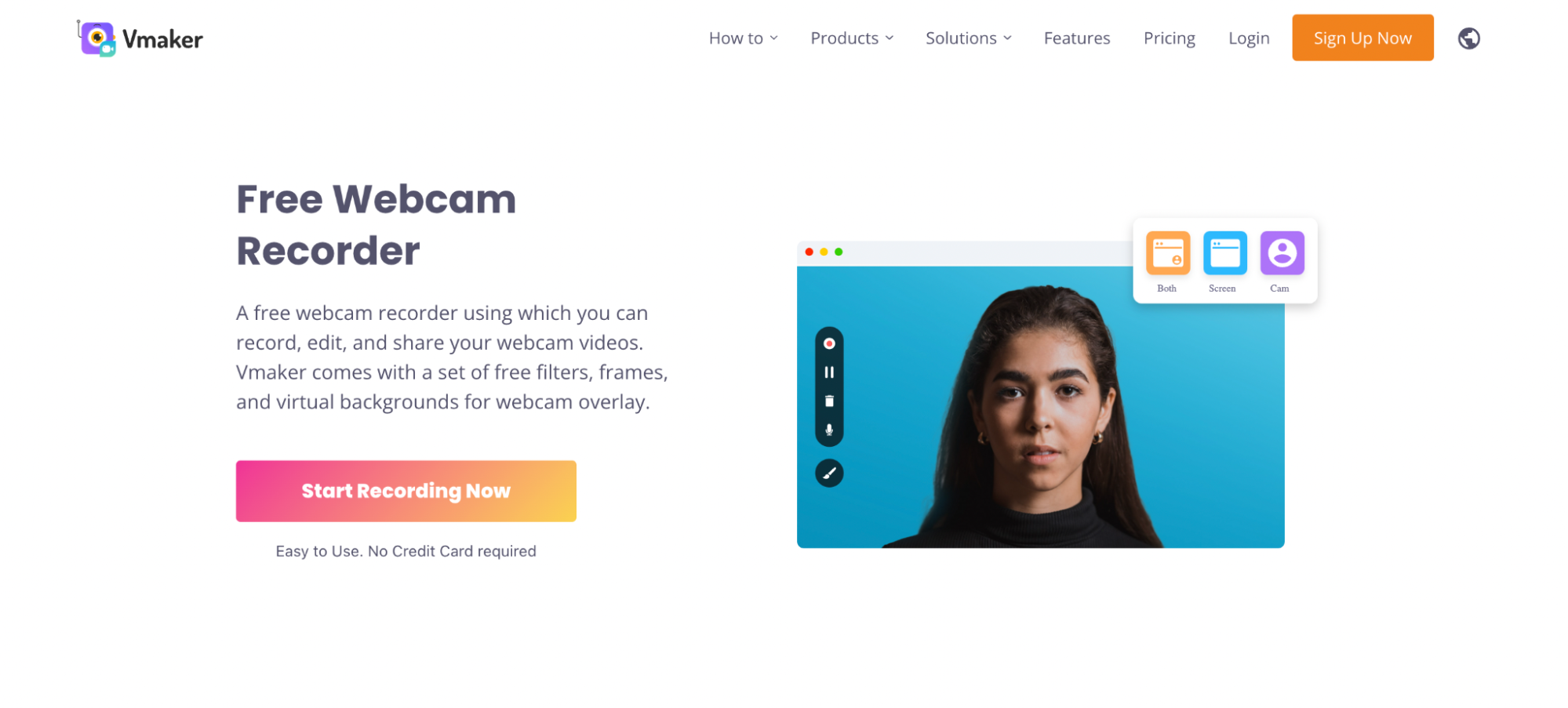
Vmaker is a screen and webcam recorder that captures video at 4K. It comes with virtual backgrounds and lets you add brand colours and a logo to every video. It also has an AI video editor that turns raw footage into a polished video in one click. The editor adds B-rolls, music, transitions, and subtitles for you. It can also cut a long video into short clips.
Formats
MP4
Compatibility
You can use Vmaker on:
- Windows
- Mac
- Chrome extension
- iOS (beta)
Pricing
Vmaker has a lifetime free plan. You can record as many webcam videos as you want.
Paid plans:
Starter: $7 per month ($84 billed yearly)
Team: $10 per month ($120 billed yearly)
Pros
- Built-in screen annotation tools
- AI virtual background changer
- Mouse click highlights
- Filters
- Auto-generated captions
- AI video background remover
- Brand logo on every recording
Cons
None
2. Movavi Screen Recorder
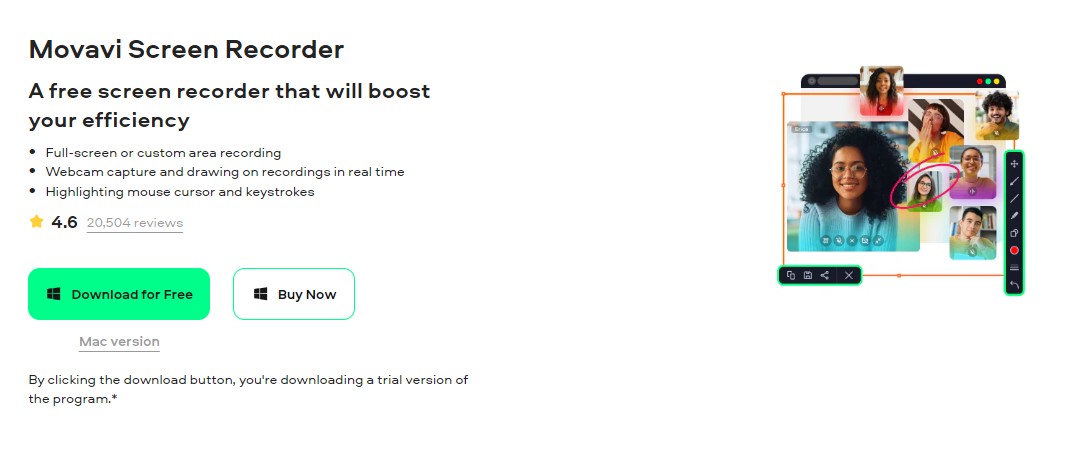
Movavi Screen Recorder lets you capture webinars, tutorials, and Zoom calls in good quality. It works on Windows 7 and above. You can pick a custom frame rate, record audio from many sources, draw on the screen, and even schedule a recording for later.
Formats Supported
- MP4, MOV, AVI, MKV, WEBM, GIF
Compatibility
- Works on Windows and macOS
Pricing
- Free during a trial
- Paid plan starts at $44.95 per year
Pros
- Multiple recording modes
- Drawing and trim tools
- Schedule recordings ahead of time
- Removes mic background noise
- Exports to Google Drive, YouTube, and more
Cons
- The free version is limited and adds a watermark
See a full Vmaker vs Movavi comparison.
3. Logitech Capture
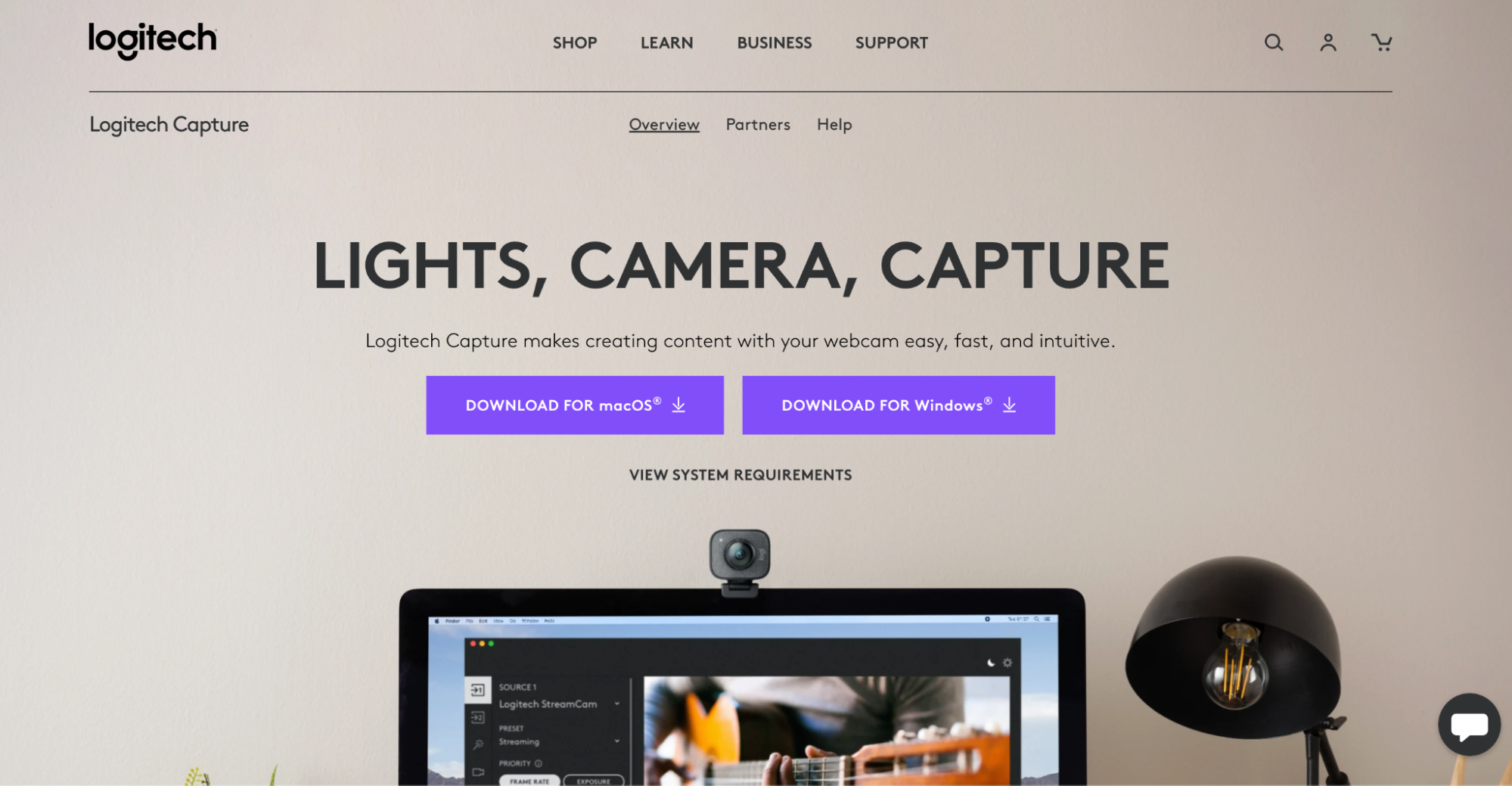
Logitech Capture is built for live streaming and video calls. You can record, edit, share, or stream straight to YouTube, Twitch, Facebook Live, XSplit, or OBS.
It also lets you record from many sources and supports portrait mode for mobile viewers.
Formats
MP4
Compatibility
- Mac
- Windows
Pricing
Free.
Pros
- Portrait mode for mobile viewing
- Takes screenshots
- Good transitions and effects
Cons
Only works with a Logitech webcam.
4. YouCam
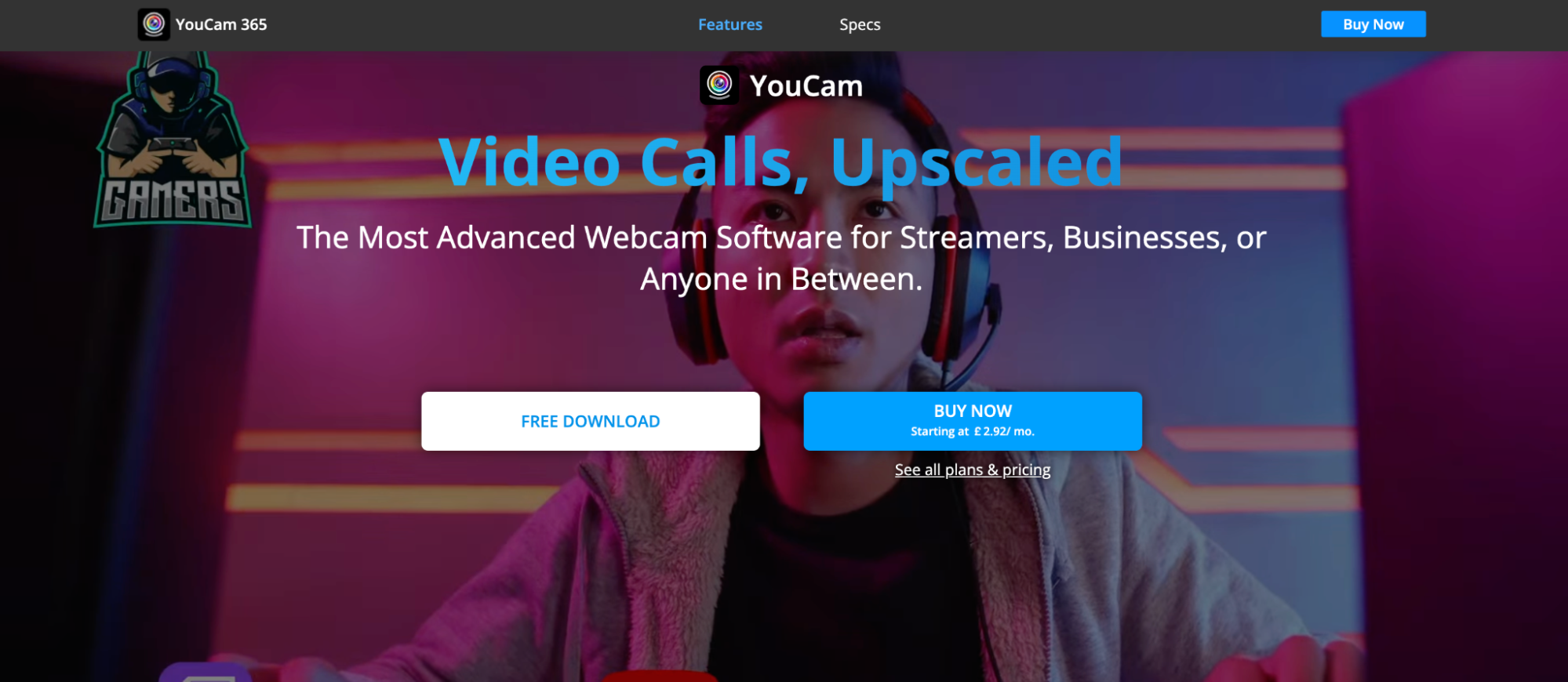
YouCam is a webcam app for Windows 7 and above. It lets you add studio-style effects, overlays, filters, emojis, and stickers to your video.
It uses low CPU and GPU power, so it does not drain your battery fast.
Formats Supported
MP4, WMV, AVI
Compatibility
Works on all Windows versions (7, 8, and above).
Pricing
Free version available. Paid plan starts at $4.16 per month.
Pros
- Apply natural-looking makeup on camera
- Replace or blur the background
- Works with Google Meet, Zoom, and Microsoft Teams
- Add brand logos and promo messages
- Auto face tracking
Cons
- Windows only
- The free plan has very few features
5. ManyCam
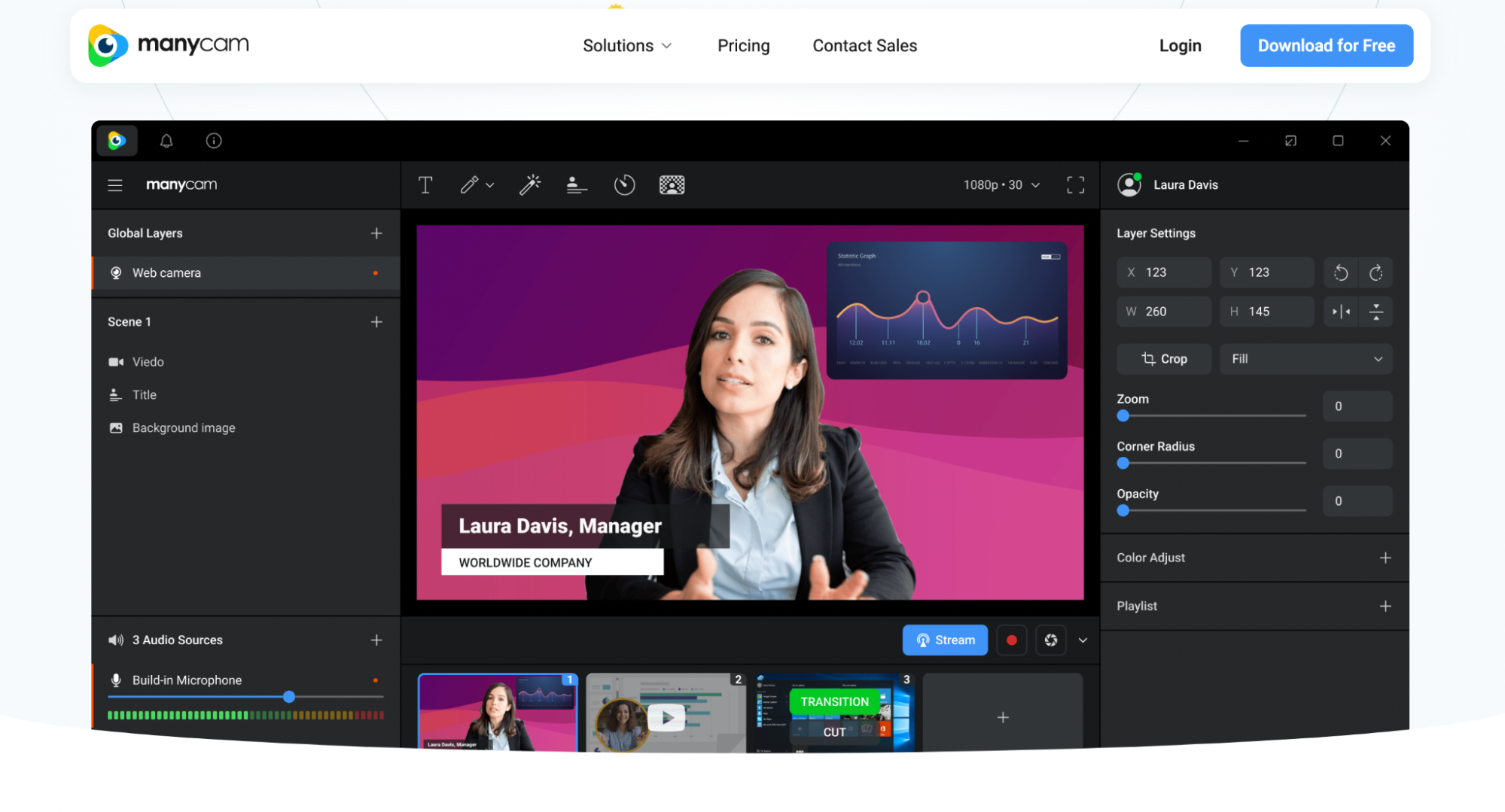
ManyCam is a live streaming app for teachers and trainers. You can add a whiteboard and draw on the screen.
You can also switch backgrounds, add layers, change opacity, and use a green screen with chroma key.
It supports multitasking and RTMP streaming.
Formats Supported
MKV, MOV, MP4, FLV, GIF
Compatibility
Works on Android, iOS, macOS, and Windows.
Pricing
Free version available.
Paid plans:
$35 per year (Standard)
$69 per year (Studio)
$79 per year (Premium)
Pros
- Blur, replace, or change background to image or video
- Works on iOS, Android, Windows, and Mac
- 3D masks and effects
- Remote control for your streaming deck
Cons
- No light enhancement
- Most features need manual control
6. YAWCAM
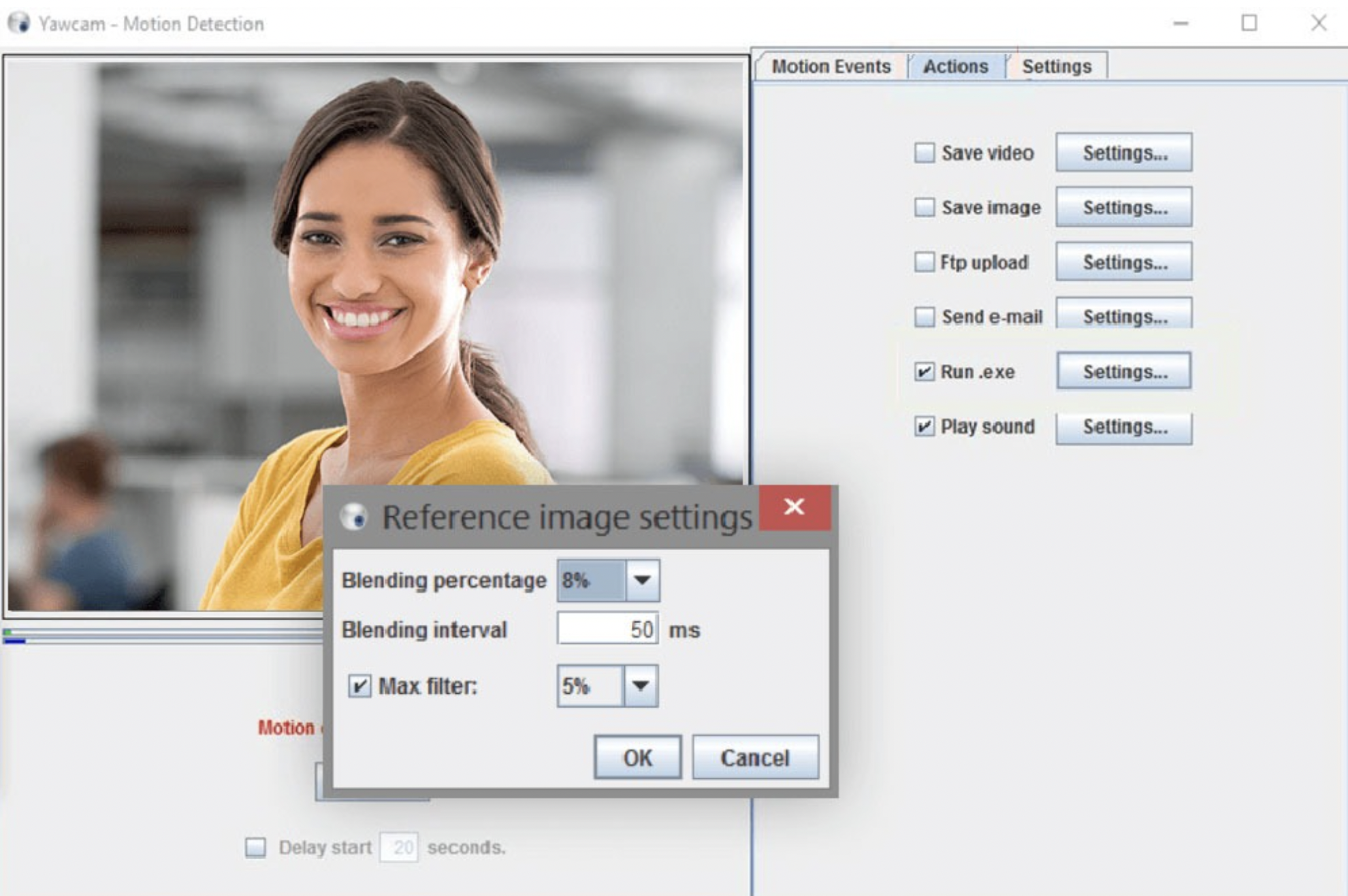
YAWCAM (Yet Another WebCam Software) is fully free and easy to use. It has motion detection, so it alerts you if anyone walks in front of the webcam.
It does not have fancy effects, but you get the basics like image and text overlay.
Formats Supported
GIF, PNG, JPG
Compatibility
Windows only.
Pricing
Fully free.
Pros
- Beginner friendly
- Strong security features
- Online scheduler
- Can make time-lapse videos
- Upload files to FTP sites
Cons
- The interface looks dated
- No built-in editor
- No transitions, filters, or effects
7. SplitCam
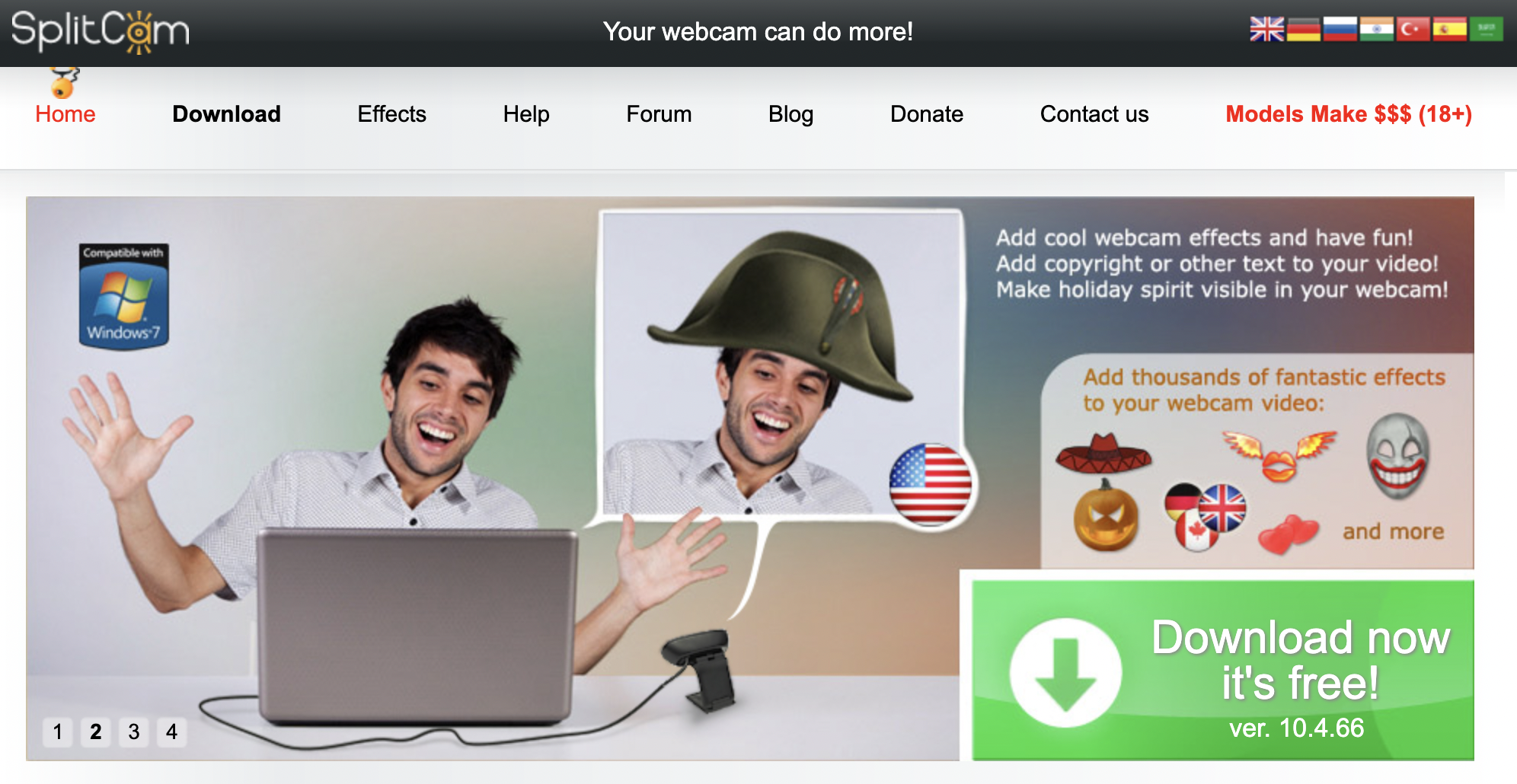
SplitCam is a webcam recorder with effects and 3D masks. It is good for live streaming because it can send one video feed to many apps or platforms at the same time.
It also has a built-in audio mixer to combine and monitor your audio.
Formats Supported
MP4
Compatibility
- Windows
- Mac (beta)
Pricing
Fully free.
Pros
- Easy to use
- Wide resolution range (320×180 to 2048×1536)
- Works with most messaging apps
Cons
- Few file formats
- Mac version is still in beta
8. Windows Camera
Windows Camera is Microsoft's built-in camera app. It has an auto-stitch feature that lets you pause and resume a recording.
Formats Supported
MP4
Compatibility
Windows 10 and above.
Pricing
Free.
Pros
- Simple and easy to use
- Works with Microsoft OneDrive
- Good camera resolution
Cons
- No live streaming features
- No built-in virtual webcam
- Needs an external camera for 4K
9. NCH Software
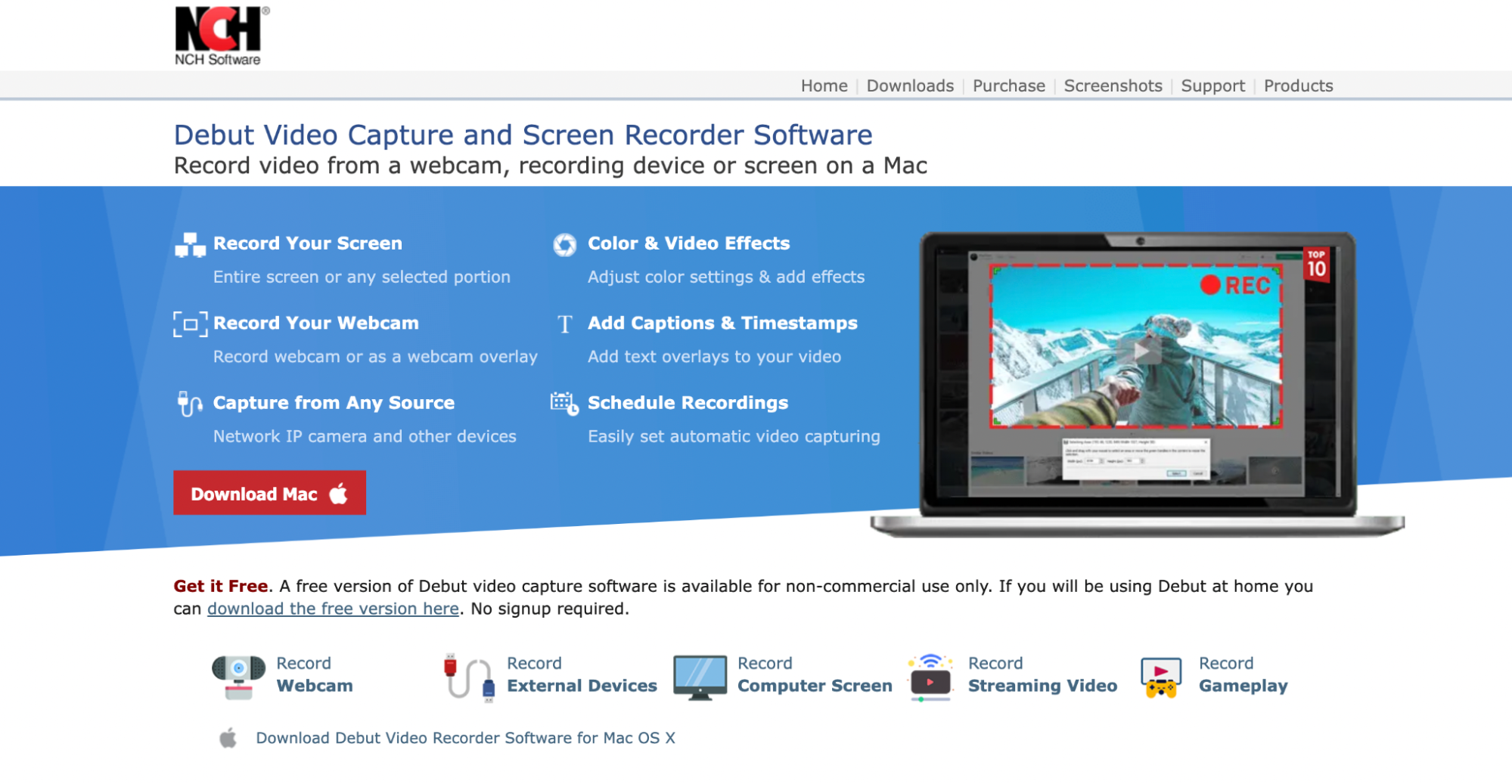
NCH (also called Debut Video Capture) lets you record video from your webcam, screen, or external devices. You can also live stream straight from the app.
You can edit colours, change resolution, and add text overlays or buttons.
Formats Supported
MP4, MPG, WMV, MOV, FLV, AVI
Compatibility
Windows and Mac.
Pricing
Free and paid plans. Paid plans start at $24.99.
Pros
- Wide range of video and audio formats
- Live stream to any social platform
- Built-in editor called VideoPad
Cons
The free version has a watermark.
10. Apowersoft
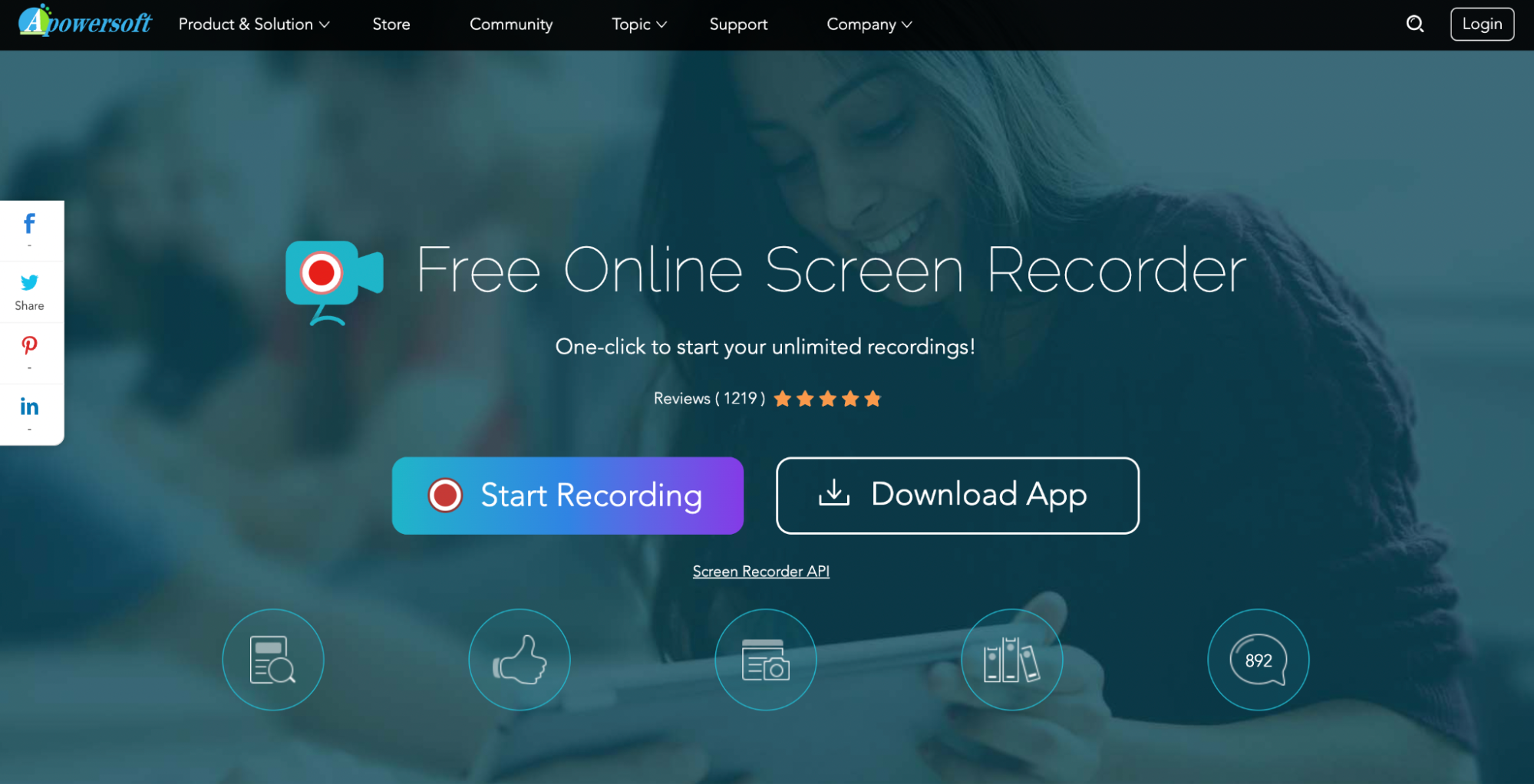
Apowersoft is a web-based screen recorder. It captures both your screen and webcam. You can upload your videos straight to YouTube, Vimeo, Dropbox, or Google Drive.
Even though it runs in the browser, you still need to install a small launcher to use it.
Formats Supported
MP4, AVI, VOB, ASF, GIF, WMV, FLV, MPEG
Compatibility
macOS and Windows.
Pricing
Free and paid plans. Paid plan starts at $59.95 per year.
Pros
- No watermark
- No time limit
- Many output formats
Cons
Not ideal for game recording.
Recommended Readings:
10 Best 4K Screen Recorders For Windows and Mac
How to Screen Record on Windows 10 with Audio
9 Best Free Screen Recorders Without Watermark
10 Best Screen Recorders for Chromebook