Contents
2 Easiest Ways to Record YouTube Live Streams
1. How to record a YouTube live stream on Mac and Windows
2. How to record a YouTube live stream on iPhone
How to Record a YouTube Live Stream: (2 Easy Ways)
Live streaming is one of the easiest ways to engage with your audience.
Today, almost every creator goes live. Gameplay streamers, tutorial creators, interview hosts, webinar speakers, and vloggers all use live streams to stay close to their followers.
Live streams build a real bond. Viewers can comment in real time. Creators can answer back. That two-way conversation is the magic.
But live streams have a downside. Once the stream ends, it is gone. Anyone who missed it cannot watch later. And not everyone in your audience can show up at the same time.
The fix is simple. Record the stream. Once you have the recording, you can share it, repurpose it, and let viewers watch on their own time.
Here is how to record a YouTube live stream in two easy ways.
2 Easiest Ways to Record YouTube Live Streams
- Record YouTube live streams on Mac and Windows
- Record YouTube live streams on iPhone
You can record a live stream with any reliable screen recorder. Pick one that is simple to use and friendly on your wallet.
Note: The walkthrough below uses Vmaker. It is easy to use and has a recording scheduler so you can queue up the recording before the stream goes live.
1. How to record a YouTube live stream on Mac and Windows
Follow these steps to start recording a YouTube live stream.
Step 1: Sign up for Vmaker and install the app. Vmaker comes in two formats: a Chrome extension and a desktop app. Add the extension from the Chrome Web Store, or download the desktop app from the Vmaker site.
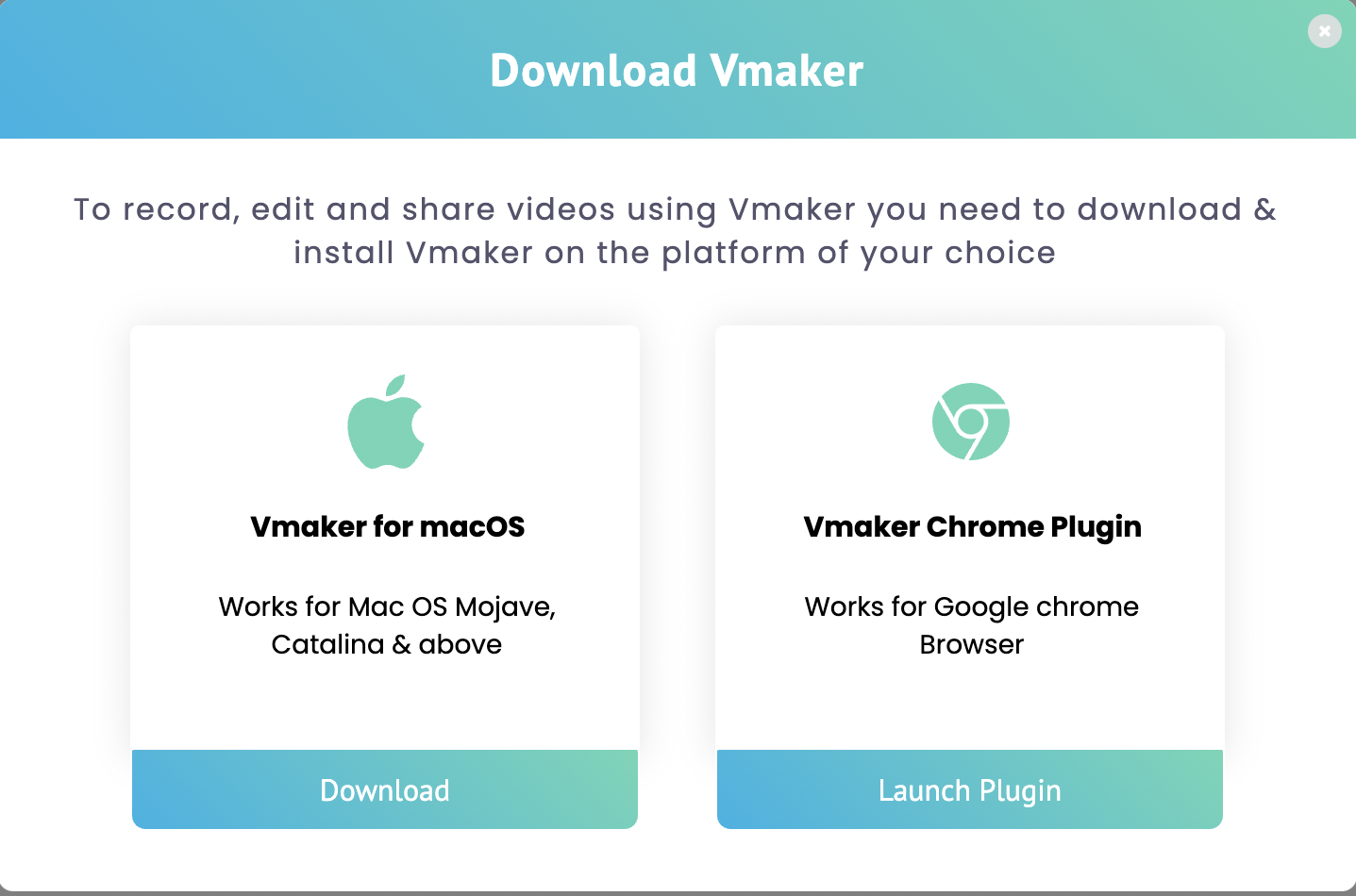
Step 2: Once installed, log in. You will land on the Vmaker dashboard.
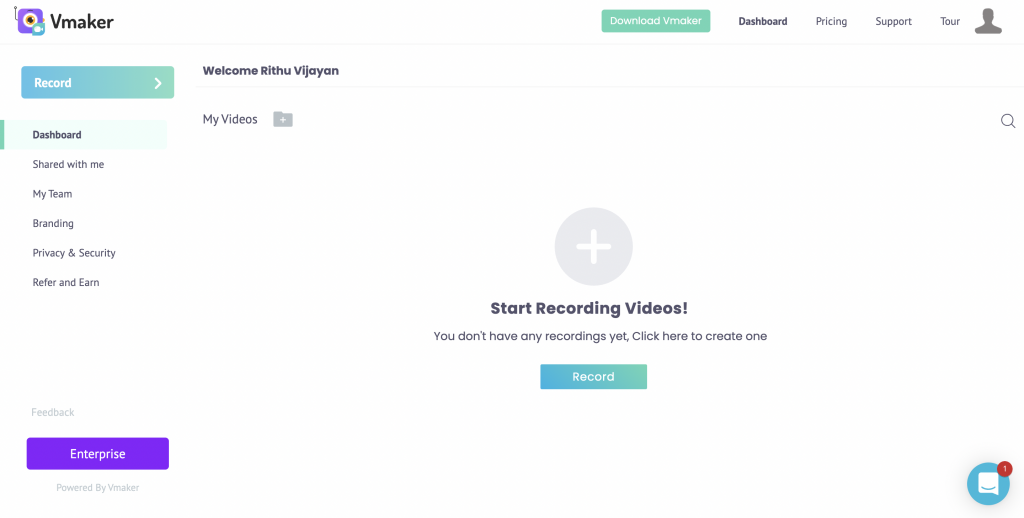
Step 3: Hit the Record button on the dashboard. A small pop-up appears.
Step 4: Set your recording preferences. Then click Start Recording.
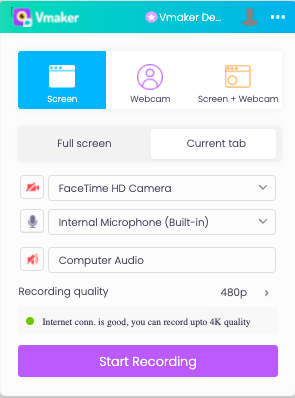
Step 5: Once the stream ends, click Stop Sharing. The recording uploads to your Vmaker dashboard. From there, you can share it or upload to YouTube, Facebook, X, and other platforms.
2. How to record a YouTube live stream on iPhone
You can record a YouTube live stream on iPhone with the built-in iOS screen recorder or with an external app like Vmaker. If your iPhone is too old to update, the built-in recorder may not be available. In that case, the Vmaker iOS app is the way to go.
Note: The Vmaker iOS app is currently in beta.
Here is how to record a YouTube live stream on iPhone with Vmaker.
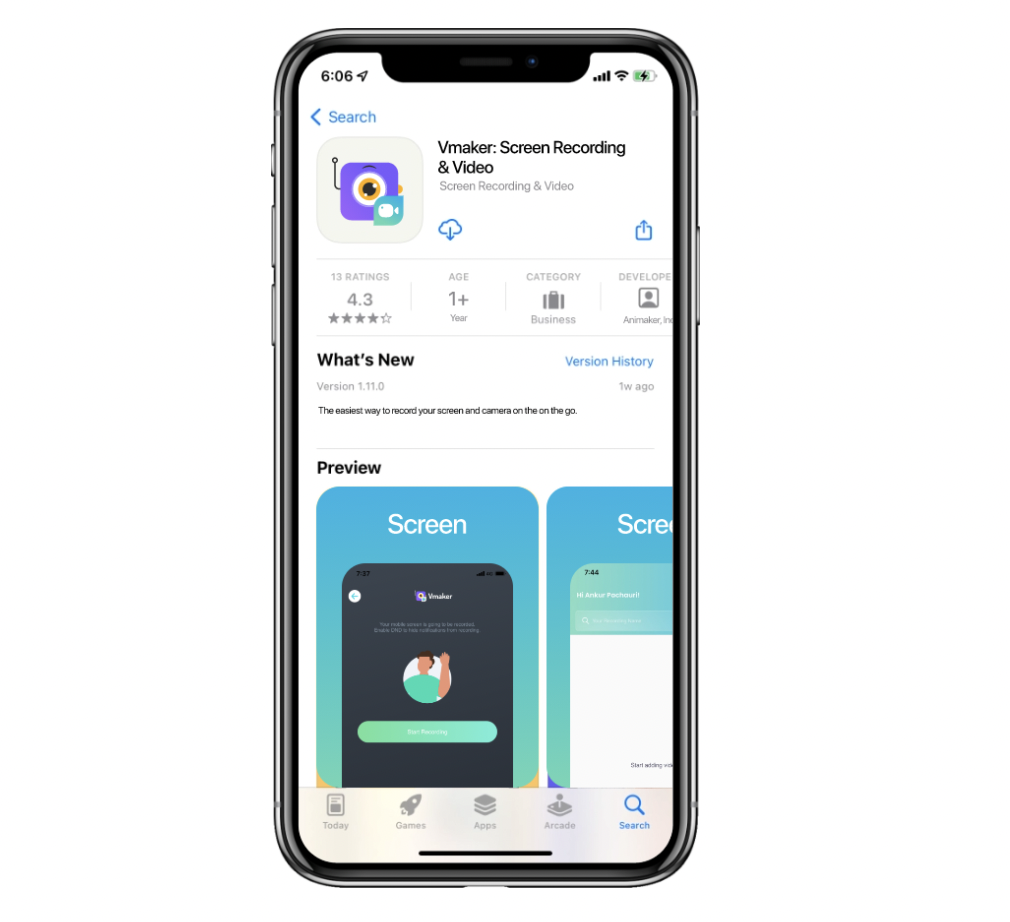
Step 1: Download the Vmaker iOS app from the App Store.
Step 2: Open the app and sign up. Once logged in, tap the + sign and pick your recording mode and audio settings.
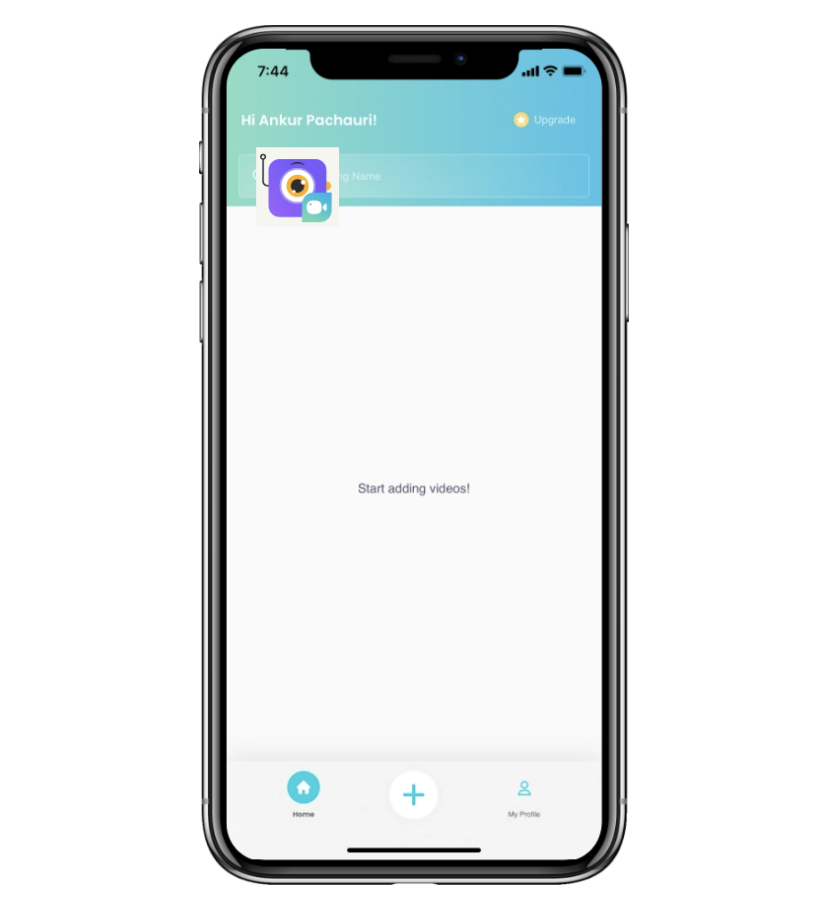
To record your microphone audio, tap the microphone icon.
Step 3: Grant the microphone and camera permissions Vmaker needs.
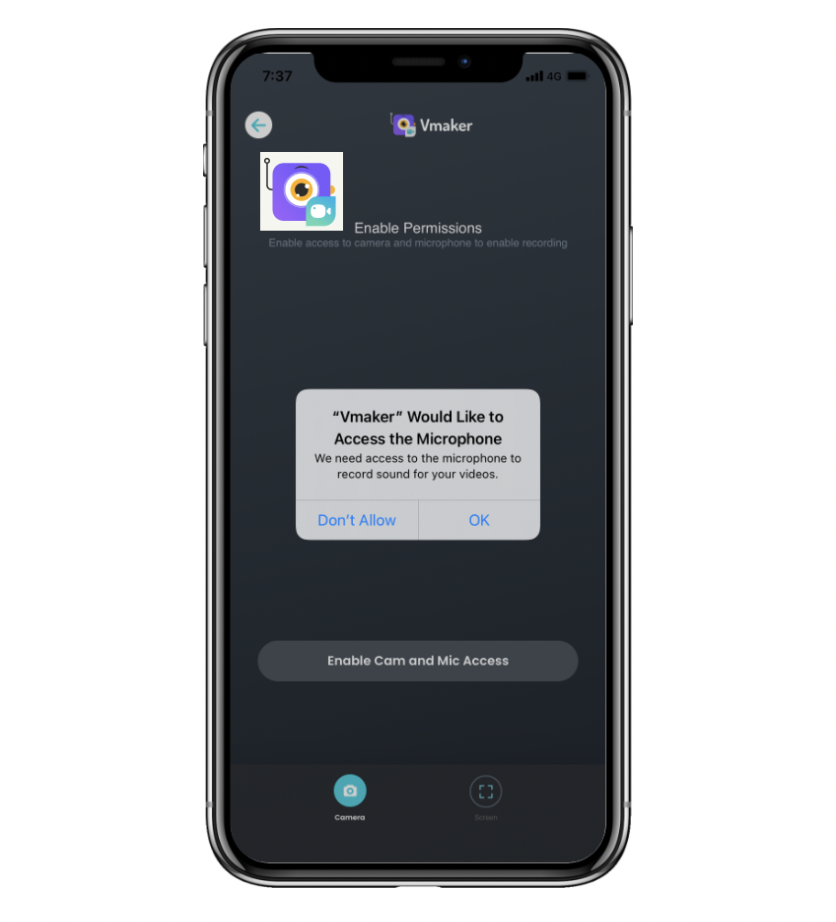
Tweak any other preferences if you need to.
Step 4: Tap Start Recording when you are ready.
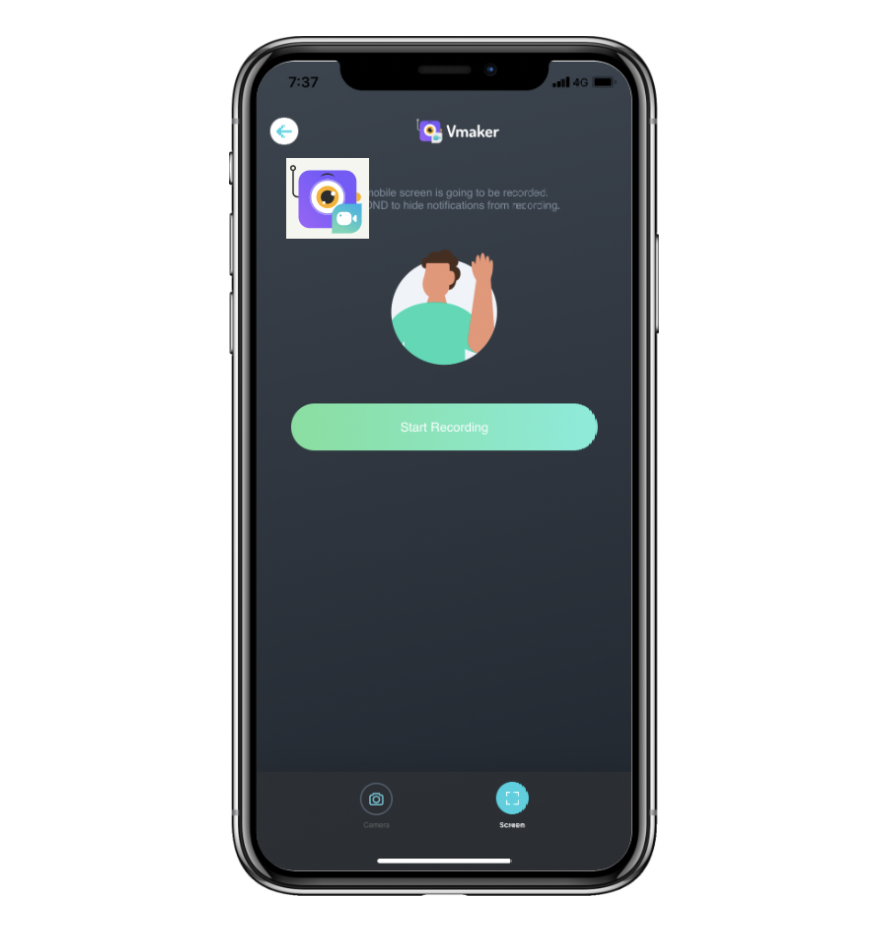
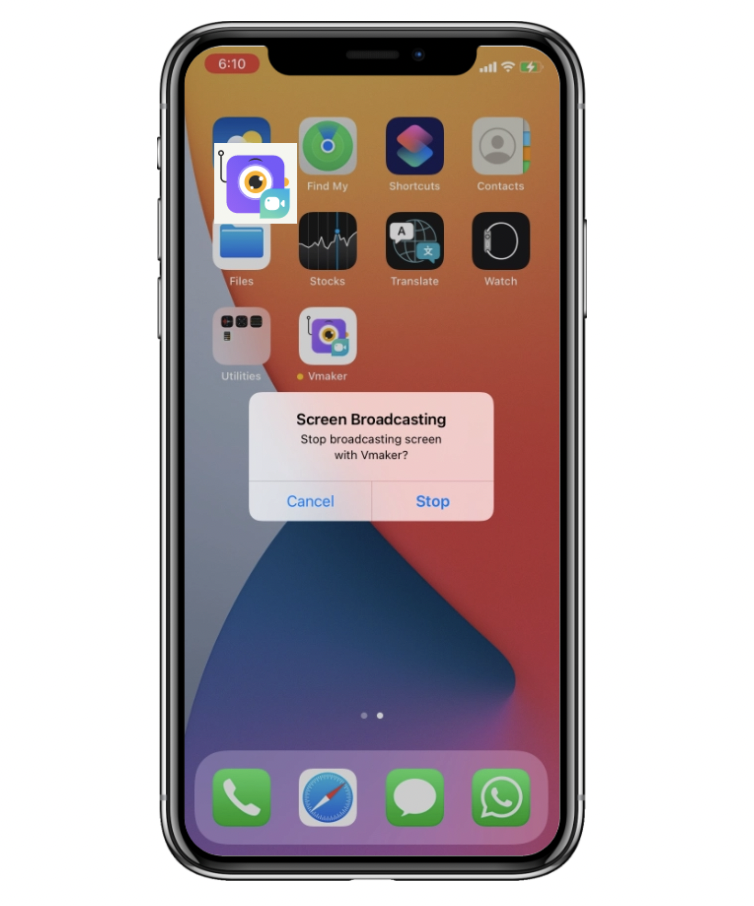
Step 5: When the live stream ends, tap Stop Recording. The recording uploads to your Vmaker cloud account, ready to share or upload to YouTube, X, Facebook, and other platforms.
That covers how to record a YouTube live stream on Mac, Windows, and iPhone. Pick the device you have and start recording.
Want to clean up the recording afterwards? Try our free YouTube video editor. No watermark, no fuss.
Recommended Reads
- How to Write a Video Script for YouTube: A Simple Guide
- Best YouTube Tools and Learning Resources
- 3 Ways to Make Interesting Educational Videos on YouTube
- How to Create Product Review Videos on YouTube
- Learn How a Single Tool Can Help You Create Better Tutorial Videos
- How to Make Money on YouTube: A Beginner's Guide
- How to Get More Subscribers on YouTube (12 No-BS Tips)
- 11 Best YouTube Video Editors (Free and Paid)