
Contents
1. How to record a Teams meeting using Vmaker
2. How to record a Teams meeting using the built-in recorder
Learn How to Record Teams Meeting in 2 Different Ways
Remote and hybrid work have become the norm, and that shift fuelled the growth of video conferencing platforms like Zoom, Microsoft Teams, Webex, and GoToMeeting.
Seeing that growth, tech giants like Google, Facebook, and Cisco launched their own business communication tools.
Each of these tools has its own pros and cons, but many businesses prefer Microsoft Teams because it integrates with other Microsoft applications such as Word, PowerPoint, and Microsoft 365.
For businesses with an existing Microsoft 365 subscription, Teams comes included, which helps them avoid spending extra on a separate video conferencing tool.
If you plan to use Microsoft Teams for your business, learning how to record Teams meetings is hugely beneficial. Recording meetings turns your real-time conversations into reusable resources you can revisit any time, and it makes it easy to share recordings with participants who missed them.
In today's post, we will walk you through two effective ways to record Teams meetings.
How to record a Teams meeting
You can record Teams meetings using either of these two options. Choose the one that suits your requirements.
- Record meetings in Teams using the built-in recorder
- Record meetings in Teams using Vmaker
It is worth noting that the first option comes with limitations. You need to be the host and have specific licenses and approvals. Here is what you typically need to record a Teams meeting with the built-in recorder:
- An eligible Microsoft 365 license (the specific eligible plans are set by Microsoft and can change, so check your plan details)
- Permission from your IT admin
- To be the meeting organiser, in most configurations, to start the recording
If you are a guest, or you do not have the necessary licenses or approvals, you can still get the job done with a screen recorder as explained below.
A note on consent: Before we get into how to record Teams meetings, it is important to note that recording without the consent of all participants is not ethical, and in some places (such as California) it is illegal to record a person without their permission. We strongly recommend you inform all participants and get their agreement before you start recording.
1. How to record a Teams meeting using Vmaker
With this method, you do not need any Microsoft licenses and you do not have to worry about IT admin consent. Once you install a screen recorder like Vmaker, you can create, record, edit, and share any number of videos in a few simple steps.
Here is how to do it.
Step 1: Sign up and install Vmaker
It is completely free to register for Vmaker. Head over to Vmaker's home page and create an account. Once you have an account, you have a few options:
- If you are a Mac user, install the Mac app. If you are a Windows user, install the Windows app.
- If you use Chrome, install the Chrome extension.
- If you are on iPhone, install the iOS app (beta).
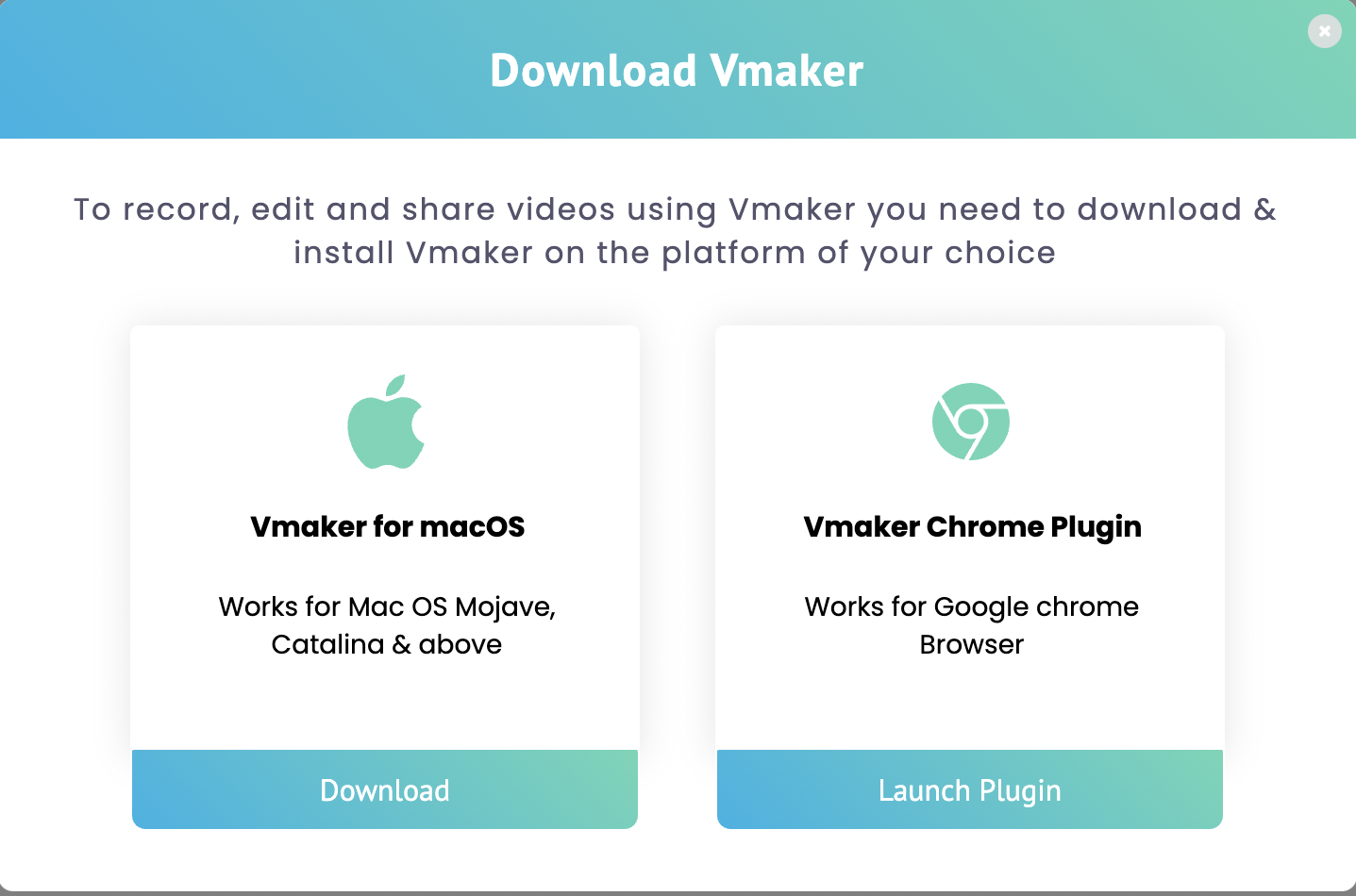
Choose whichever option suits your requirements.
Note: In this example, we will record a Teams meeting using Vmaker's Chrome extension.
Step 2: Pin the extension to your browser
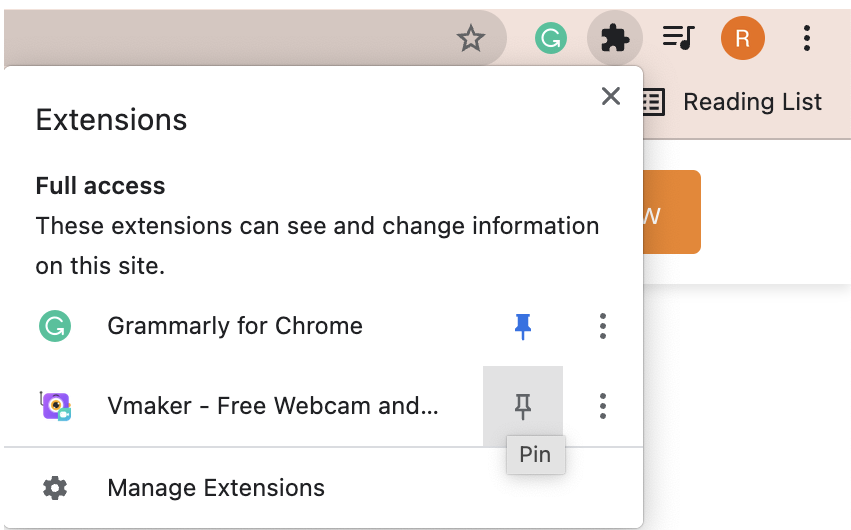
If you are using the Chrome extension, remember to pin it to your browser. This way you can access it whenever you need to record.
Step 3: Choose your recording mode and customise your preferences
If you want to do a test recording first, you can do so by clicking the Chrome extension.
When you click the extension, a small dropdown prompts you to select basic recording options like recording mode and quality. Customise it based on your requirements.
You can go a step further with more advanced features. Click the horizontal dot matrix and choose Preferences.
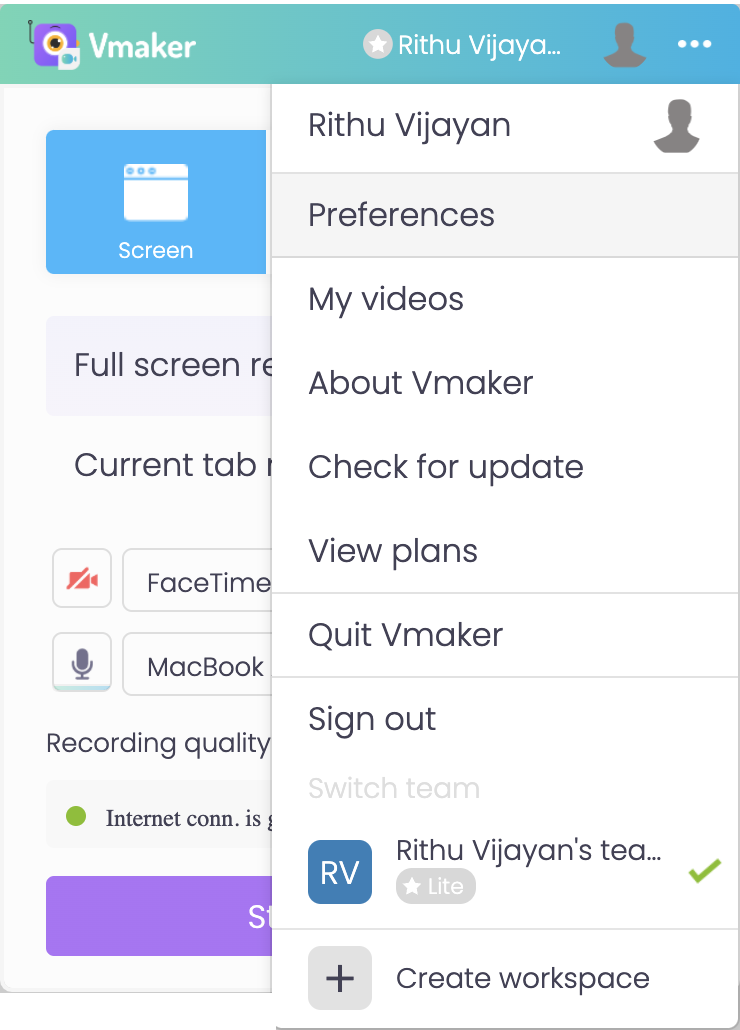
Turn on the internal tab audio so Vmaker captures both internal and external audio. Enable any other features that would enhance your recording.
Step 4: Join your meeting and start recording
Once your preferences are set, join your meeting and start recording by clicking Vmaker's Chrome extension. You will be directed to a pop-up box. Click Start Recording.
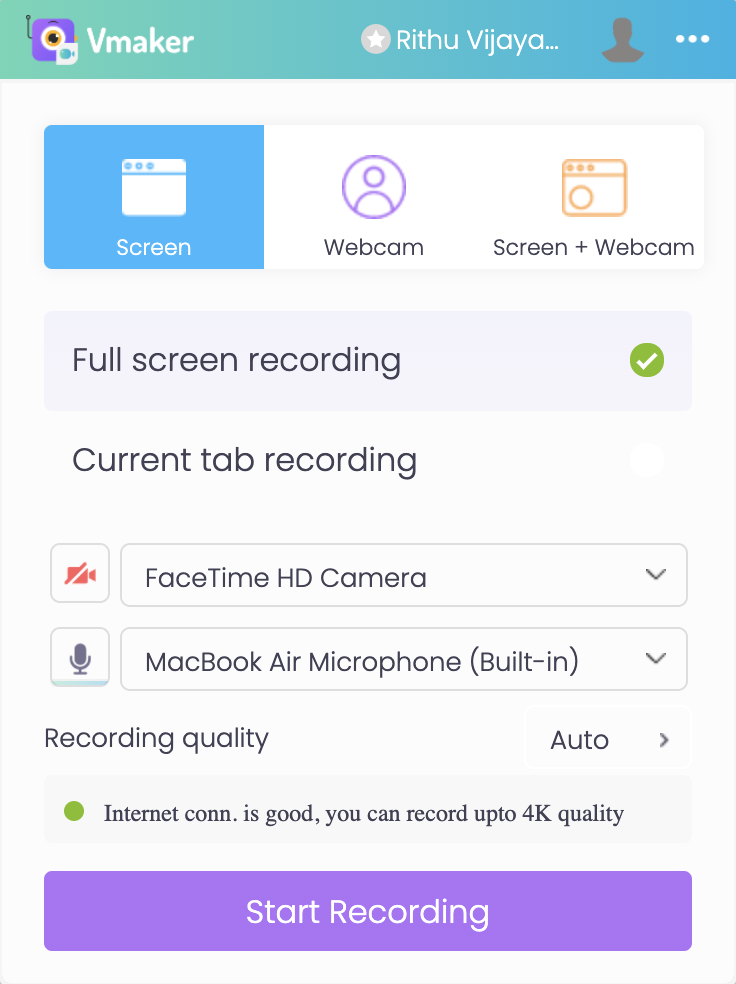
Select the screen, tab, or window you want to share and click Share. A timer starts, and in three seconds your recording begins.
Whenever you want to stop, click Stop Sharing. Your recording exports automatically to your Vmaker dashboard.
Step 5: Edit and share your recording
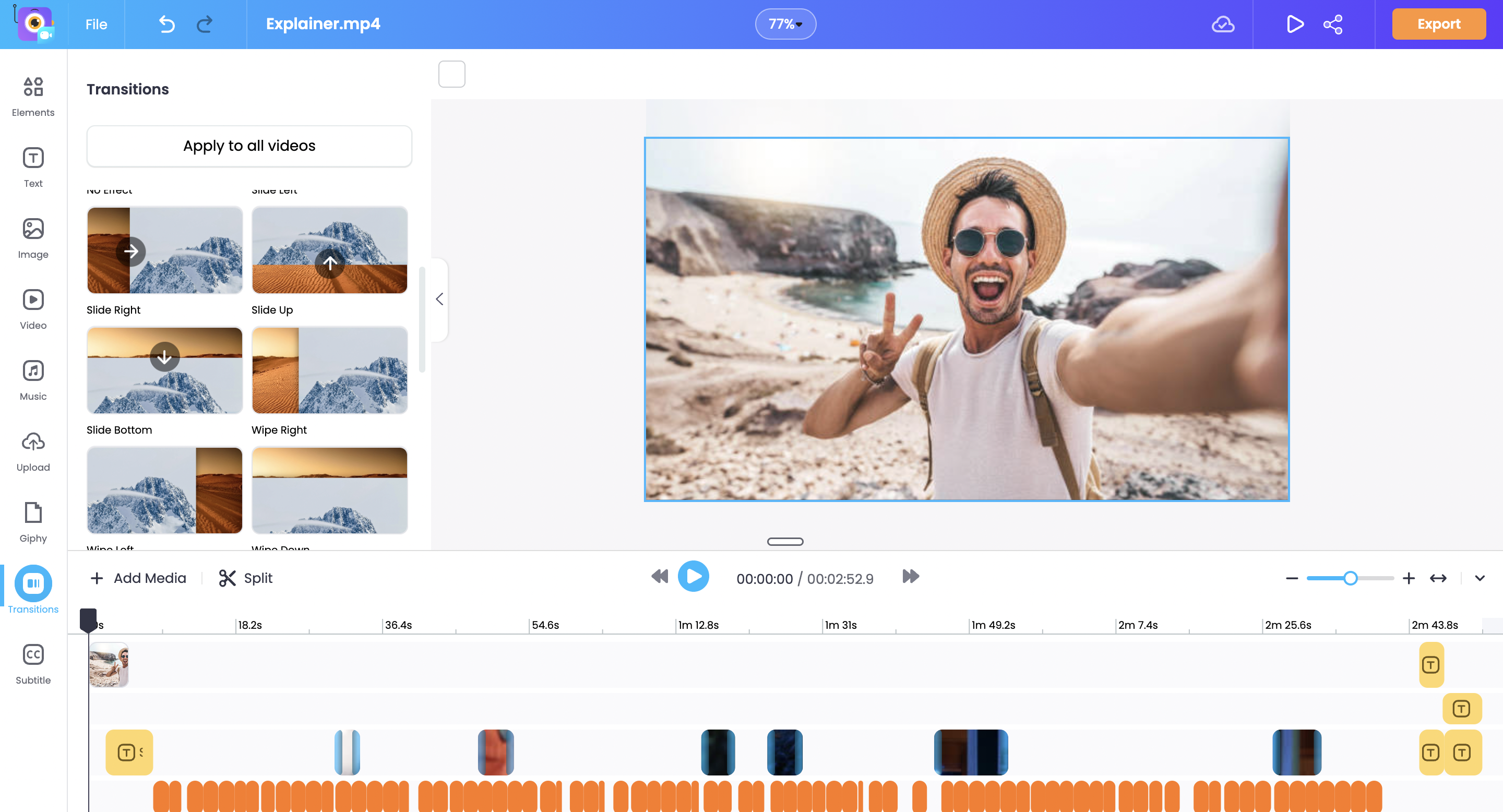
To edit the recording, click the "Edit" option, which takes you to the Vmaker AI video editor. If you do not need to edit, you can skip this step.
You can now share, download, or upload your recordings to social media platforms such as YouTube and Facebook.
2. How to record a Teams meeting using the built-in recorder
Start recording Teams meetings with the built-in recorder by following these four steps.
Step 1: Join your Microsoft Teams meeting.
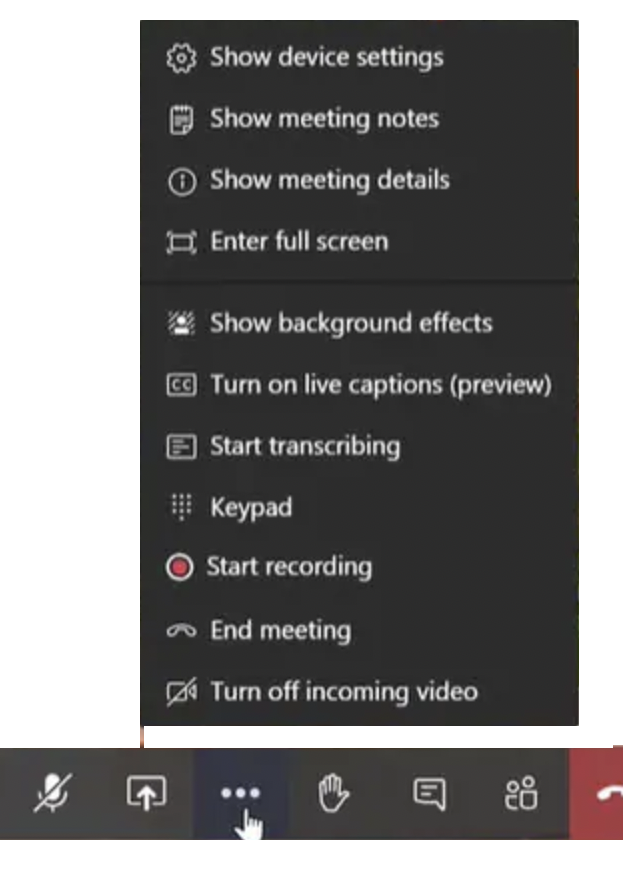
Step 2: Click the triple horizontal dot matrix and select Start Recording. As soon as you do, everyone in the meeting is notified.
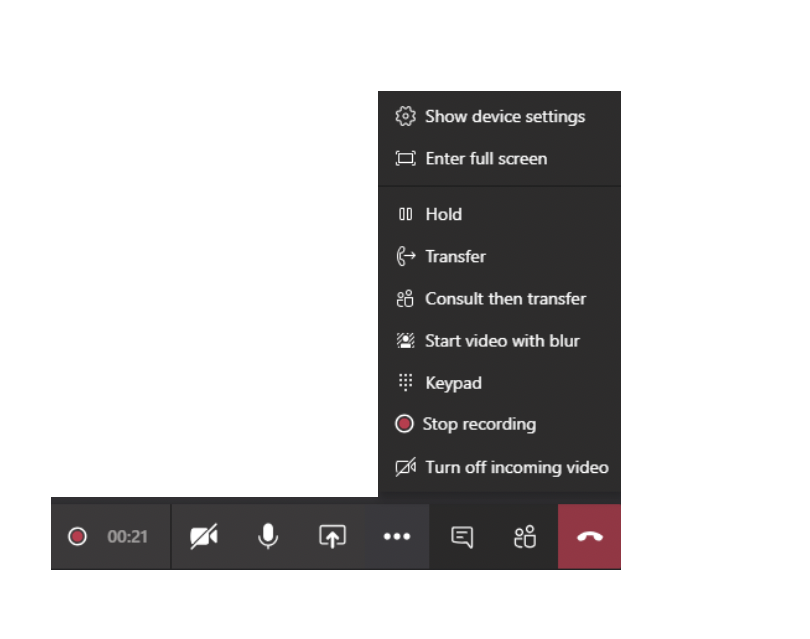
Step 3: When you are done, click Stop Recording.
Step 4: Access the file from Microsoft OneDrive or SharePoint Online. When a meeting is recorded, it automatically uploads to SharePoint Online or OneDrive.
Frequently Asked Questions
1. How do I record Teams meetings externally?
To share your Microsoft Teams recordings with people from other organisations, enable the "Anyone with the link can view" option while sharing.
2. Who can record a Teams meeting?
Generally, the following people can record a Microsoft Teams meeting:
- Meeting organisers
- Participants who have been granted access by the IT admin
- Participants on an eligible Microsoft 365 plan (the specific eligible plans are set by Microsoft and can change)
3. How do I record Teams meetings on mobile?
Microsoft Teams has a mobile application. To record with the built-in recorder:
- Step 1: Tap the three-dot icon.
- Step 2: Select Start Recording.
- Step 3: Tap Stop Recording when you are done.
4. How do I record Teams meetings using Vmaker's Mac application?
The process is similar to the one above. Just follow these steps:
- Step 1: Sign up for Vmaker and download the Mac application.
- Step 2: Open the application and go to Vmaker's dashboard.
- Step 3: Customise your preferences.
- Step 4: Start recording.
- Step 5: Edit, share, and upload easily.
Recommended Reads
- Best Screen Recorders to Record Microsoft Teams Meetings
- Best Screen Recorders to Record Skype Calls (Windows & Mac)
- Best Screen Recorders to Record Google Meet
- How to Record Facebook Live Stream Videos