Screen recording with QuickTime vs Vmaker: Which one should you pick?
You want to record the screen of your Mac, and you are wondering whether QuickTime Player is the right tool.
QuickTime is a fine starting point. It comes pre-installed, you do not need an account, and the simplicity is a real win for one-off recordings.
But simple is not always the best fit.
In return for that simplicity, QuickTime Player leaves out advanced features that other Mac screen recorders include by default.
Features QuickTime is missing:
- Dual recording (screen and webcam at the same time)
- Stable interface for long-form recordings
- 4K recording quality on paid plans
- Multiple export formats
- Cloud storage, so recordings do not eat up space on your MacBook
- Internal (system) audio recording
- Screen annotation, virtual backgrounds, recording scheduler, and other production features
How to avoid missing out on these features
If you are reading this far, you want more out of your screen recorder than the basics. The fix is to use a Mac-compatible screen recorder built for production work.
Read our guide on the best screen recorders for Mac for a full comparison with pros and cons.
Or skip ahead and try Vmaker
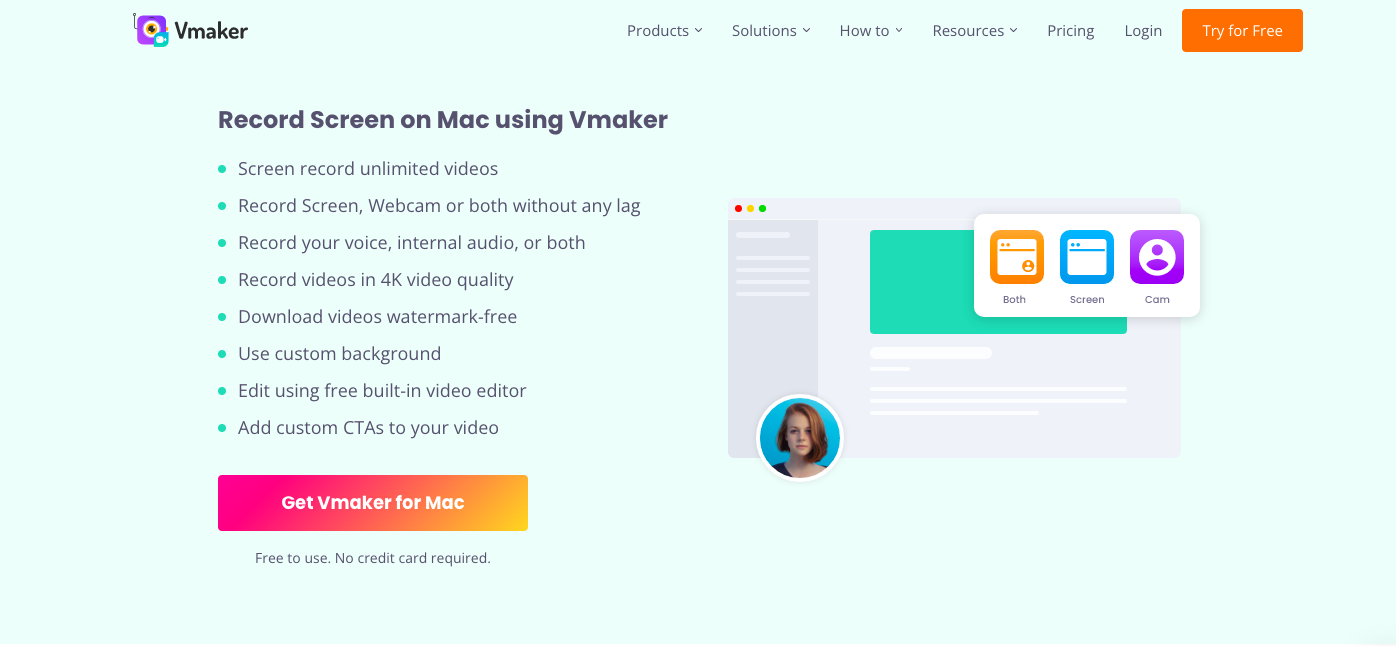
To jump in straight away, head to Vmaker. Or watch this 3-minute install tutorial.
We are plugging our own product here because we genuinely think Mac users get more out of Vmaker than QuickTime.
Here are the Vmaker features you can use for free.
1) Unlimited recording
Like QuickTime, Vmaker supports unlimited recording. No cap on the number of recordings, and no cap on cloud storage.
2) HD recording quality
QuickTime locks you into a single recording quality. Vmaker lets you choose. HD on the free plan, with 4K available on paid plans.
3) Frames and filters
Frames and filters add a clean border to your webcam overlay, making your face stand out in the recording. You can also drop in a name tag so your audience remembers who you are throughout the video.
4) Screen and webcam together
Vmaker records screen and webcam at the same time, which makes it a much better tool for video feedback, reaction videos, tutorials, and product demos.
5) Flexible recording area
Pick what to record. Full screen captures every open window. Window mode captures only one app. Custom area lets you draw a recording region with your mouse.
6) No watermark
Most free screen recorders add a watermark. Vmaker does not, on any plan, free or paid.
7) Built-in video editor
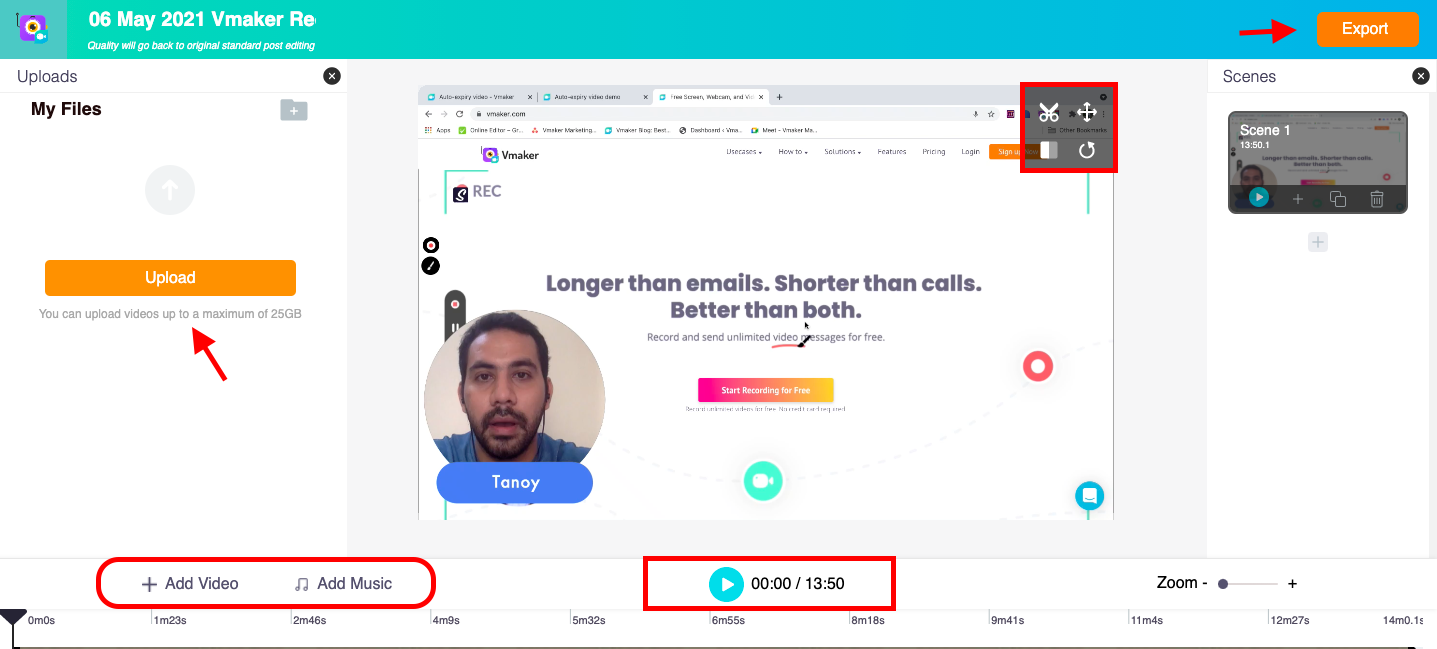
Vmaker includes a built-in AI video editor. Trim, crop, rotate, and clean up your recordings in the same app you used to record. No downloading and re-uploading to an external editor. The editor is beginner-friendly, no prior experience needed.
You can also auto-generate subtitles in 35+ languages directly inside the editor, which makes a real difference for tutorials and product demos.
8) Priority support
If you get stuck or have questions, the support team is one email away. Available 24/7.
Paid plans start at $7/month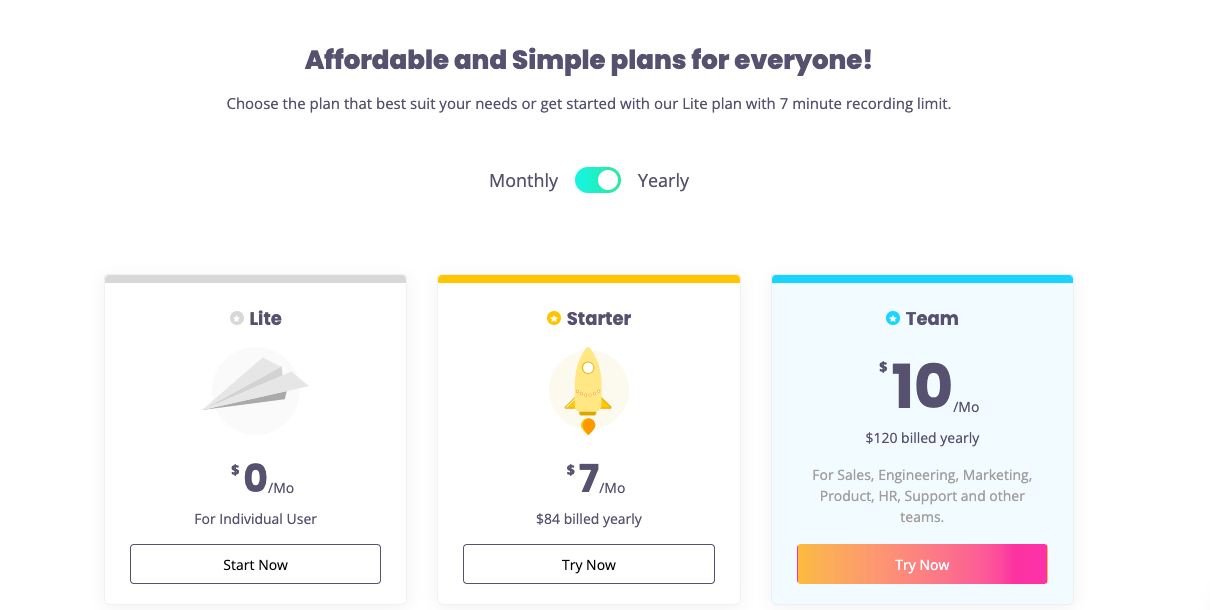
This list would be one-sided if we only covered the free features. Here are some of the advanced features available on paid plans.
Screen annotation
Draw on screen during recording to highlight specific elements for your viewers.
Mouse emphasis
Highlight your mouse pointer so your audience can easily follow where you click.
Internal audio
Capture any audio playing on your Mac. Vmaker syncs it with the video and your voice-over automatically.
Advanced editing suite
Upload external footage and combine it with your recording. Add transitions, music, and B-rolls.
4K quality
Record at 4K. You can also pick 1080p or 1440p depending on what your project needs.
Virtual background
Use a virtual background for webcam recordings when your physical setup is not ideal.
Embed and analytics
Embed videos directly on your website and track how many people watch each one.
For the full feature breakdown by plan, see the Vmaker pricing page.
Wrapping up
That covers the case for going beyond QuickTime.
If you only need a screen recording every now and then, QuickTime is enough. If you record screens daily or want production-grade output, an advanced Mac screen recorder like Vmaker pays for itself fast.
Check out the full list of best screen recorders for Mac and pick the one that fits your work.
Recommended Reads:
How to Screen Record on Mac with Audio
10 Best 4K Screen Recorders for Windows and Mac
How to Use an iPhone as a Webcam on a Mac (macOS Ventura)
How to Screen Record on MacBook Air
How to Screen Record on Mac with Audio and Video
How to Screen Record on Mac with Facecam