Contents
How to Create a YouTube Video Using ChatGPT and Vmaker
Step 2: Generate the video title, description, and script
Step 3: Record your video using Vmaker
Step 4: Edit your video using Vmaker's built-in editor
How To Create a Viral YouTube Video Using ChatGPT & Vmaker
Want to use AI to create YouTube videos faster?
You are in the right place.
This blog walks you through how to create a YouTube video in under 15 minutes using ChatGPT and Vmaker.
For anyone who hasn't used ChatGPT yet: it is an AI chatbot from OpenAI that can hold a real conversation, answer questions, write code, draft emails, and generate content. It is widely used across industries to automate everyday work.
If you create video content, you can put it to work for you too.
Here is how.
ChatGPT handles the script, title, and description. Vmaker handles the recording, editing, and uploading. Both tools have free plans, so you can spin up a YouTube video without spending anything.
Step-by-step approach below.
How to Create a YouTube Video Using ChatGPT and Vmaker
Step 1: Sign up for ChatGPT
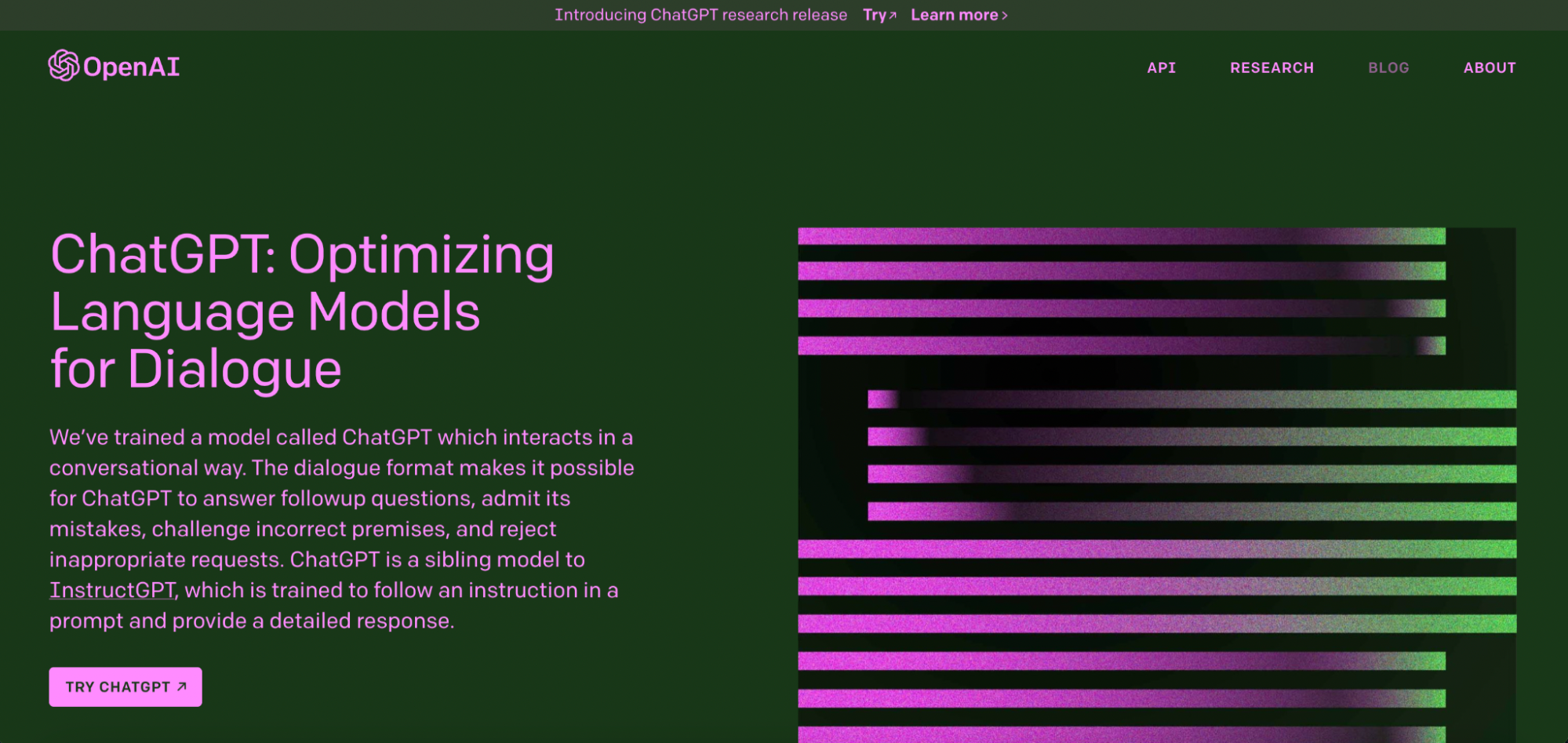
Head to ChatGPT and sign up. The free plan is enough for everything in this guide.
Step 2: Generate the video title, description, and script
Once signed in, you have access to the chat interface.
Now, ask it to write what you need.
In this example, we asked the bot to write a YouTube script on "What is ChatGPT and how does it work?"
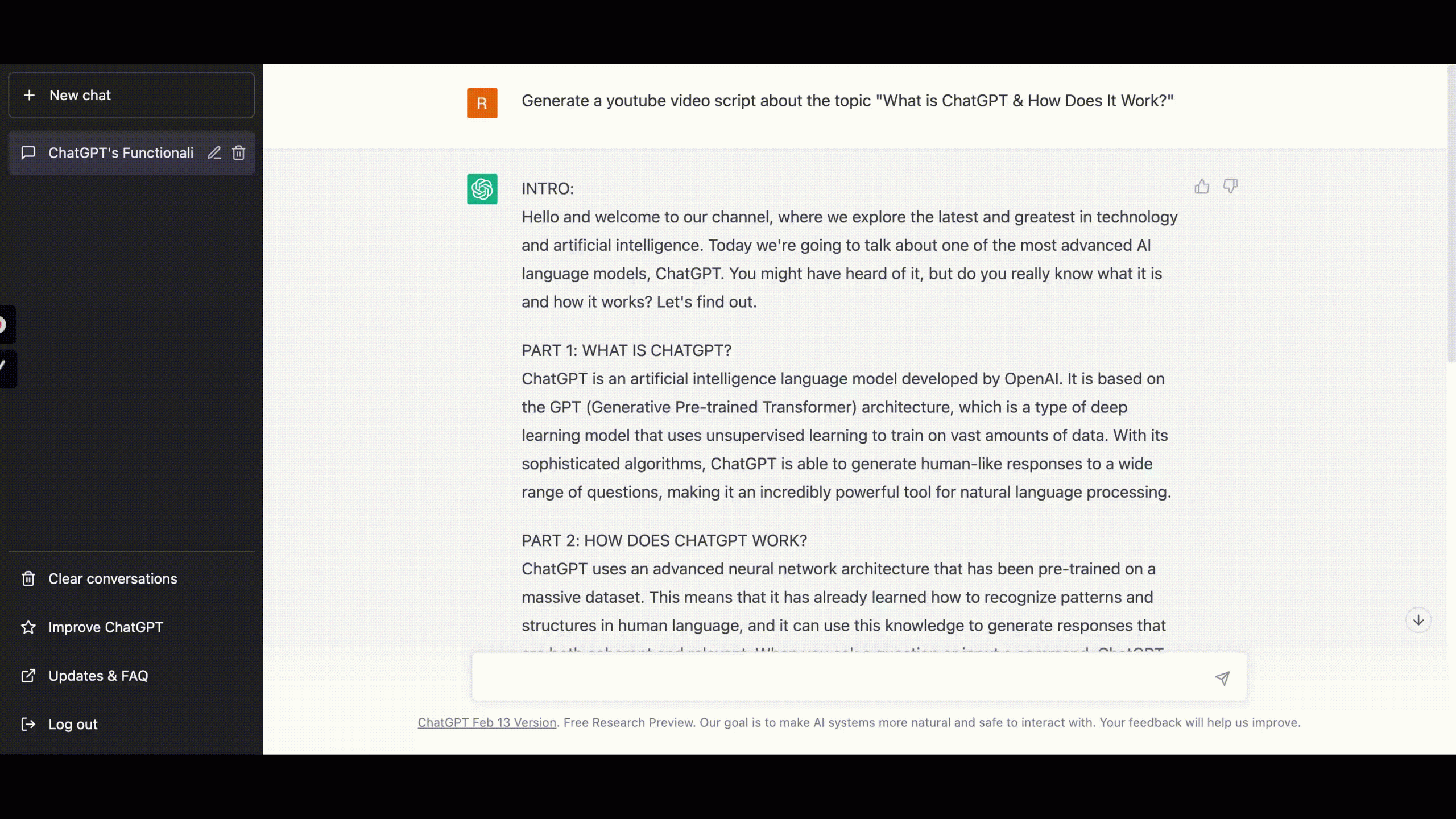
It produced a full script covering all the main points of the topic.
Next, we asked for a title.
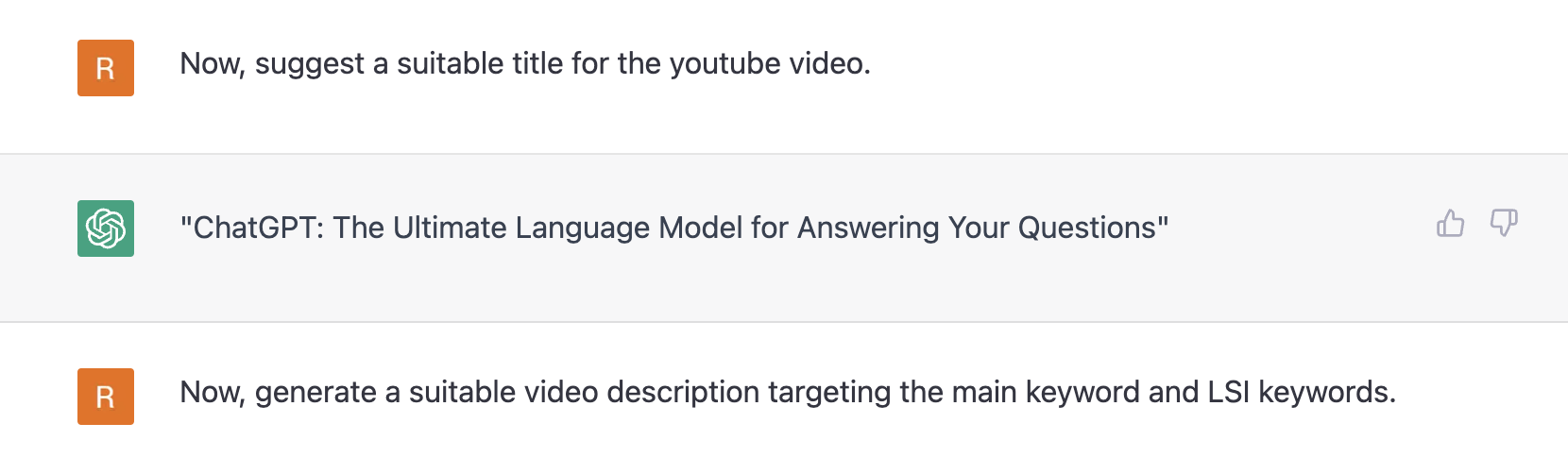
Then a video description targeting the main keyword and supporting LSI keywords.
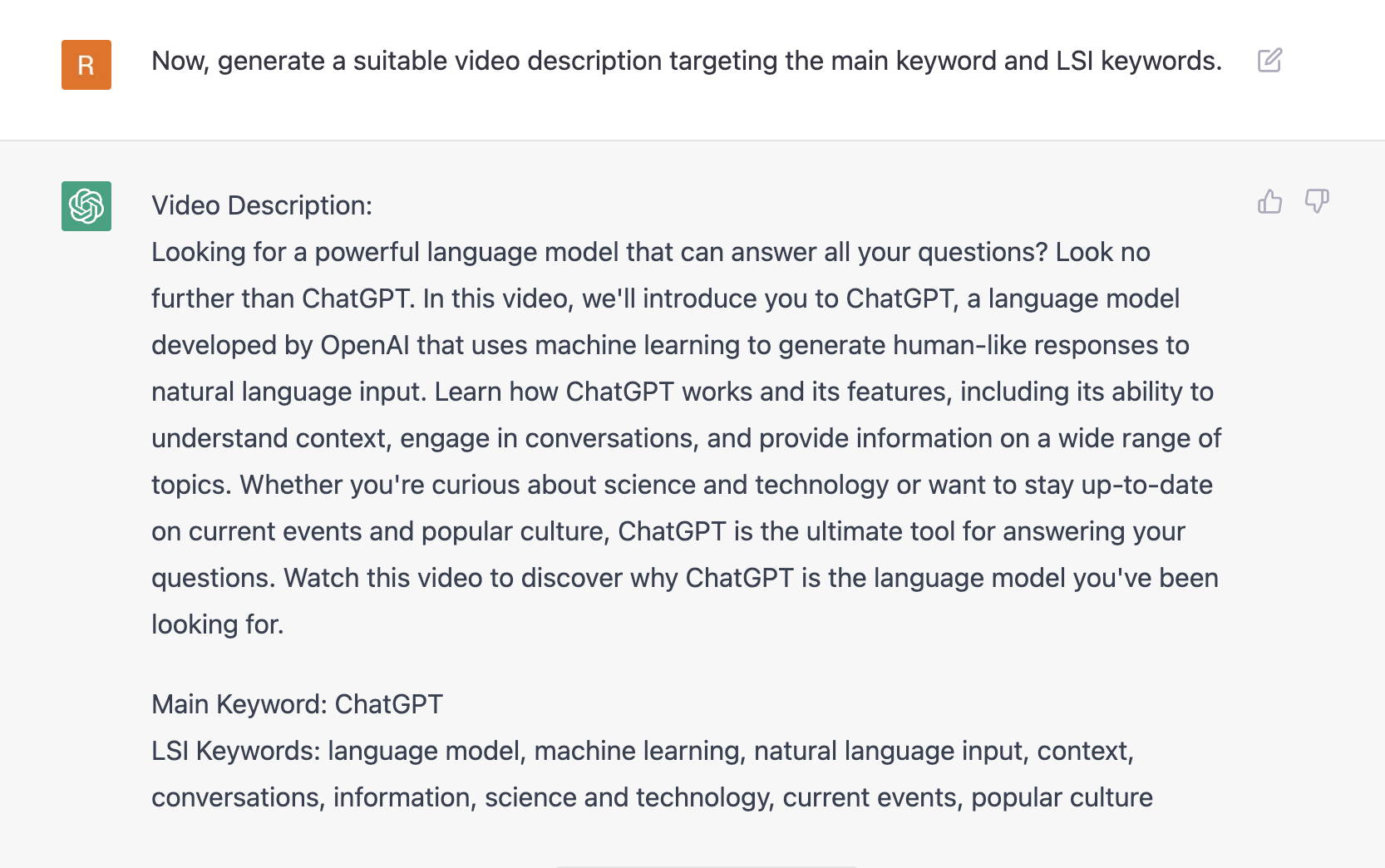
Solid description. Both target keywords showed up naturally.
Use the same approach to get your title, description, and script ready without writing anything from scratch.
Quick note: If you want to skip ChatGPT entirely, Vmaker has a built-in script-to-video tool that turns your script into a finished video in one go. Or use the AI video generator to start from a topic, no script needed.
Step 3: Record your video using Vmaker
Once your script is ready, it is time to record your YouTube video.
Vmaker is a free tool for the job. It records your screen and webcam at 4K, has a built-in video editor, and runs without watermarks or recording time limits. Free to start, free to use.
Here is how to record with Vmaker.
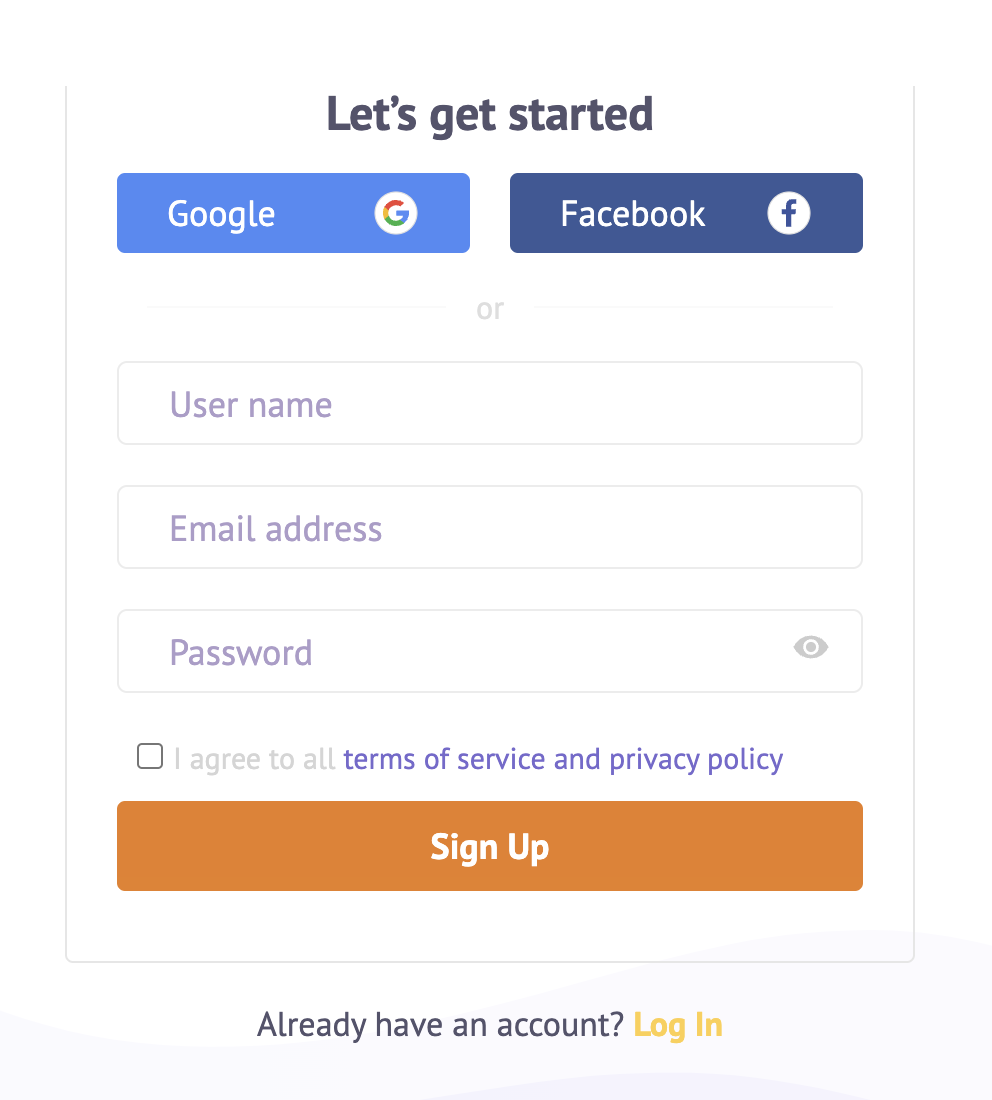
1. Sign up and download Vmaker.
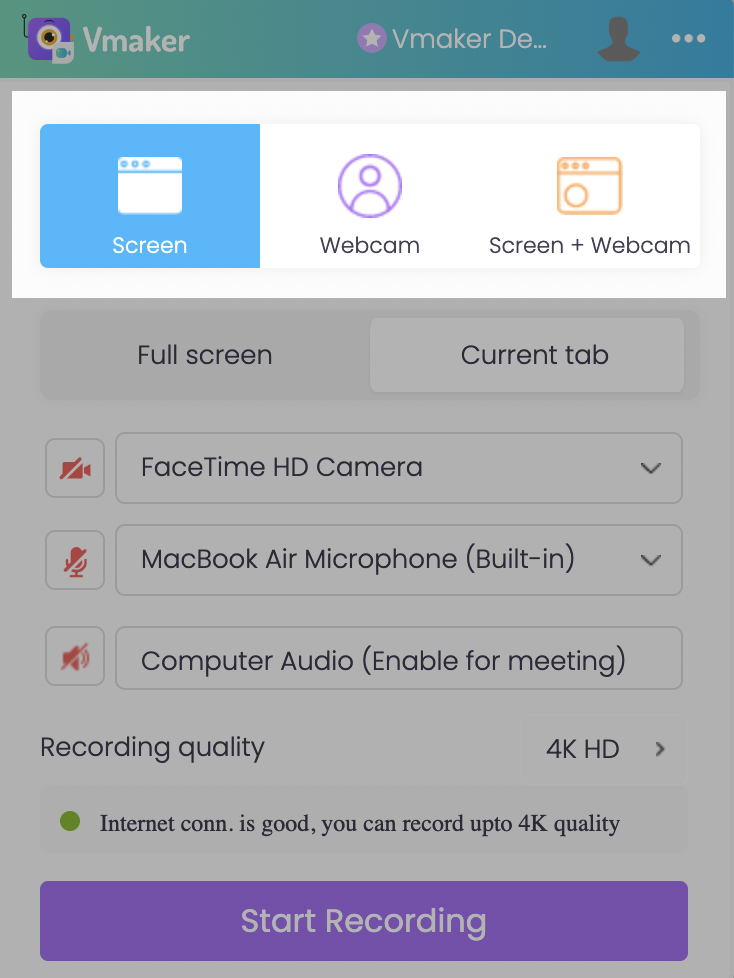
2. Launch Vmaker on your system. Double-tap the app to open the recording menu. Pick your recording mode, recording quality, and audio inputs.
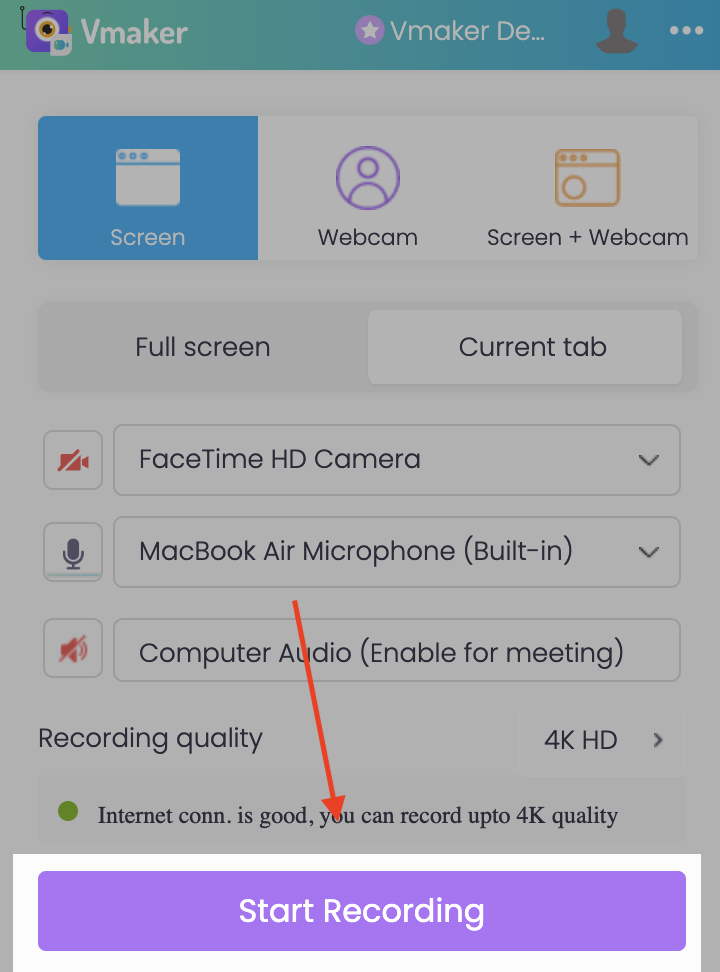
3. Click Start Recording to record your screen, webcam, or both with voice-over.
4. Use the annotation tools while recording to highlight key parts of the screen.
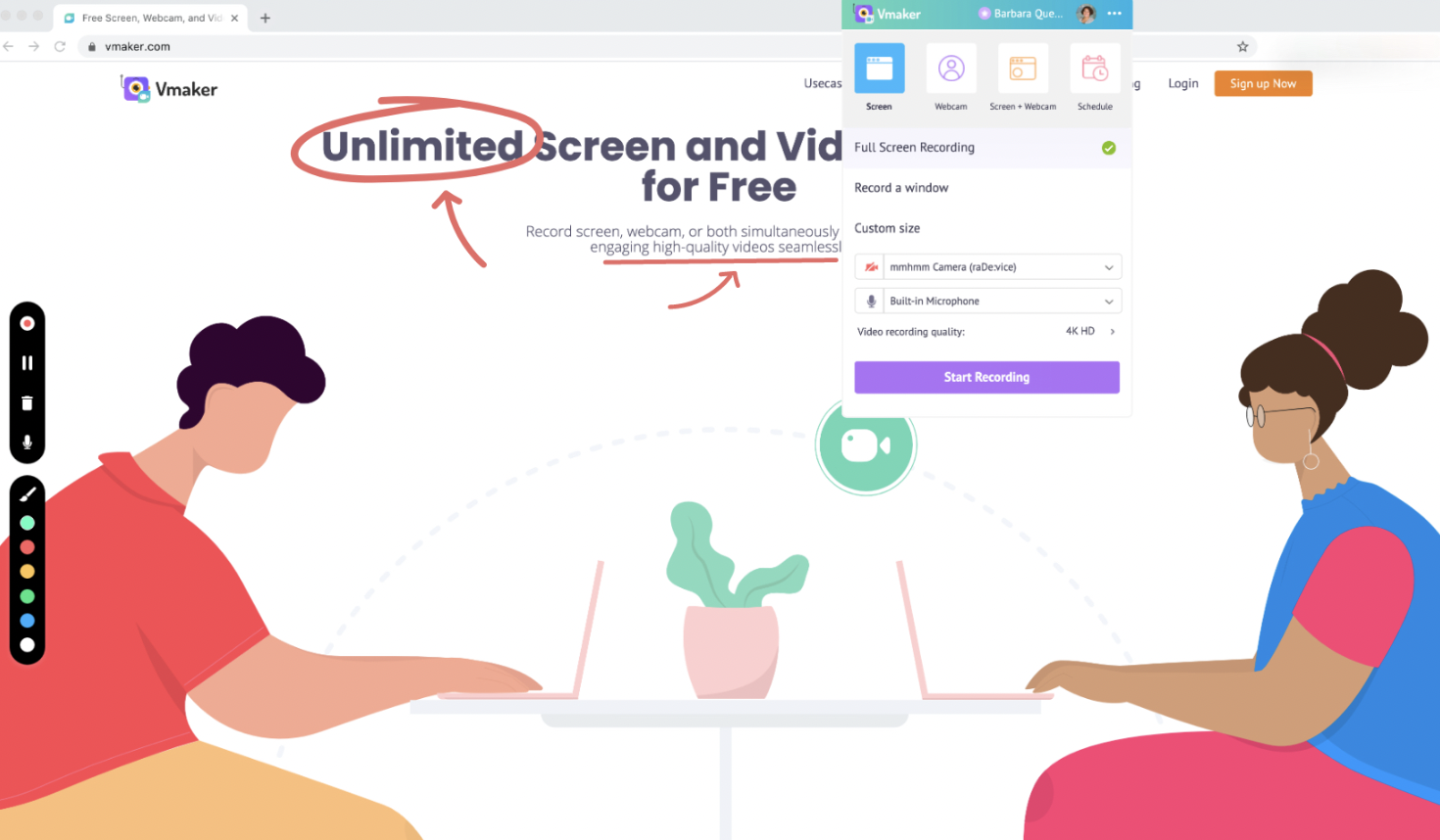
5. When you are done, click the red dock button on the left of your screen to stop the recording.

Step 4: Edit your video using Vmaker's built-in editor
Open the AI video editor to clean up the recording. Vmaker's YouTube video editor can also generate subtitles, add background music, and merge intros and outros. Click the Add Videos button to drop in extra clips.
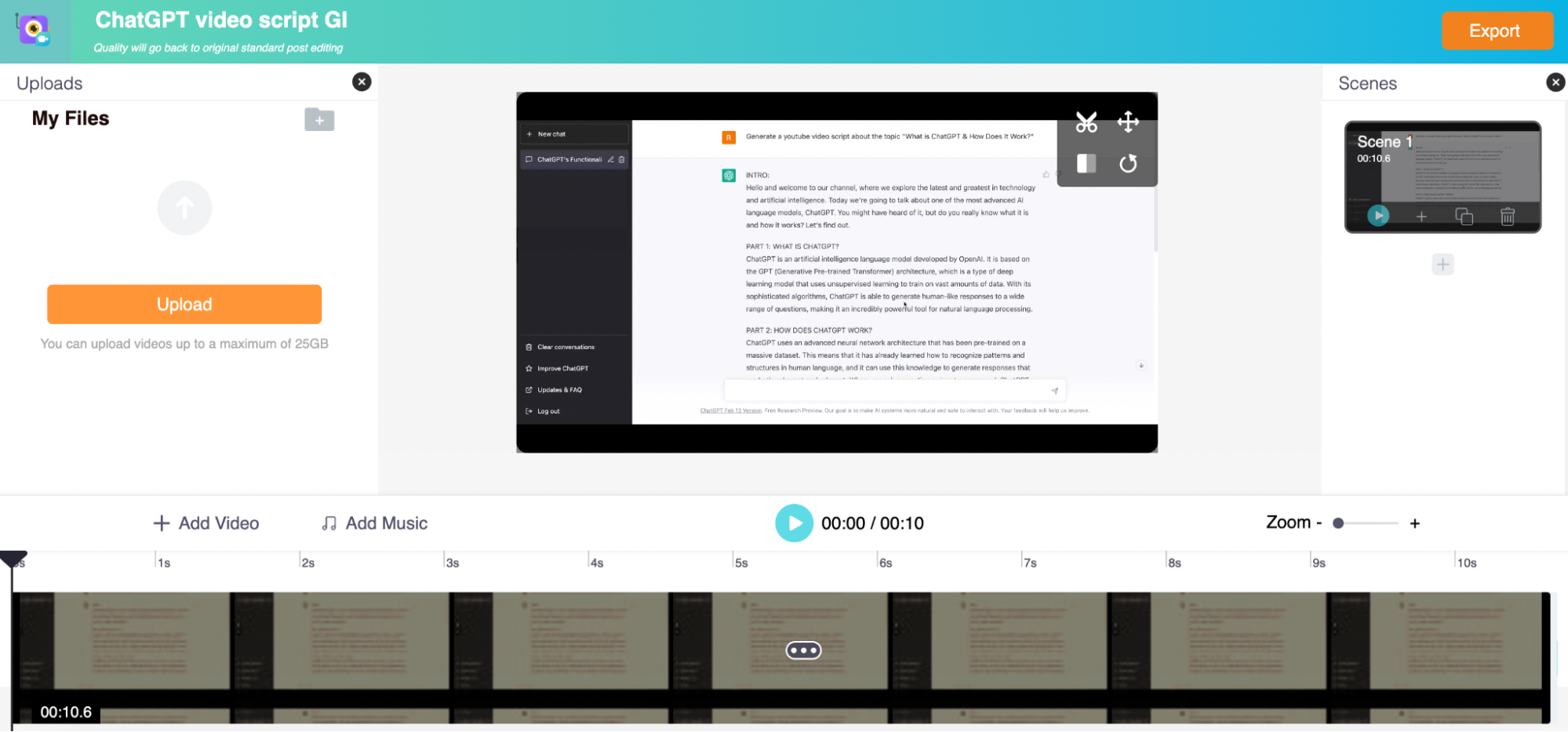
Once edited, click Export and download in 4K.
Step 5: Upload to YouTube
Last step: upload your video to YouTube.
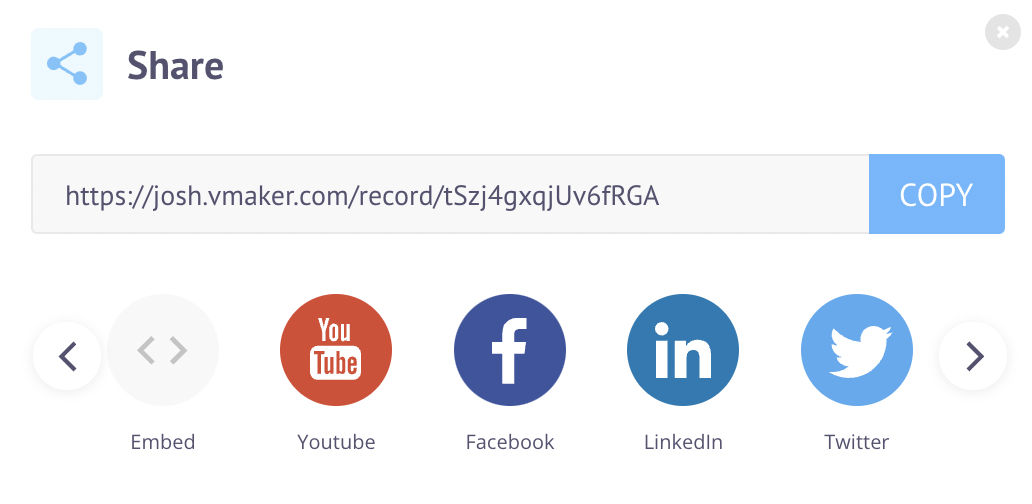
Click the Share button on the player page. Pick YouTube from the sharing options and add your channel.
Done. Your video is live.
That is how to create a YouTube video from scratch in under 15 minutes.
Try it for yourself.
Frequently Asked Questions
1. Can AI generate a video?
Yes. Plenty of AI tools can do this. Vmaker's own AI video generator can build a finished video from a topic, script, or document in minutes. It supports talking AI avatars, voice-overs in 100+ languages, and ready-to-publish formats for YouTube, TikTok, and Instagram.
2. What is the primary use of ChatGPT?
ChatGPT is a language model that lets you have human-like conversations with an AI. The use cases are wide: drafting blog outlines, writing email copy, building content strategies, fixing code, summarising documents, and more.
3. Can I use ChatGPT for free?
Yes. ChatGPT has a free plan that covers most everyday use. ChatGPT Plus, Team, and Enterprise plans add advanced features and higher usage limits.
4. Is ChatGPT available as a download?
Yes. ChatGPT is available as a desktop app for Mac and Windows, and as a mobile app for iOS and Android. You can also use it directly in the browser.
5. Are there alternatives to ChatGPT?
Yes. The main ones today:
- Google Gemini
- Anthropic Claude
- Microsoft Copilot
- Perplexity AI
- Meta AI
- Jasper Chat
Recommended Reads
2 Simple Ways to Record YouTube Live Streams
3 Tips to Record High-Quality YouTube Product Demo Videos
How to Record YouTube Videos for Free
How to Write a Video Script for YouTube
How to Screen Record on PC for YouTube