Contents
What is a multilingual subtitle?
1) Adding multilingual subtitles to a screen recording
2) Adding multilingual subtitles to a livestream video
3) Adding multilingual subtitles to an online meeting
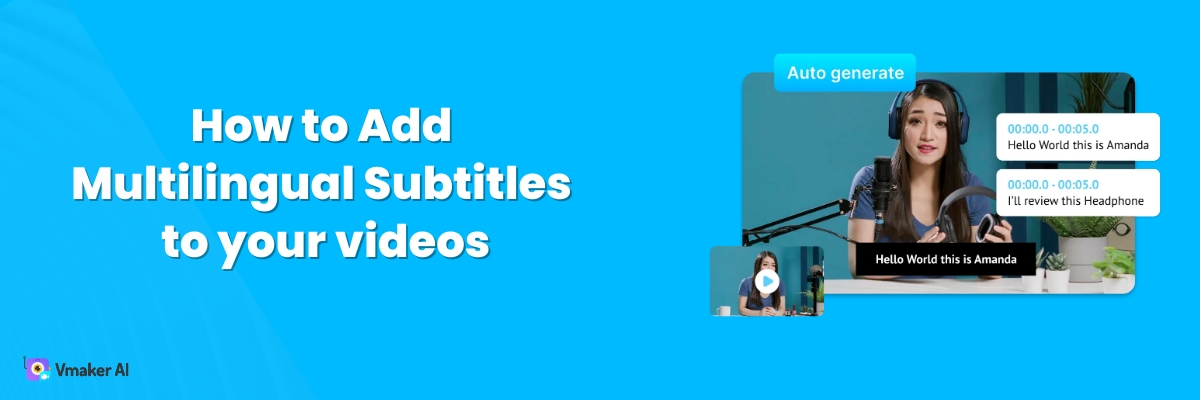
How to Add Multilingual Subtitles to your videos with use cases
There are two cases where multilingual subtitles add real value to a video.
First, when you want to translate a foreign-language video into your own.
Second, when you want to translate your own video into a foreign language.
If either of these is your goal, this blog will help. We will show you how to add subtitles to any video, auto-detect the language, and translate them into 100+ languages with AI.
Just here to add plain subtitles? That works too. Read on.
What is a multilingual subtitle?
A subtitle is the text version of what is being said on screen. It becomes a multilingual subtitle when it is available in more than one language.
Example: you screen record a video for global clients. You write your script in English. You then ask three translators to convert the subtitles into Spanish, French, and German. Now your video has multilingual subtitles. Your client picks any of the four languages.
The catch? Hiring four translators is slow and expensive. An AI subtitle generator does the same job in minutes.
We will look at three common use cases: screen recordings, livestreams, and online meetings. The same flow works for any video.
1) Adding multilingual subtitles to a screen recording
A screen recorder is one of the easiest ways to make a video. Quick, no setup, no learning curve.
Step 1: Record your screen
Vmaker records your screen and webcam at the same time. Use Screen Annotations and Mouse Emphasis to call attention to key parts. Use Blur to hide any sensitive info as you record.
Once you stop recording, you land on the player page.
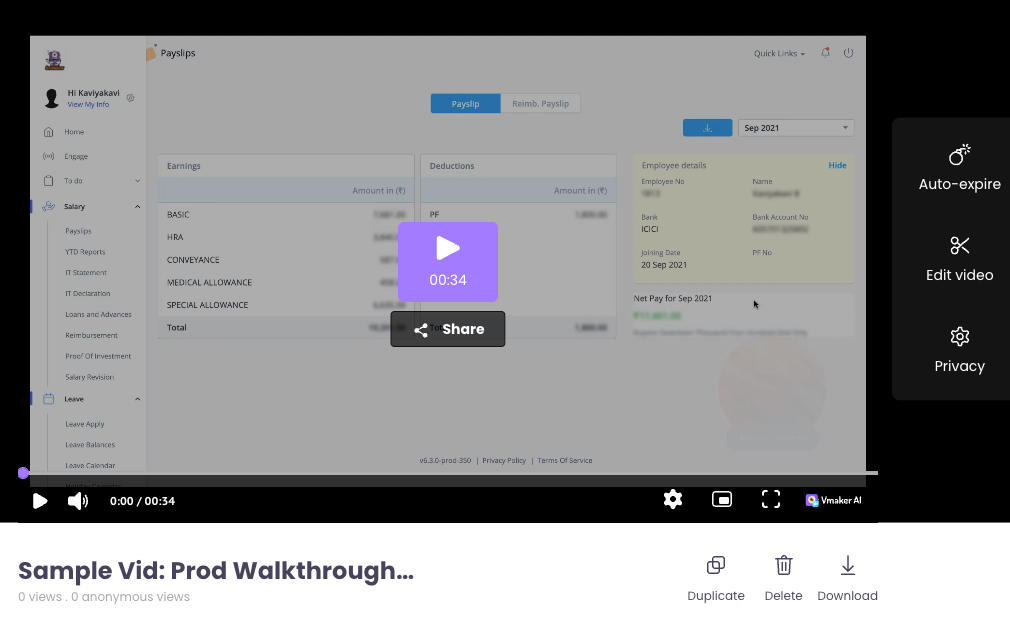
Click Edit Video on the right menu to open the Vmaker AI Video Editor.
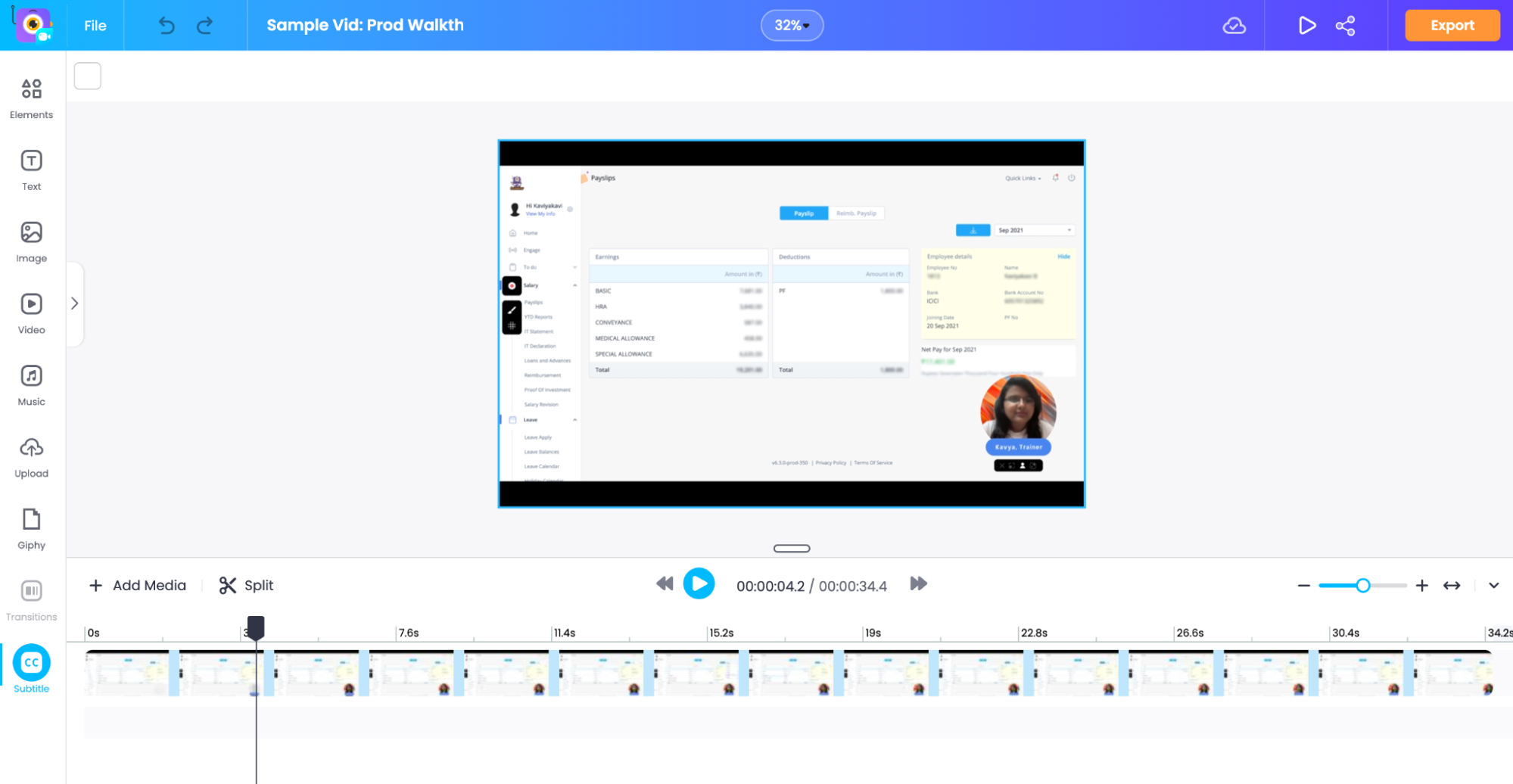
Step 2: Add subtitles
Click Subtitles at the bottom left of the canvas.
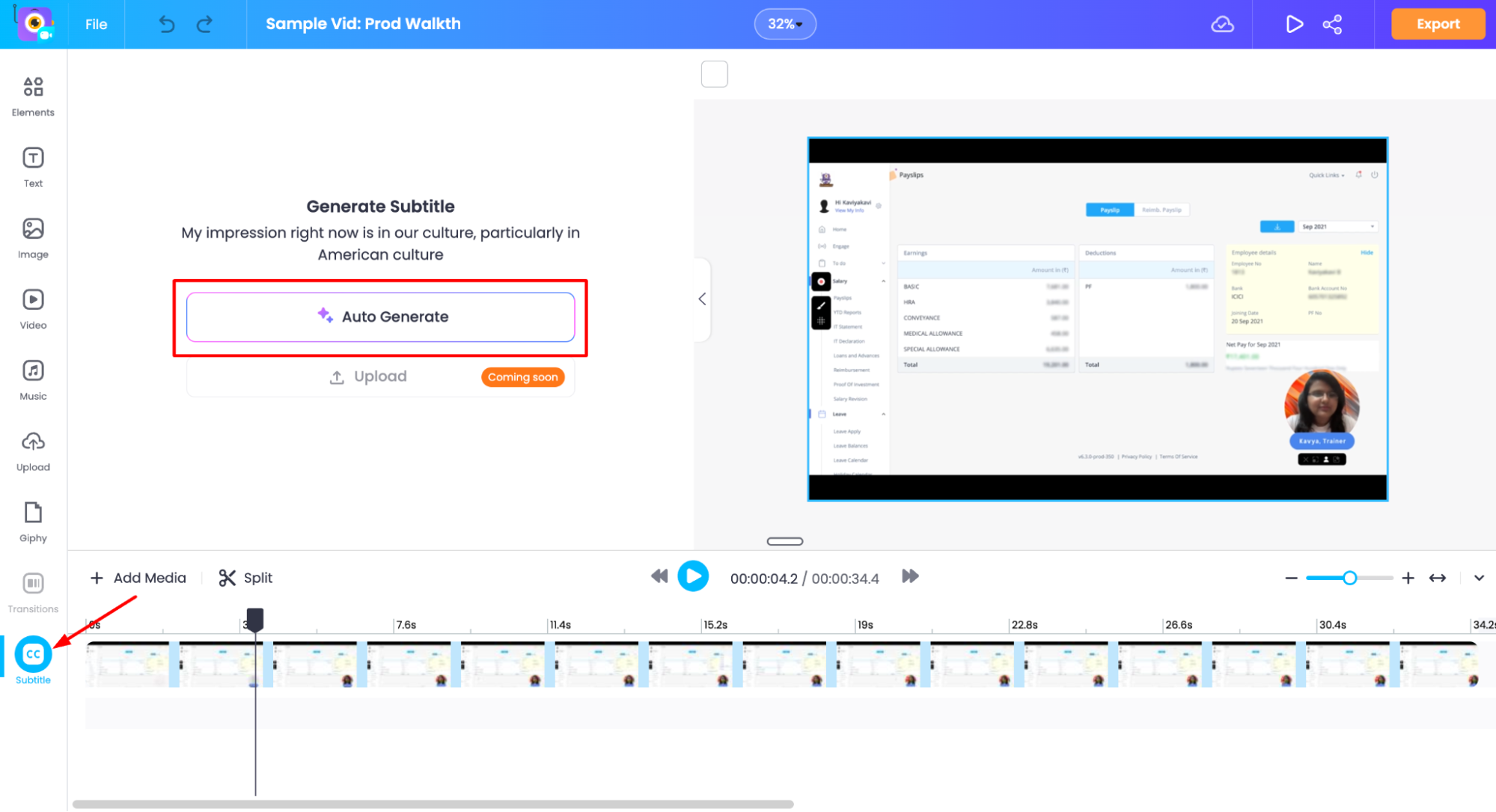
A side panel opens with two options. Click Auto-Generate.
Vmaker AI will pick up the speaker's language and add subtitles. It detects 35+ languages.
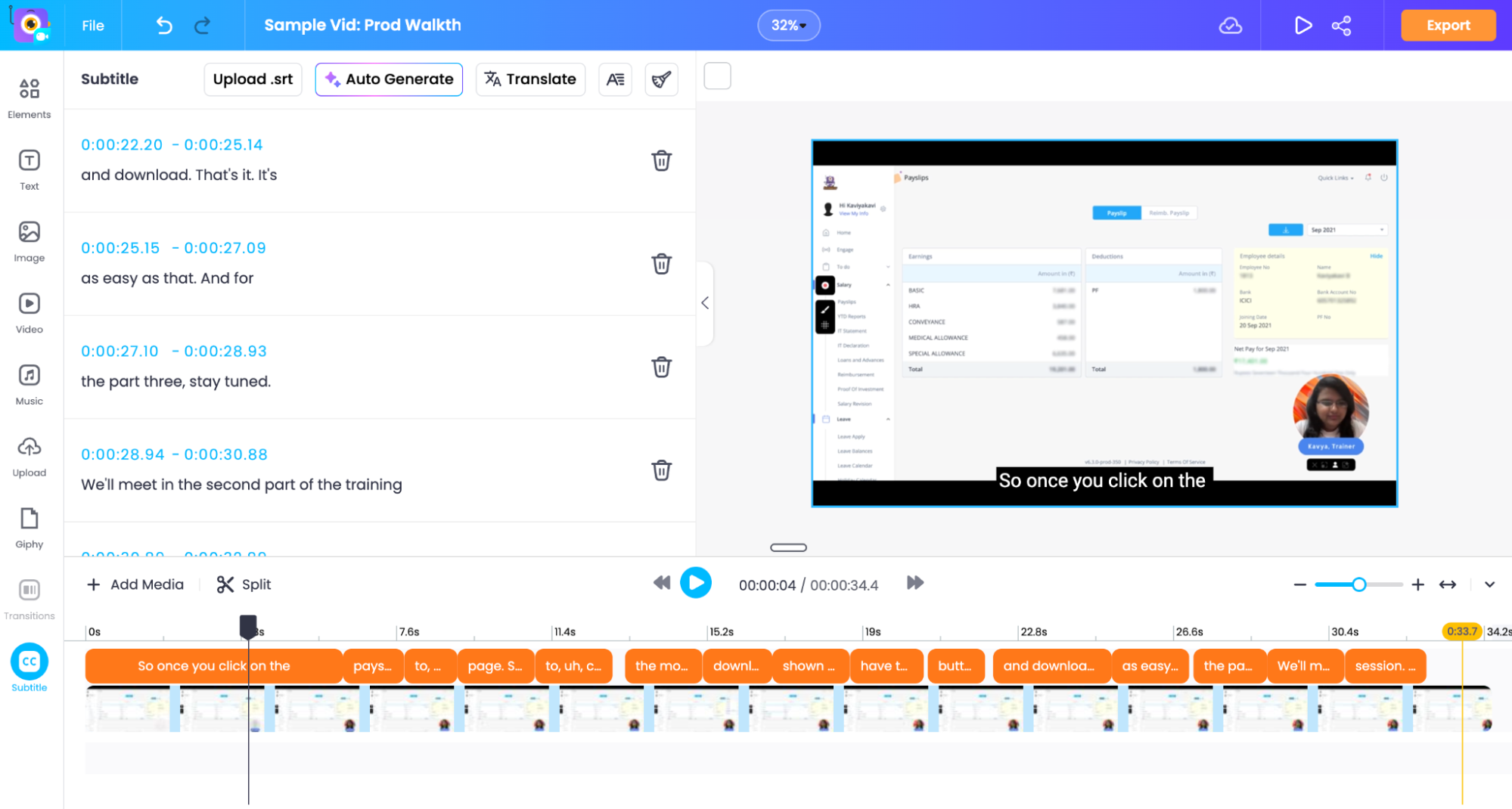
Vmaker AI also drops filler words. If you want to fix a word or shift the timing, edit it directly in the side panel.
Step 3: Style your subtitles
Click Subtitle Styles at the top to pick a preset look.
Want full control? Click Edit Styles to change the size, colour, and animation.
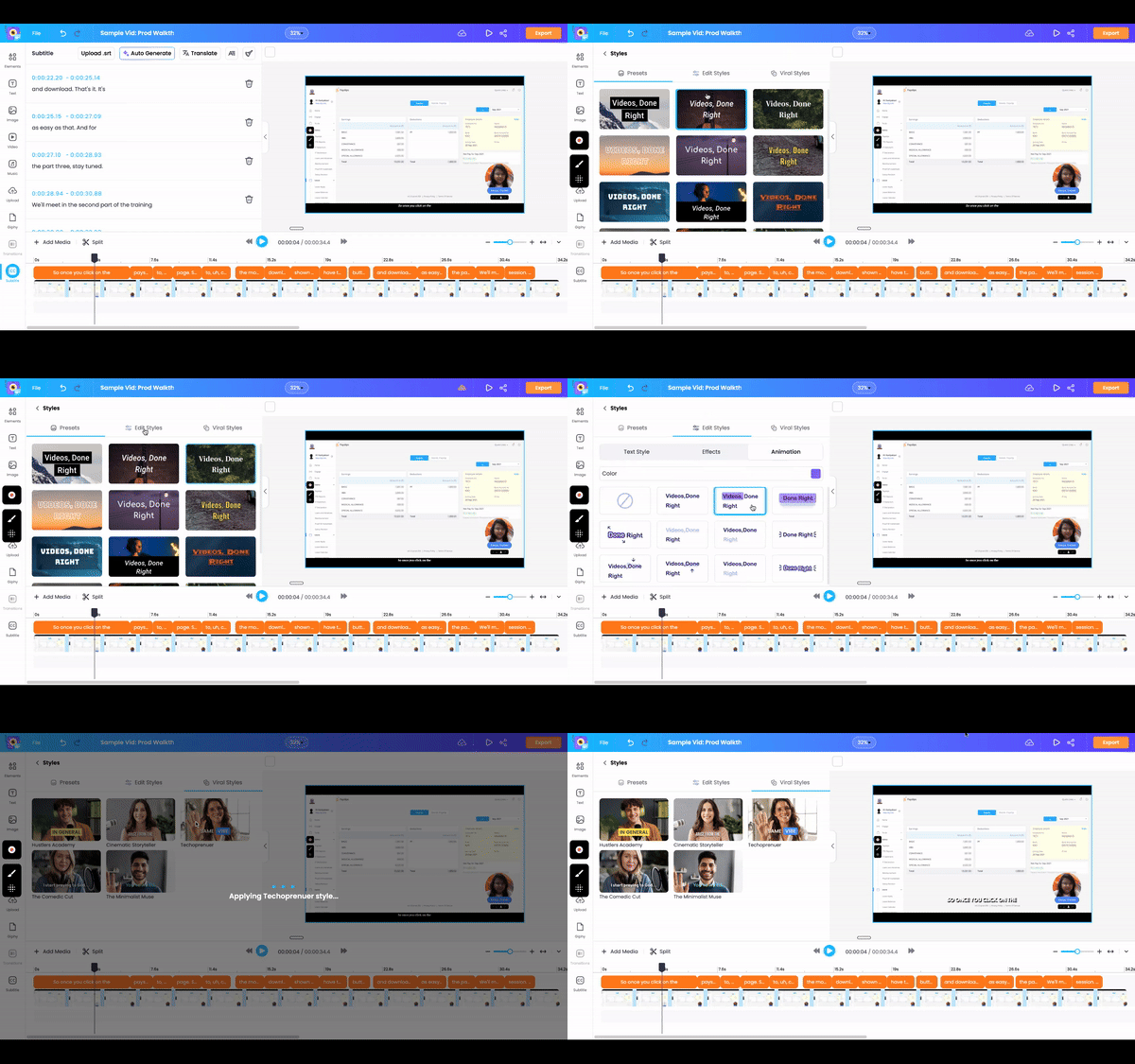
Step 4: Translate into 100+ languages
If you only need subtitles in the original language, you are done. Hit Export and download.
If you want them translated, click the Translate button at the top of the Subtitles sidebar. Pick your target language from the list of 100+. Vmaker AI translates the captions in a few seconds.
You can repeat this for as many languages as you need. Each language saves as a separate subtitle track.
Step 5: Export
Click Export at the top right. Pick the language you want shown by default. Vmaker bakes the subtitles into the video.
That's it. One tool, one workflow, one fully translated video.
2) Adding multilingual subtitles to a livestream video
The same flow works for any livestream like webinars, panels, or fireside chats. Translating the recording lets you reach viewers in markets you would normally need a translator to enter.
Steps:
- Record the livestream with a screen recorder.
- Open the recording in the Vmaker AI Video Editor and auto-generate subtitles.
- Style the subtitles to match your brand.
- Click Translate and pick your target language.
- Export the final video.
3) Adding multilingual subtitles to an online meeting
Online meetings get harder to follow when the team spans many countries. Multilingual subtitles fix that.
If you can download the meeting from inside the platform (host or admin only), do that. If not, you can record the meeting as a participant with a screen recorder. Here is a video that walks through it.
Once you have the recording:
- Drop it into the Vmaker AI Video Editor.
- Auto-generate subtitles.
- Style them.
- Click Translate and pick your target language.
- Export the final video.
You are all set
Whether you are translating a screen recording, a livestream, or a meeting, AI subtitles cut hours of work down to minutes. Follow the flow above and your multilingual video is ready to ship.
Recommended Readings:
Turn Your Presentations Into Exciting YouTube Videos With Subtitles
How to Add Subtitles or Captions to Zoom Meeting Recordings
How To Create a Viral YouTube Video Using ChatGPT and Vmaker