Contents
List of 10 Best Software to Create Video Tutorials
Tutorial videos are one of the most-watched video types on YouTube. People want a step-by-step walk-through for almost anything they buy, and few have time to read a manual. In fact, users are 3x more likely to watch a YouTube tutorial than read a product's instructions.
Making a tutorial video is not as hard as people think. With the right tool, it is fast and simple. This blog covers the 10 best software to create engaging tutorial and instructional videos for free.
Tutorial video categories
- How-to tutorial videos
- Step-by-step product guides
- Lessons and courseware tutorials
- Instructional videos
- Product tutorial videos
- Onboarding videos
Tutorial video types
- Real-time recorded tutorials
- Screen recording tutorials
- Whiteboard tutorials
- Screen recordings with a webcam overlay
- Animated tutorials
What a good tutorial video tool should have
- Screen recorder
- Animation support
- Built-in video editor
- Cloud hosting
- Team collaboration
- One-click social sharing
How we picked the 10 best
We scored each tool on the features above, plus ease of use, free plan availability, pricing, and user reviews. A few tools that nearly made the list are mentioned at the end.
10 best software to create tutorial and instructional videos
- Vmaker
- Screencast-O-Matic
- Animaker
- Movavi Video Editor
- OBS Studio
- Cloudapp
- Camtasia (TechSmith)
- Renderforest
- Loom
- iSpring Suite
1. Vmaker
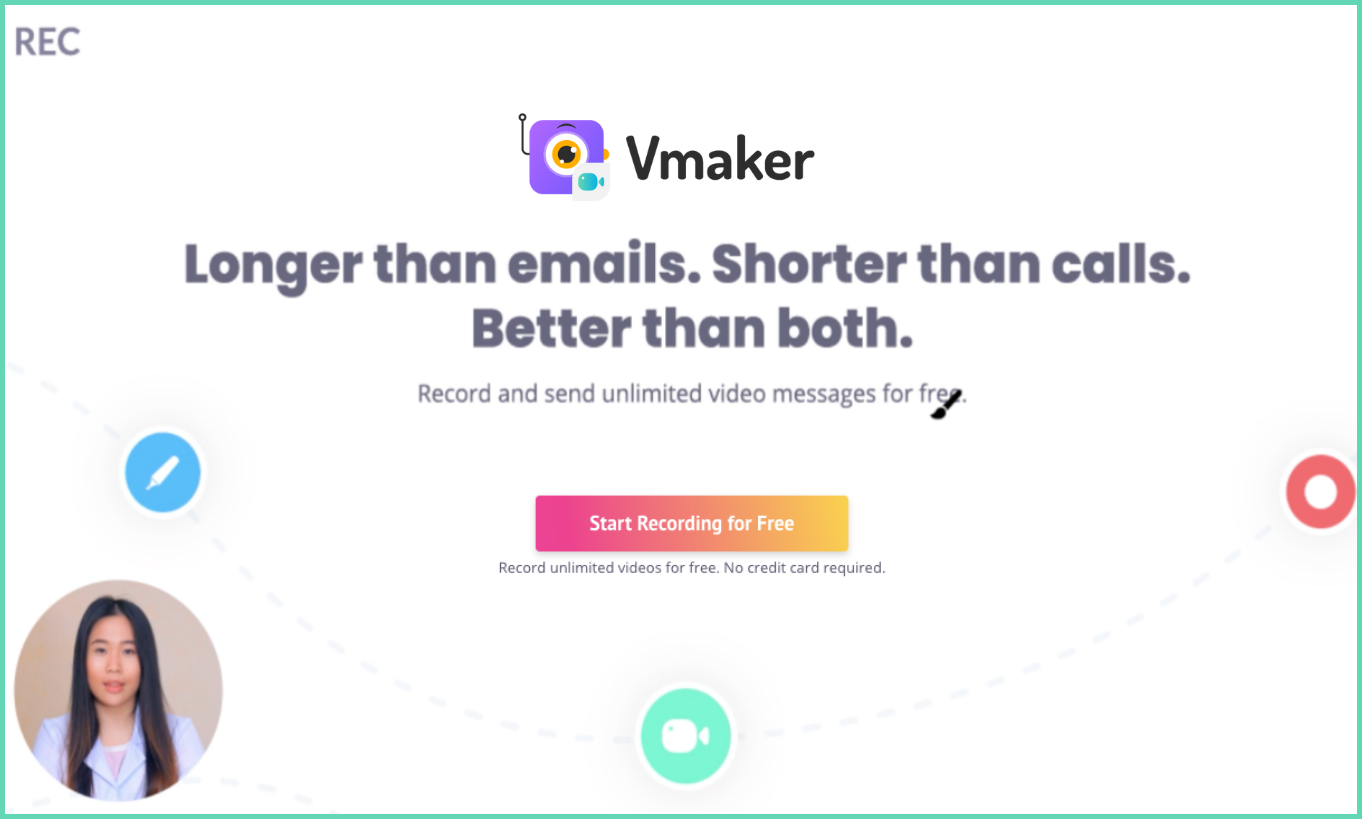
Vmaker is the latest tutorial video tool from the makers of Animaker. It is one of the best apps for tutorial videos because all the key features are in the free plan, so you can create videos at no cost.
Record your tutorial in 4K HD. Add mouse emphasis and screen annotations to keep the viewer's attention. Need to show your face? Use a webcam overlay on top of the screen recording. You can change the shape, size, background, and filter of the webcam bubble to match your brand.
Once you stop recording, your video is on the cloud in seconds. You can edit it in the Vmaker dashboard using the AI video editor. It turns raw footage into a polished video without a separate editing tool.
You can upload straight to YouTube from the dashboard. Want it private? Share by email or social link. Custom branding lets you add your logo and colours to every video.
Free plan features
- Unlimited 720p recordings
- Watermark-free recording
- Multiple recording modes (screen only, screen + cam, cam only)
- Frames and filters for webcam recording
- System and mic audio recording
- Social sharing
- Unlimited cloud storage
- AI video editor
- Noise control
- Duplicate videos
Paid plan features
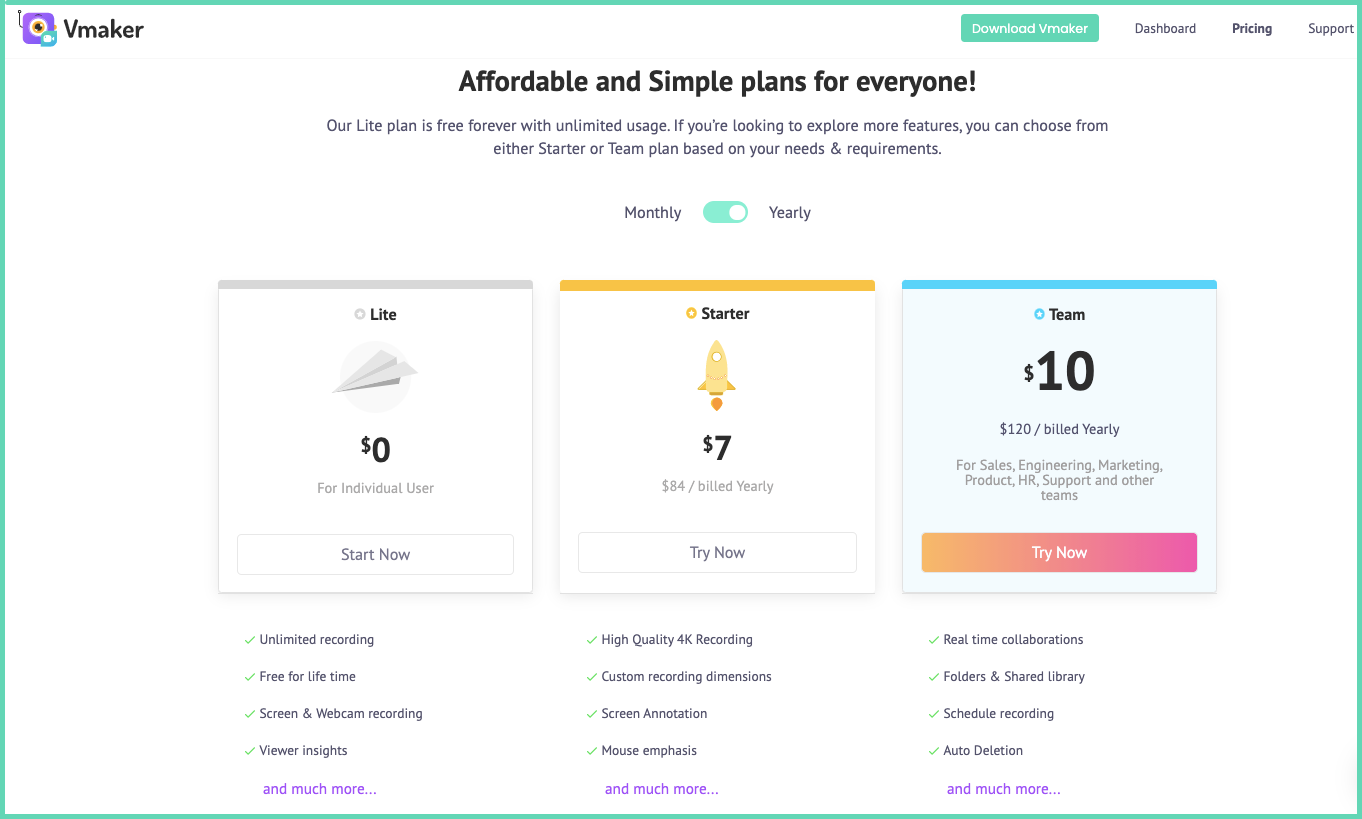
- 4K HD recording, no time limit, no watermark
- Video uploads
- Advanced video editor
- Direct YouTube uploads
- Embed your videos
- Auto-expiry of videos
- Folders and workspaces for collaboration
- Custom branding (logo, colour, CTA)
- Custom domain name
Summary
Vmaker lets you record high-quality tutorials without spending a lot of time or money. Most of the features are in the free plan, and many of these are locked behind paywalls in other tools. That is what makes it the best free tutorial video maker.
How to make a tutorial video
Vmaker rating: 4.7/5 on G2 (Screen and Video Capture category, High Performer).
2. Screencast-O-Matic
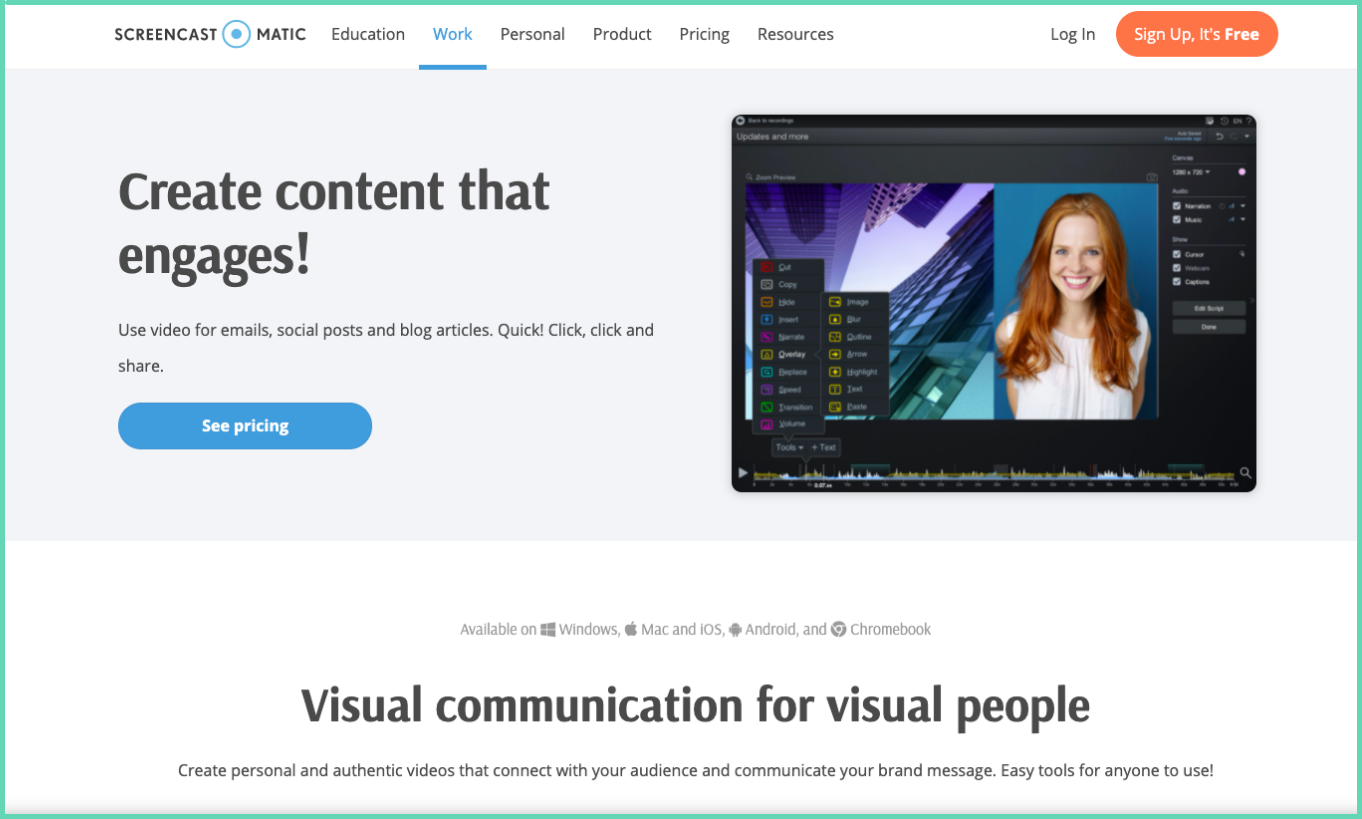
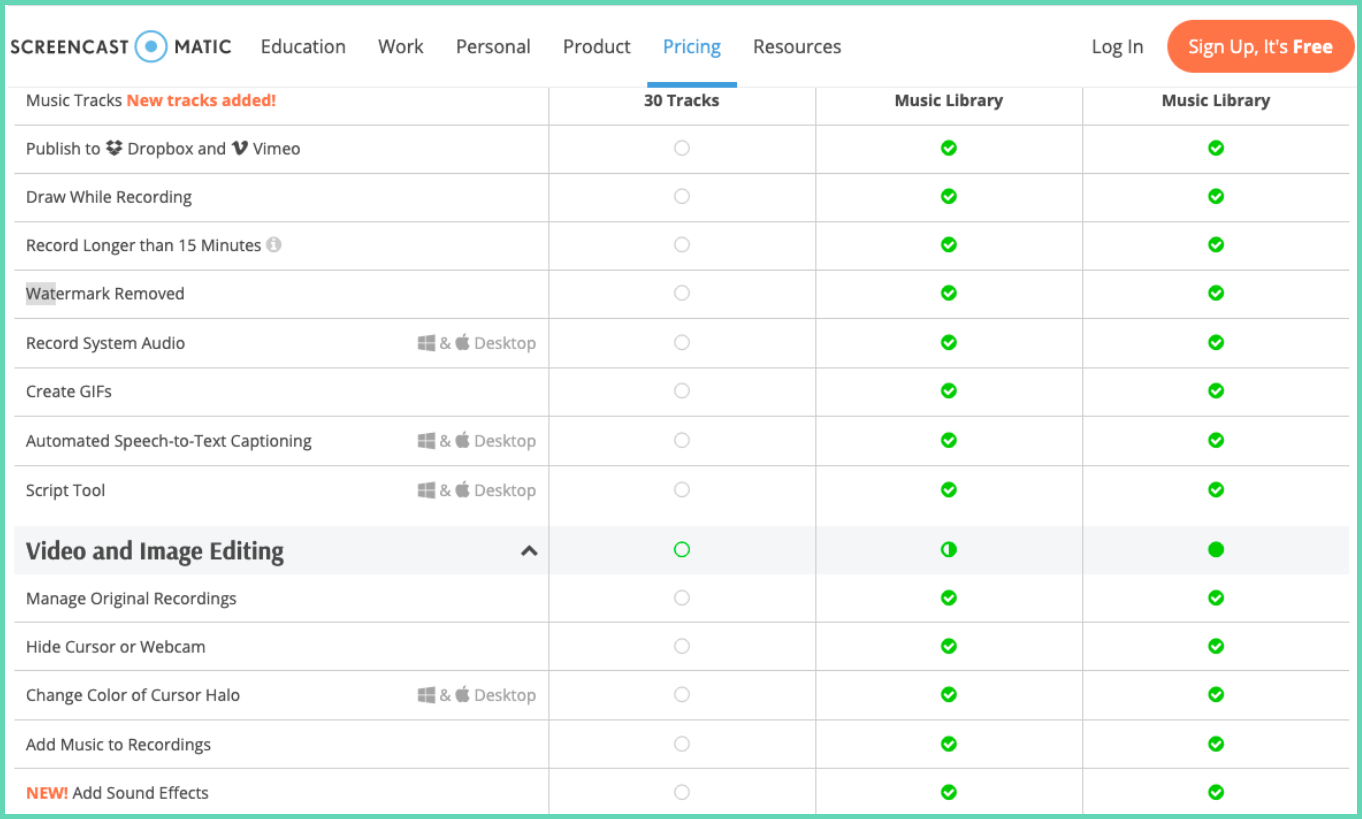
Screencast-O-Matic has been on the market for years. It comes with music, narration, animation, shape tools, audio fine-tuning, and external video imports. Most of these features sit in the paid plan. The free plan limits you to 15-minute recordings, adds a watermark, and does not record system audio.
Free plan features
- Multiple recording modes
- Direct YouTube upload
- Google Drive and Google Classroom integration
- Custom thumbnails
- Embed videos on your site
- Folders to organise recordings
- Password protection
- Linkable notes
Paid plan features
- Unlimited recording, no watermark
- Screen annotations during recording
- System audio capture
- Hide cursor and blur sensitive info
- Animations, transitions, video imports
- Green screen filter
- Remove silences
- Speech-to-text captions
- Background music
- LMS integration
Summary
Screencast-O-Matic has solid features when used right, but the free plan misses two basics: unlimited watermark-free recording and system audio. To make a real tutorial, you have to upgrade.
See a full Vmaker vs Screencast-O-Matic comparison.
Rating: 4.1/5 on G2
3. Animaker
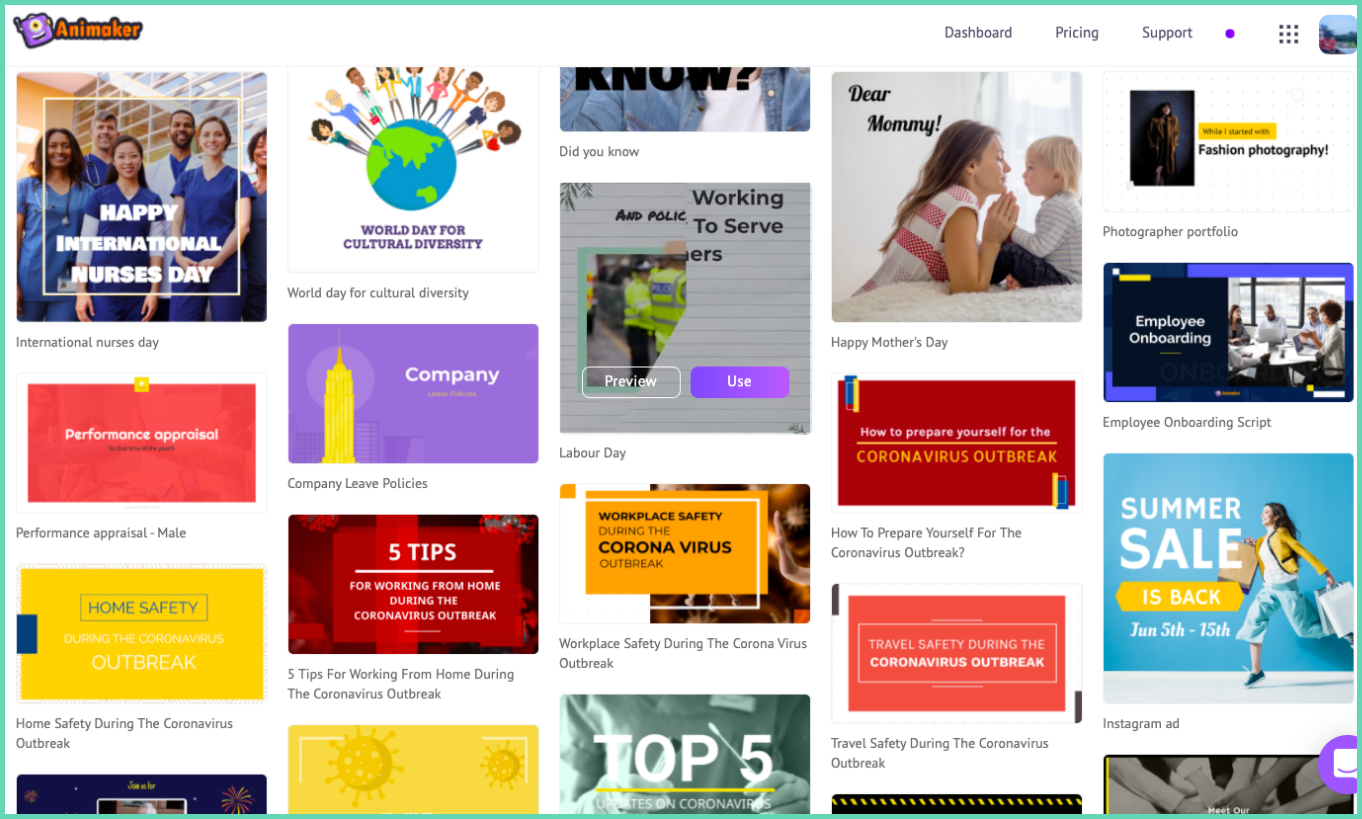
Animaker is one of the pioneers of the animation video industry. It is best known for animated tutorial videos. Animaker is easy to use and comes with a library of pre-made tutorial templates.
Free plan features
- Tutorial video templates
- HD quality videos
- Live action and animation mix
- Music tracks
- Text animation
- Smart animation
- Animaker Voice
- Real-time team collaboration
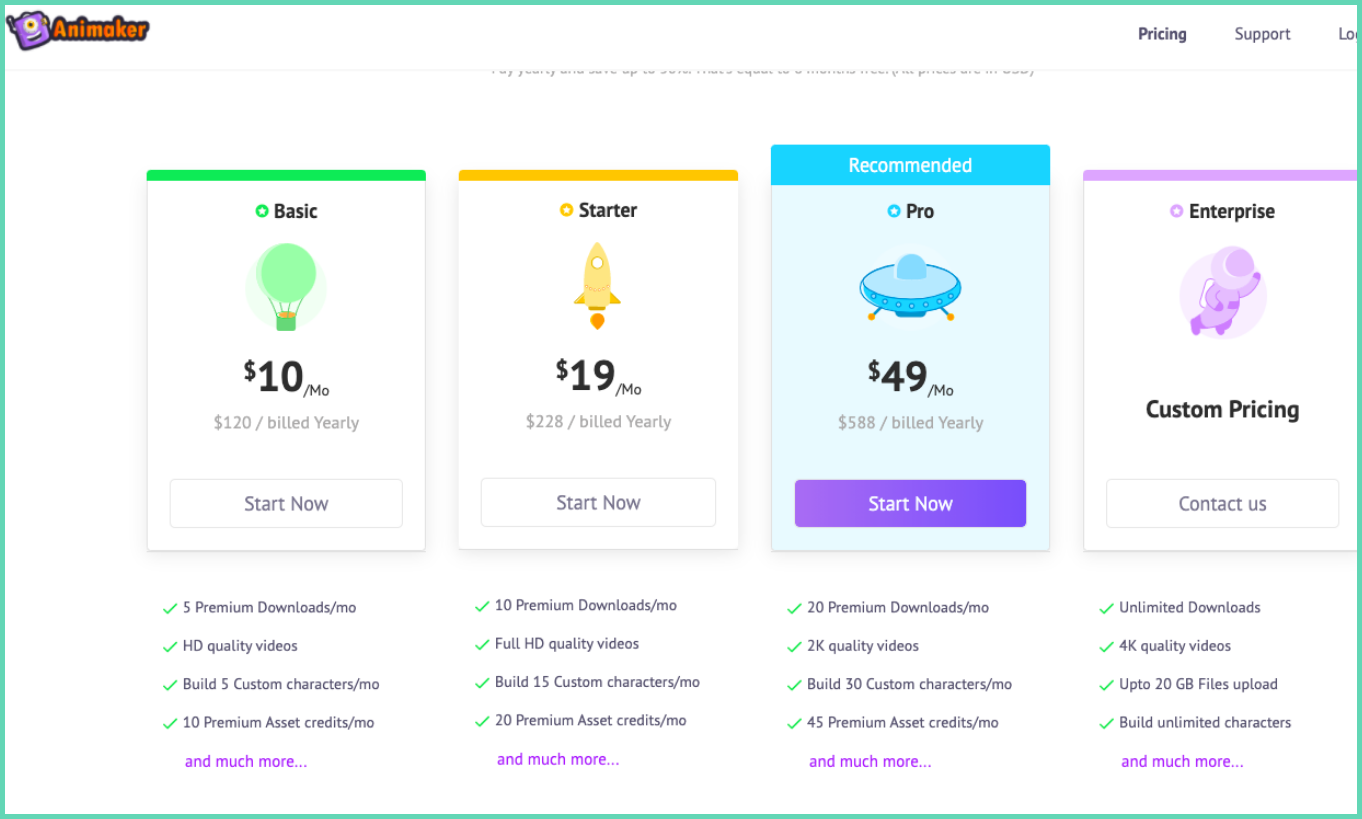
Paid plan features
- 4K HD recording
- Custom fonts
- Video resizing
- Video uploads above 5GB
- 30K+ music tracks
- Premium image and video library
Summary
Animaker is the right pick if you want animated tutorials. It is user-friendly and cost-effective. The premium plans give you more control over the look and feel. You can also create whiteboard tutorials, and Animaker integrates with Vmaker if you want to mix screen recordings with animation.
Rating: 4.4/5 on G2
4. Movavi Video Editor
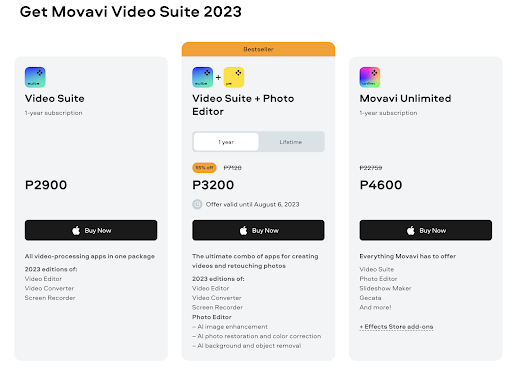
Movavi Video Editor is an all-in-one video tool. It works for tutorial videos, instructional content, and product demos. Movavi is built for both beginners and pros. It has a clean interface but enough power for advanced edits.
Movavi features
- Screen recording
- Video conversion
- AI tools (background removal, noise removal, photo enhancement)
- Library of music, transitions, intros, titles, stickers
- Fast project handling
- Direct upload to TikTok
- Effects for YouTube
- AI upscaling
- Drawing on video
- Recording scheduler
Summary
Movavi is a versatile editor for tutorial videos, especially when you need both screen capture and post-production polish. The AI tools and stock library save real time.
See a full Vmaker vs Movavi comparison.
Rating: 4.4/5 on G2
5. OBS Studio
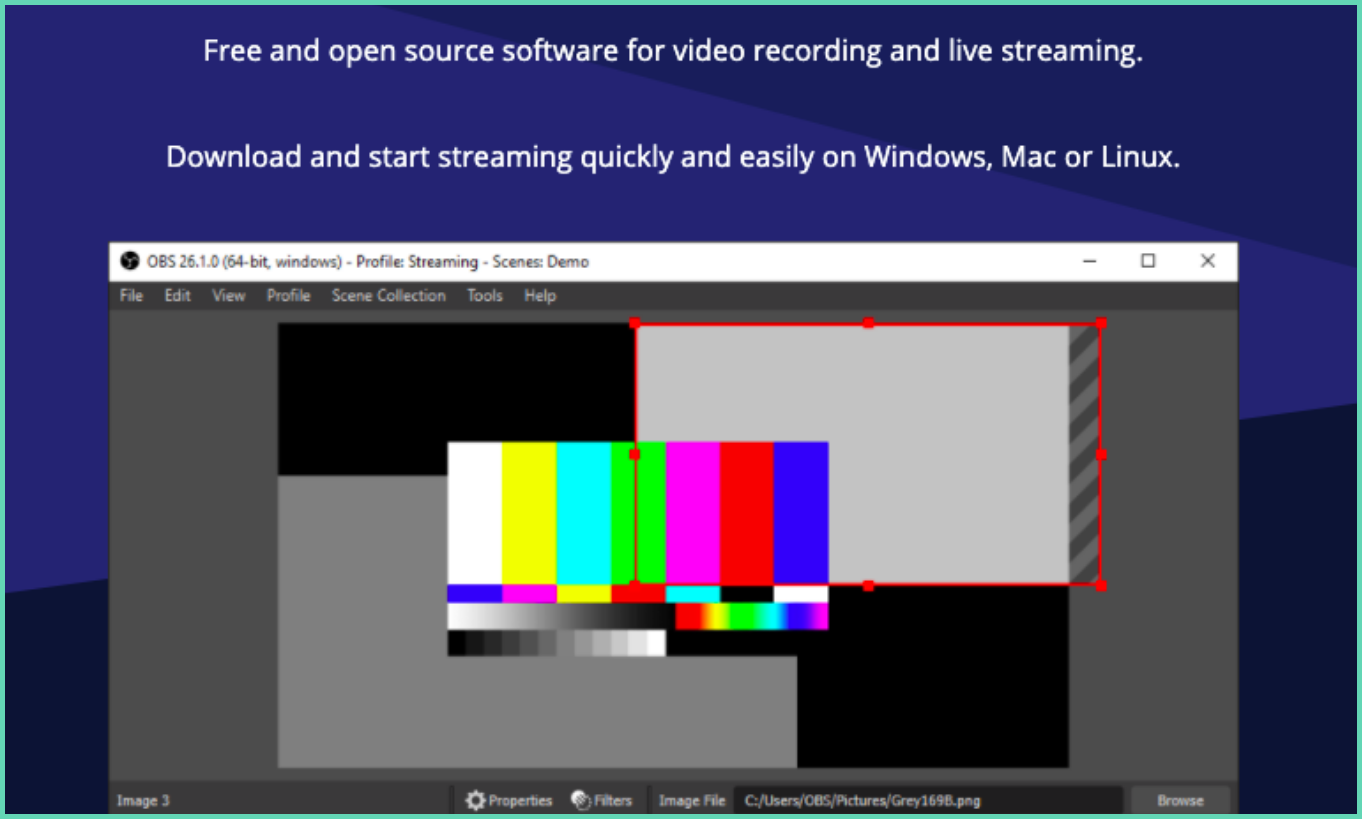
OBS (Open Broadcaster Software) is open-source. It is free to use with no paid plans. Gamers, YouTubers, and video pros all reach for OBS for screen recording and live streaming.
OBS features
- Free, no watermark
- Record screen, camera, or both at once
- Up to eight live scenes during recording
- Transitions and audio mixing
- Custom logo and branding
Summary
OBS is built first for live streaming, with screen recording as a side feature. It has a steep learning curve and very little hand-holding. If you already use OBS or are willing to invest the time, it is worth it. If you want something simpler, pick another tool from this list.
Rating: 4.5/5 on G2
6. Cloudapp
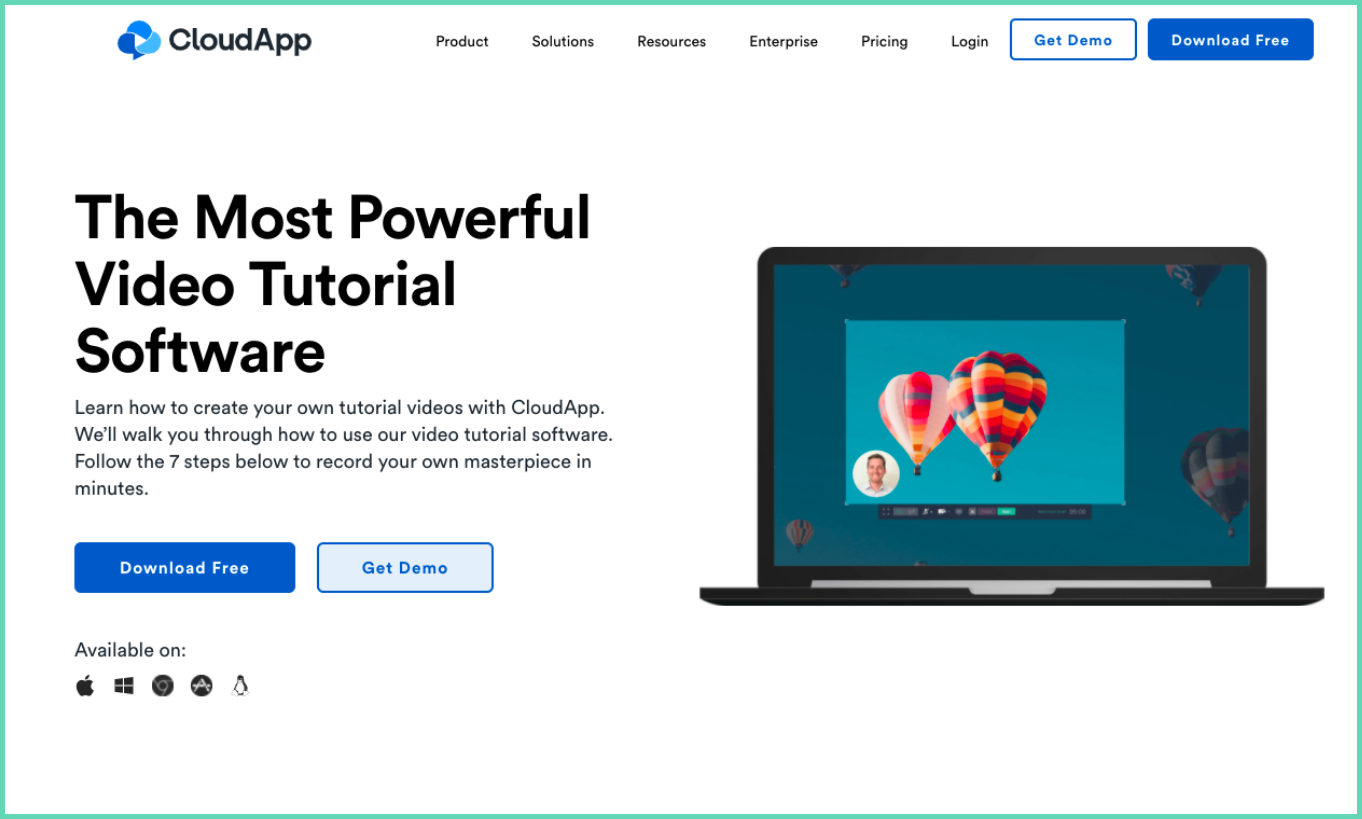
Cloudapp is a screen recorder and video communication tool. It works on multiple platforms, including iPhone, so you can record on the device you have at hand.
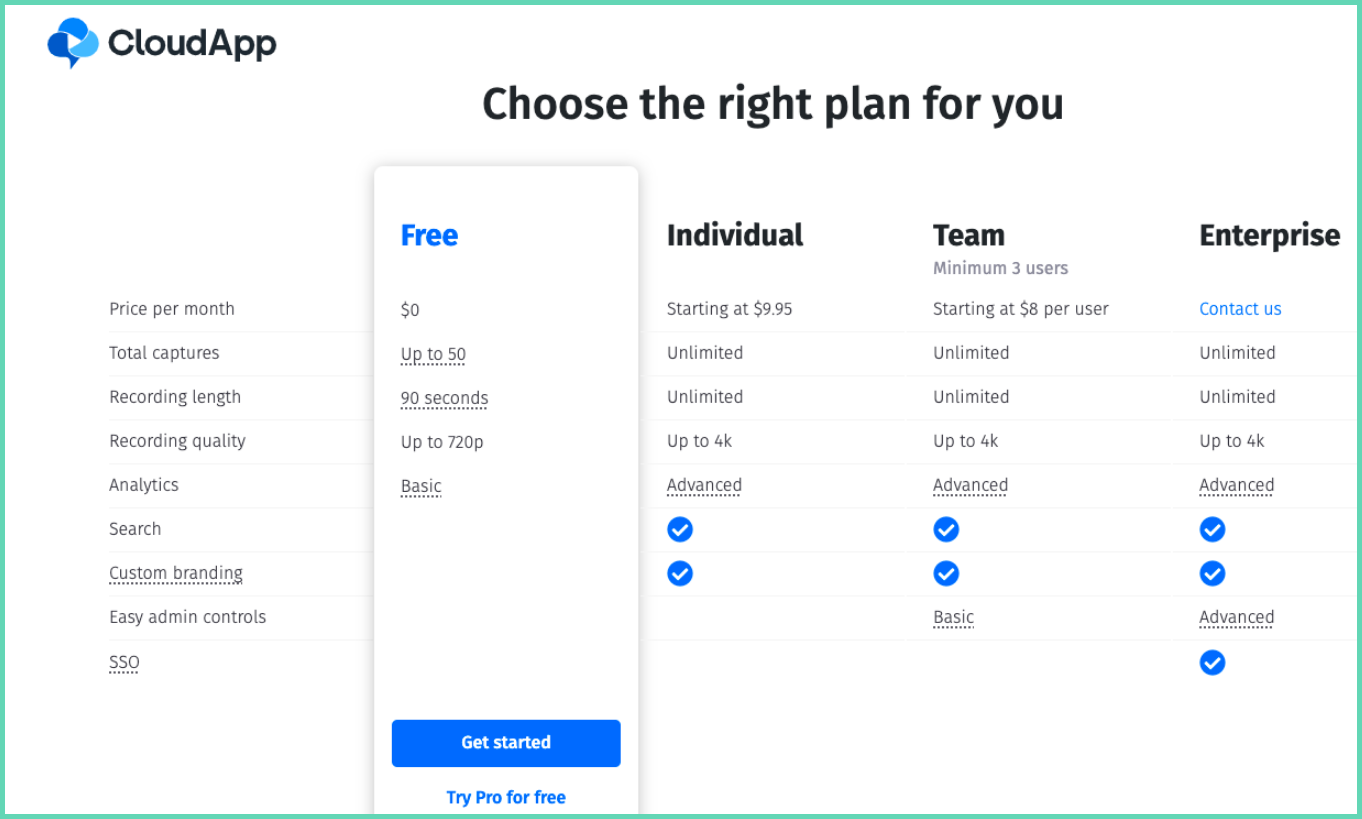
Free plan features
- Recording up to 720p
- Direct cloud upload
- Social sharing
- Direct video downloads
- Video editor
- Team collaboration on recordings
Paid plan features
- Screen annotations and blurring during recording
- Unlimited recording
- Recording up to 4K
- Custom branding
- Advanced video editing with uploads
Summary
Cloudapp is a strong video communication tool, but the free plan caps recordings at 90 seconds, which kills it for most tutorials. You will need to upgrade to record a full walkthrough. The custom branding and URL features in the paid plan are worth it if you share videos with clients often.
See a full Vmaker vs Cloudapp comparison.
Rating: 4.5/5 on G2
7. Camtasia
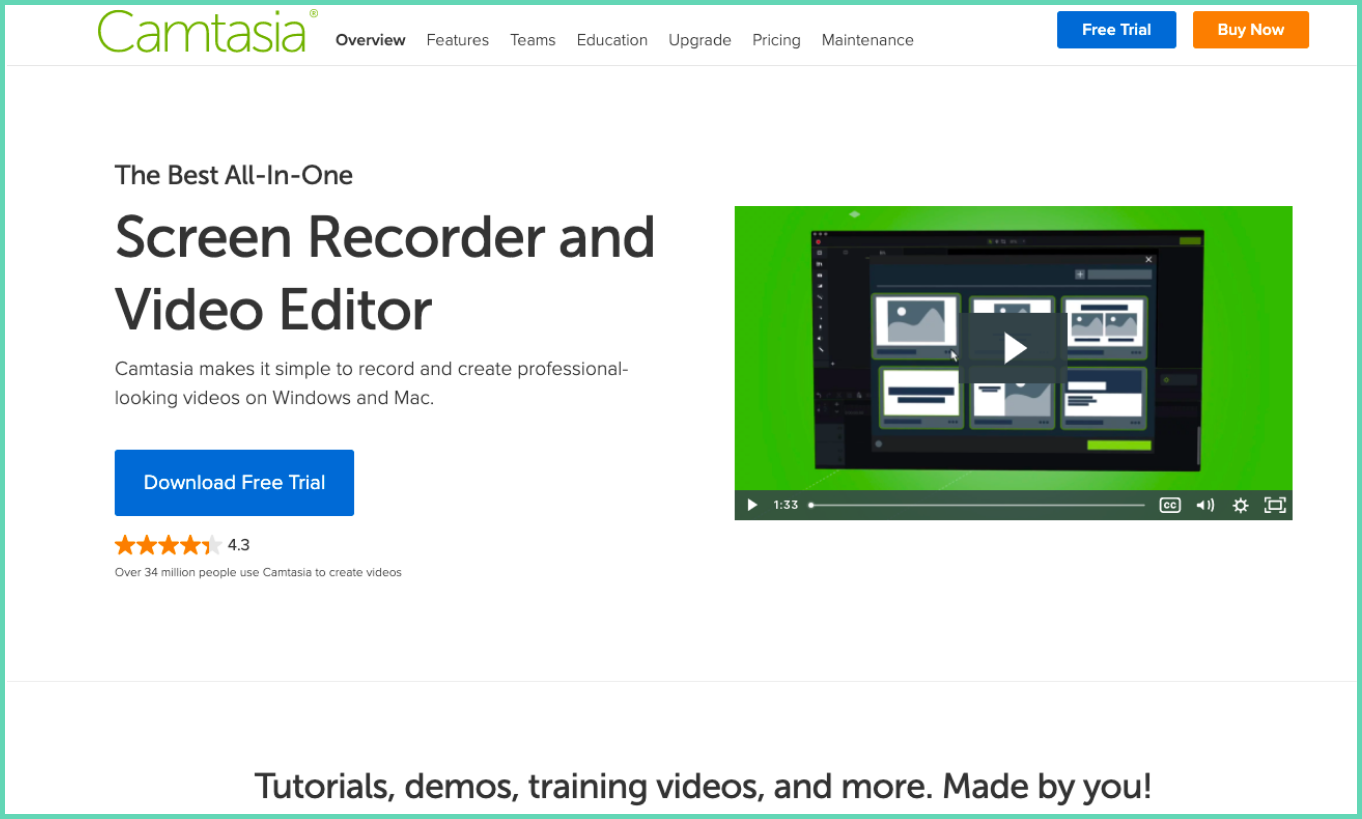
Camtasia is a screen recorder and tutorial tool from TechSmith. It is one of the older players in this space and is widely used. You can record, edit, and publish tutorials inside Camtasia. The catch: there is no free version, only a free trial. To use Camtasia, you pay a one-time licence upfront.
Camtasia features
- Screen and webcam recording with audio
- Pre-built templates
- Advanced editor
- Royalty-free music
- Animations
- External video, audio, and file uploads
- Polls and quizzes
- Green screen background
- Screen annotation, mouse emphasis, and blur
- Background noise reduction
Summary
Camtasia is great for tutorial videos, but the lack of a free plan and the upfront licence price hurt. Many of the same features sit in the free plans of Vmaker and Animaker. If you are sure you need Camtasia long-term, it is worth the spend. Otherwise, cheaper tools work just as well.
See a full Vmaker vs Camtasia comparison.
Rating: 4.5/5 on G2
8. Renderforest
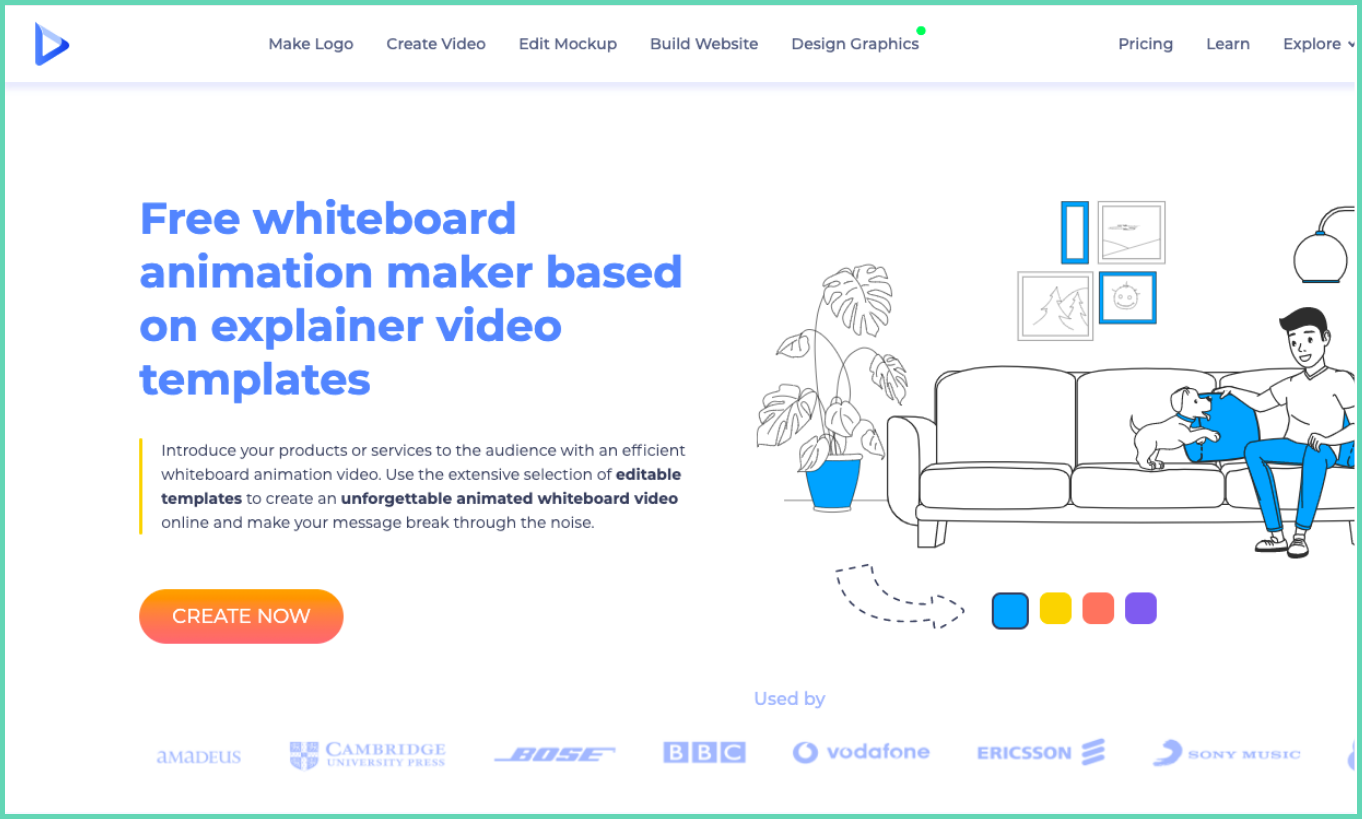
Renderforest is a whiteboard video tool. Whiteboard videos are a fun way to deliver tutorials, and they are easier to make today than ever before.
Renderforest features (free + paid)
- Whiteboard animation templates
- Stock video library
- Editor for music and voice-over
- One-click export and sharing
- Commercial music tracks
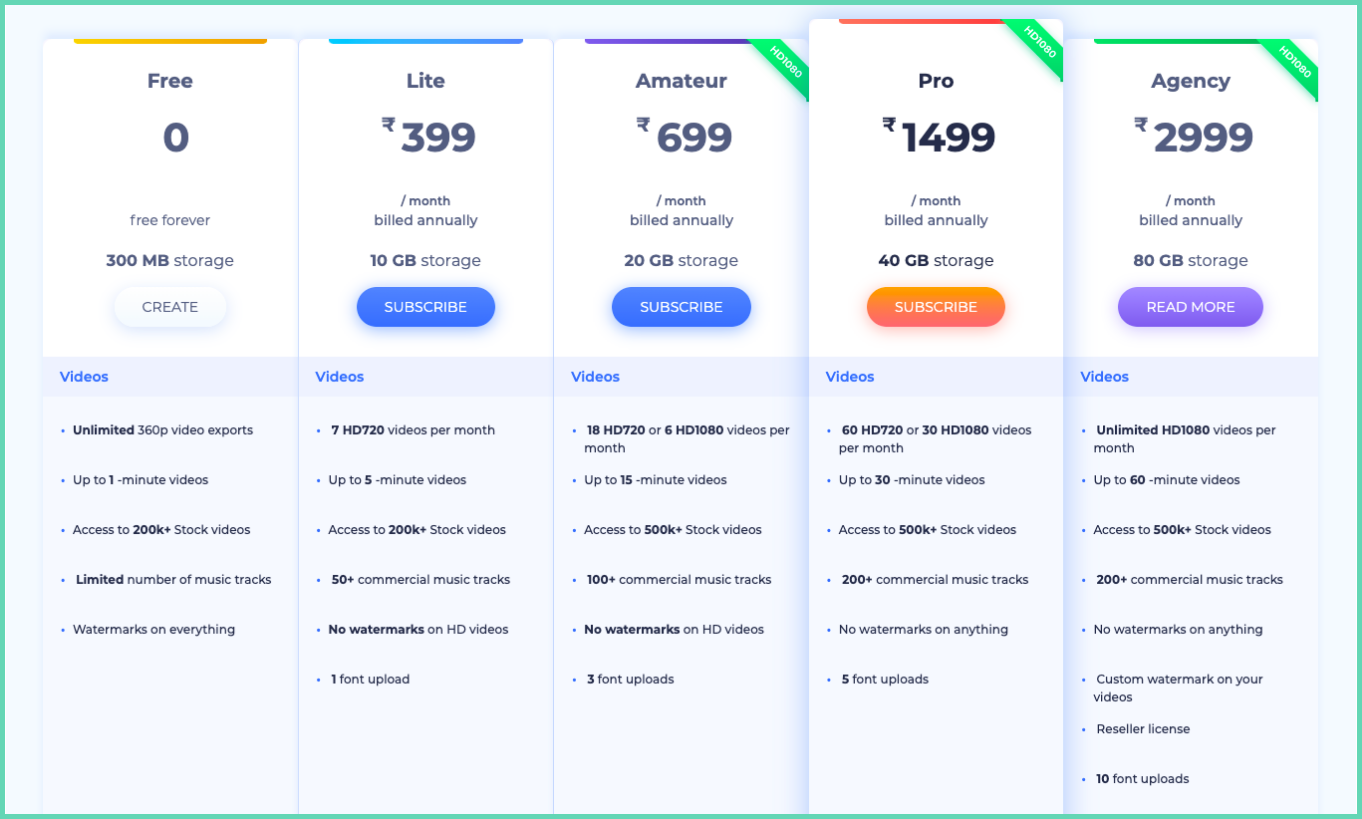
- Watermark-free videos (paid plan only)
Summary
Renderforest is good for whiteboard tutorials, but the free plan caps videos at one minute and adds a watermark. If you need full whiteboard videos, you have to pay. Animaker (above) is a strong alternative that handles both whiteboard and animated tutorials.
Rating: 4.8/5 on G2
9. Loom
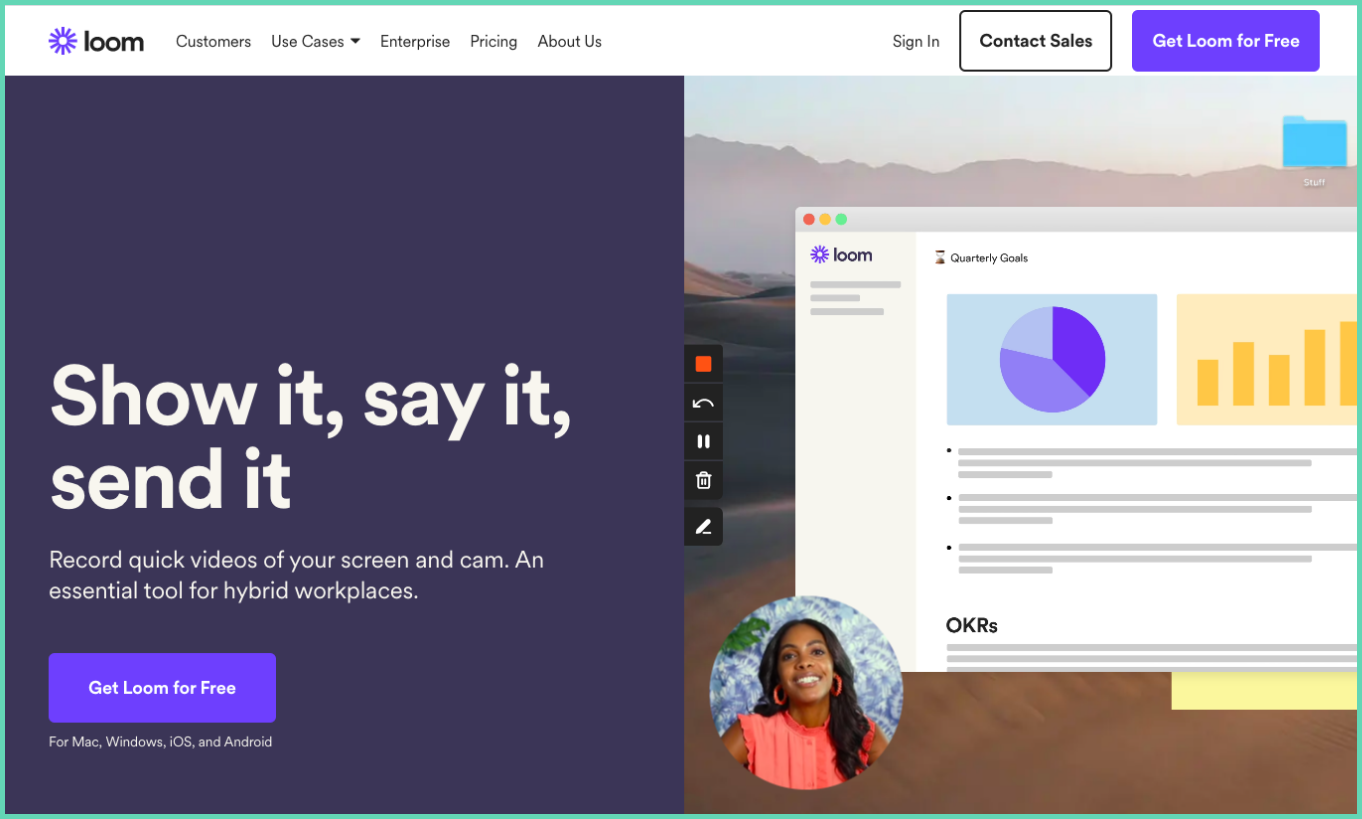
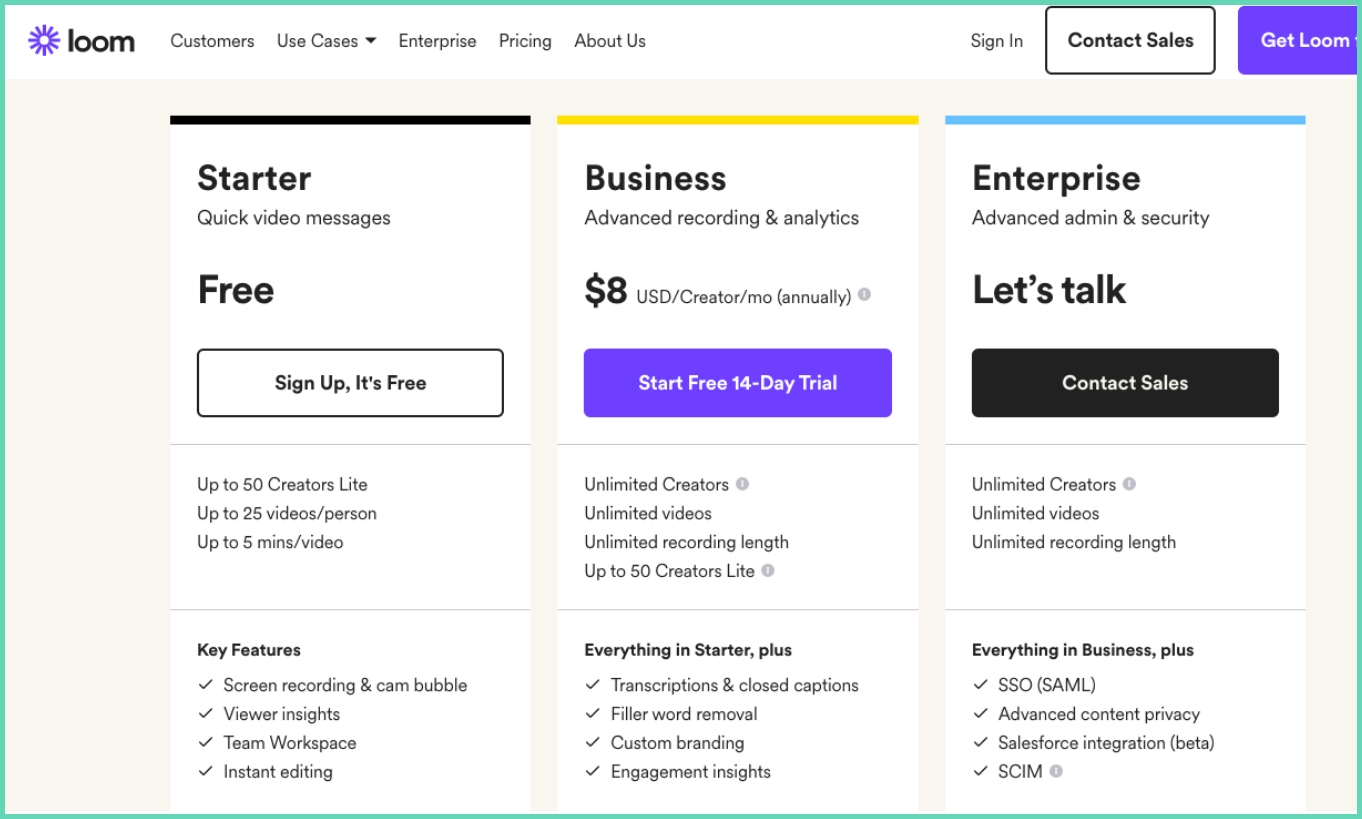
Loom is one of the most popular screen recorders on the market. It is built for video communication, but the features work for tutorial videos too. Loom is stable and the recording experience is smooth. The catch: the free plan caps each video at five minutes.
Free plan features
- 720p recording with system and mic audio
- Multiple recording modes
- Cloud uploads
- Video editor
- Social sharing
- Restricted access
- Free downloads
Paid plan features
- Unlimited recording up to 4K HD
- Custom recording dimensions
- Drawing tools
- Do not disturb mode
- Filler word removal
- CTAs and GIF thumbnails
Summary
Loom is solid for tutorial videos, and the filler-word removal in the editor is a great touch. But the five-minute cap on the free plan blocks most full-length tutorials.
See a full Vmaker vs Loom comparison.
Rating: 4.5/5 on G2
10. iSpring Suite
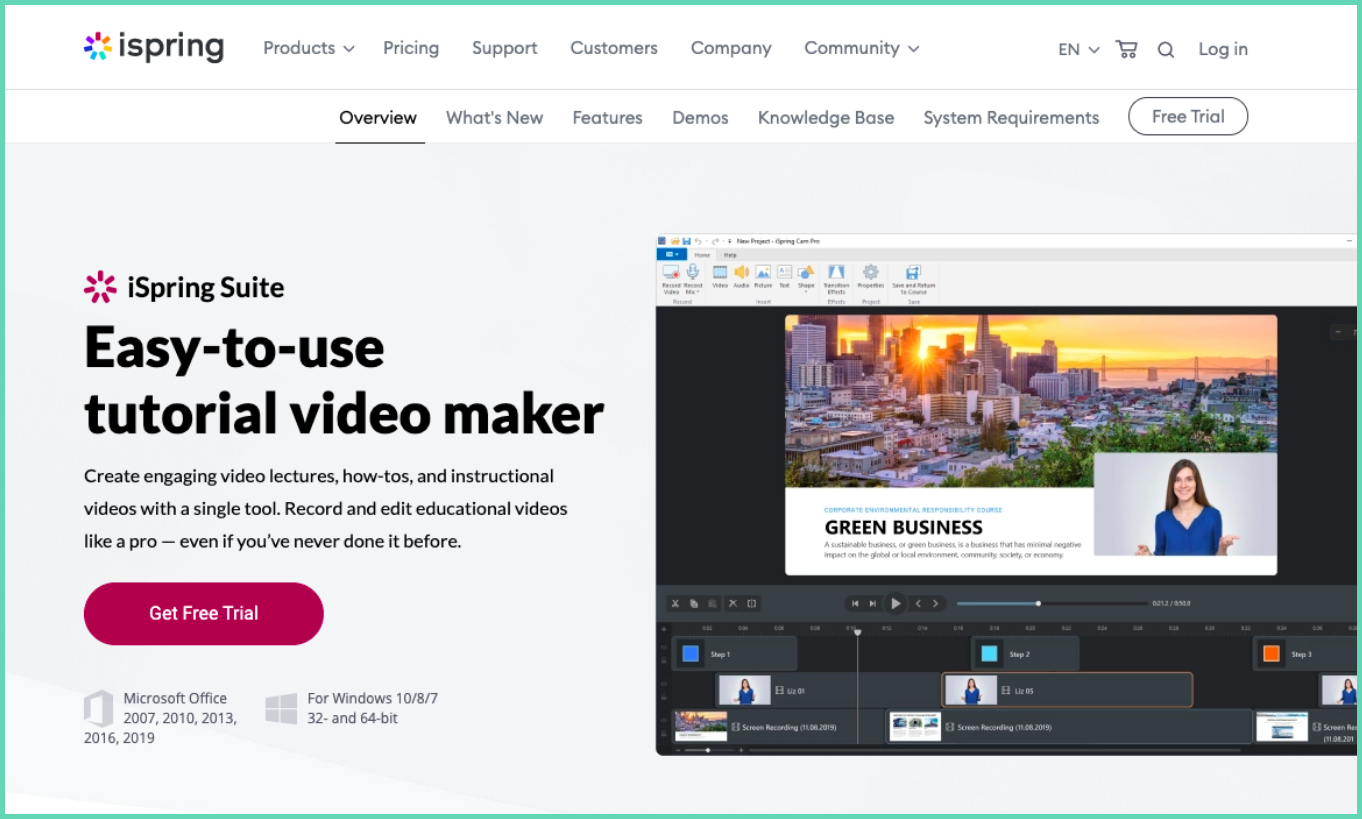
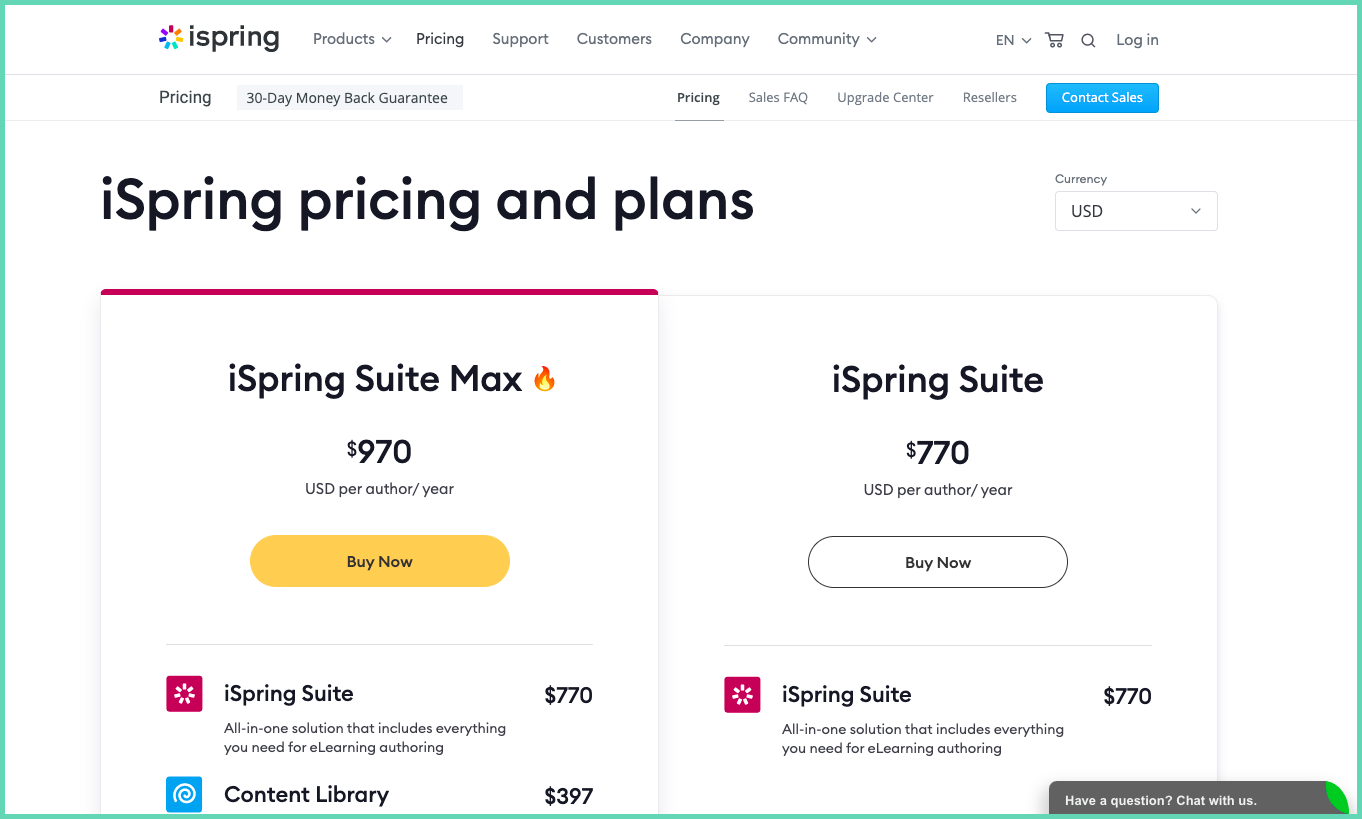
iSpring Suite is built for tutorial and online course videos. Unlike the others, it is not a screen recorder with tutorial features added. It is the other way around. iSpring runs as a Microsoft Office add-in or a standalone Windows app, and it integrates with most major LMS platforms. The downside: it is not free (only a 30-day trial), and there is a real learning curve.
iSpring features
- Screen and cam recording with system and mic audio
- Screen annotations and mouse click highlights
- Hotkey capture
- Transitions
- Pictures, shapes, and freeze frames
- LMS integration
Summary
iSpring is a strong pick for professional e-learning courses, but the cost and the learning curve make it overkill for most tutorial videos.
Rating: 4.7/5 on G2
Every tool above has a different strength. Pick the one that matches your workflow and budget.
A few tools that nearly made the cut:
- Bandicam
- FlexClip
- Animoto
- Moovly
- Biteable
- Joyoshare
- Screenium
- Active Presenter
- Filmora
- Flashback Screen Recorder
Did we miss one? Drop a comment.
Recommended Reads:
How to Make a Tutorial Video by Recording Your Screen
The Ultimate Tutorial Videos Guide with Tips and Free Template
How to Make a Screencast in 4 Easy Steps