Contents
Different ways to make training videos
How to make a great training video
Make videos for your online training course for free
Training Video: Definition, Forms, Tips & Free Tool
Whether you have sat through a training session or run one for others, one thing is clear: video is one of the most effective ways to learn. Showing someone how to change a spare tyre works better than telling them. Watching beats listening.
Videos sit between learning and entertainment. They make training informative without being boring. The numbers back this up. 86% of US viewers use YouTube to learn new things. Learners no longer have to wait for a class or pay for a course. They can do that, but it is not the only path. This opens up a huge market for training videos. If you have been thinking about sharing your skills on video, now is the time.
You will not be the only one out there. Competition is real. So you have to put effort in to make your content stand out, or it will sink to the bottom. This blog walks you through the basics, the tips that lift quality, and the easiest tool to build your own training course.
Use this list to jump to a section:
- What is a training video?
- Types of training videos
- How to make a great training video
- Make videos for your online training course for free
- Wrapping it up
What is a training video?
A training video is built to teach. It can teach a new skill, sharpen an existing one, or guide someone through a task. Long is fine if there is a lot to cover. But long is not always better. If you can teach the same thing in less time without losing quality, do that.
Your audience changes the format. Training videos for employees might cover a new tool or a new policy. Training videos for customers might explain how a product works. Same goal, different angle. Both will use a different tone and a different level of detail.
The format also shapes how you make the video. We will look at the main options next.
Different ways to make training videos
There is no single right way to make a training video. The best format depends on you, your audience, and your topic. Here are the main options.
Screen recording
Screen recording is at the top of our list for a reason.
Screen recorders are simple to use, do not need extra software, and you can run them solo. Tools like Vmaker handle this part well. They show your screen clearly, record your face and voice through the webcam, and let you teach as if you were sitting next to the viewer. That personal touch is what makes a screen-recorded training video stand out.
Here is an example of how we use Vmaker to train our customers.
Presenter videos
Presenter videos, also called instructor-led videos, work like a recorded classroom session. An instructor explains a topic on camera, often with a whiteboard or slides. The full guide on building these is in our video presentations playbook.
This format works best for topics that need a lot of explaining. Think "how to save tax through smart investments". That needs a real expert walking you through it.
Presenter videos can also be live. That opens the door to questions and a more interactive learning feel. The catch: you need to set up audio, lighting, and camera well to keep the quality high.
Here's an example of an instructor-led training video:
Animation videos
Animation videos use illustrations and characters to teach. They work great for topics that are too dry or too complex for an instructor-led video.
Animation makes things stick. Diagrams, characters, and short stories help the learner remember tough concepts without much effort. They also work well when your audience is younger. You can pick the style: whiteboard animation, motion graphics, or full character animation.
The downside: animation takes more time and skill to make. If you do not have a designer on the team, tools like Animaker make it easy and cheap.
Here is an animation video on getting started with meditation.
Role-play videos
Role-play videos can use animation or real people. Pick what fits your topic. They work best when you need to show real-life scenes like handling a tough customer, running through a sales call, or dealing with a workplace conflict.
In corporate training, role-play videos help employees see common situations and learn how to respond. Adding short animated clips between scenes makes them sharper. The hard part is finding the right people willing to act. The story only lands if the actors do.
Here is a sample role-play video.
How to make a great training video
You have picked the format. Now make the video itself stand out. Here is the process.
Pick the topic

Before you touch your mic or camera, lock in a topic. A topic is your compass. Without one, you will drift.
The best way to pick is to listen to your audience. What problem do they keep running into? If you are training employees, send out a quick survey. Once you know the pain point, build the video around it.
Write a script

Still no recording. Script first.
A script is just your thoughts on paper. Start with the headlines you want to cover. Add every idea, even the ones that feel off. You can cut later. Once the list is full, find a flow that takes the viewer from start to end. Edit until it reads smooth. You will not nail it on the first try.
Check your background

A messy background can ruin a good video. Set it up before you hit record. You can also remove or replace your video background with one click.
The right background depends on the type of video. Instructor-led videos look best with a clean, light wall. Office demo videos look more relevant with a real office in the back. Match the background to the topic.
Mind the length

A long training video is a punishment. Six minutes is the sweet spot for a learning video. If your topic is bigger than that, split it into a series of short videos instead of one long one. Easier to watch, easier to share, easier to revisit.
Review your content

Run a review before the final take. Check your script, your background, and your audio. Time yourself so the video does not run long. Sit in front of your laptop and check the camera angle so viewers are not staring at the top of your head. Record a short test clip and play it back. If the quality holds up, you are ready.
Make videos for your online training course for free
Online learning is now a multi-billion-dollar industry, and the entry barrier is the lowest it has ever been. You can build your own training course for free. Earlier, we mentioned screen recording as one of the easiest formats. The next section shows how to use Vmaker to create training videos at no cost.
Training video maker
Vmaker's screen and video recording features make it a strong fit for any training project. Here are the features that matter the most.
Works on every device
Vmaker works on Mac and Windows. Mac users can screen record on Mac in a few clicks. Sign up first. No credit card needed. Setup is simple enough for anyone.
Windows users can install the Chrome extension from the Chrome web store. Pin it to the toolbar and start recording.
Easy webcam + screen recording
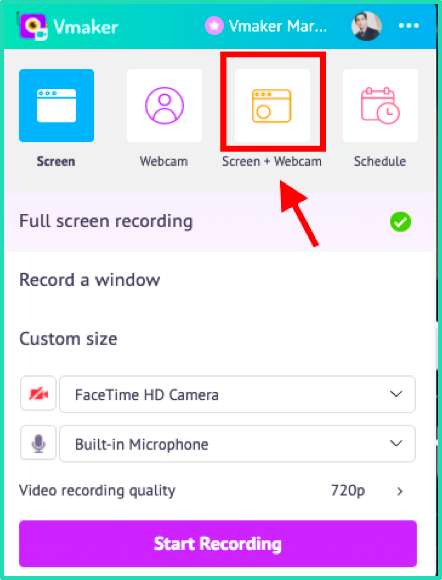
No extra cameras needed. Log in, pick the screen + webcam mode, and hit record. Plug in an external mic if you have one. Vmaker will detect it and capture your voice. Your screen, webcam, and audio sync on their own.
Add frames to webcam recording
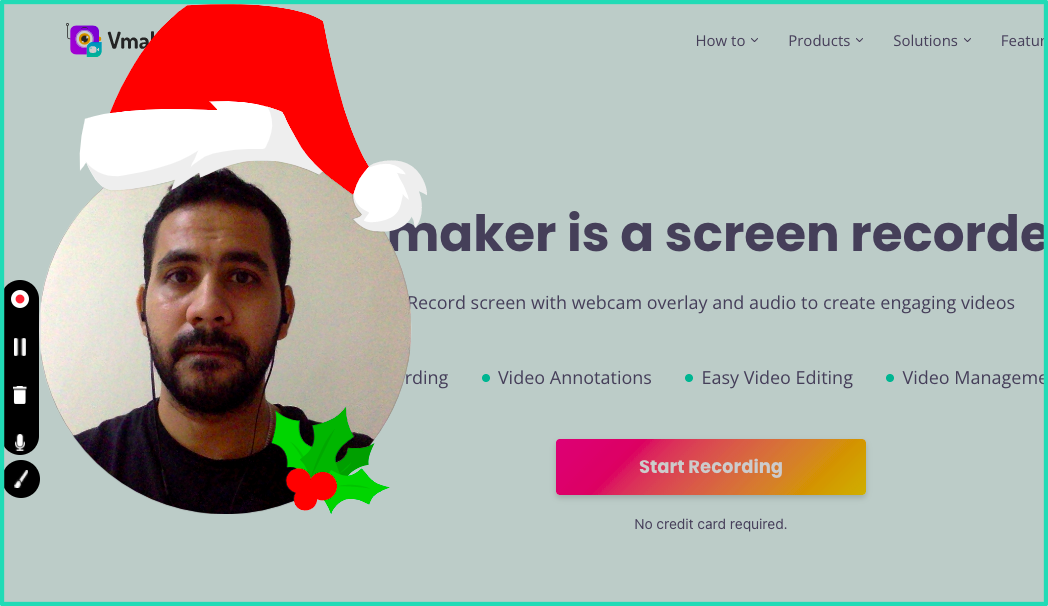
Add a name tag or a frame around your webcam to make the video feel friendlier. Small touch, big impact on how learners see you.
Annotation and mouse emphasis
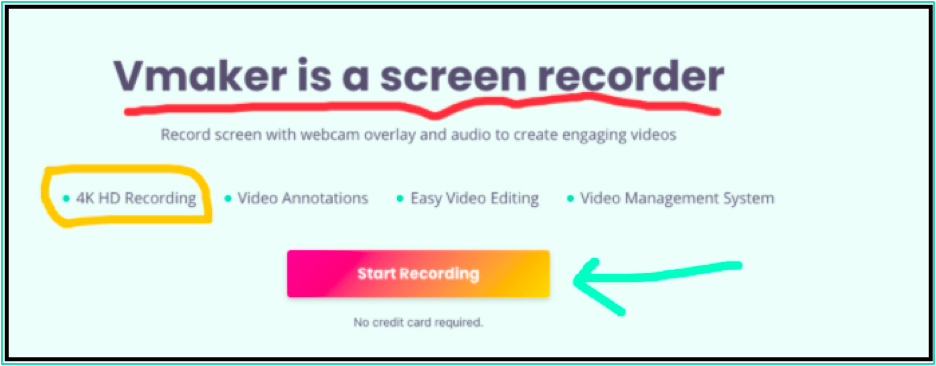
Annotation lets you draw arrows, underlines, and shapes on screen to keep the learner focused. Mouse emphasis makes the cursor easy to track. Both help learners follow along when you move fast.
Edit smoothly with the AI video editor
Once you have the recording, the Vmaker AI video editor turns the raw clip into a polished training video in a minute. You can add subtitles, pull short clips out of a long lesson, and apply ready-made viral styles.
Share instantly
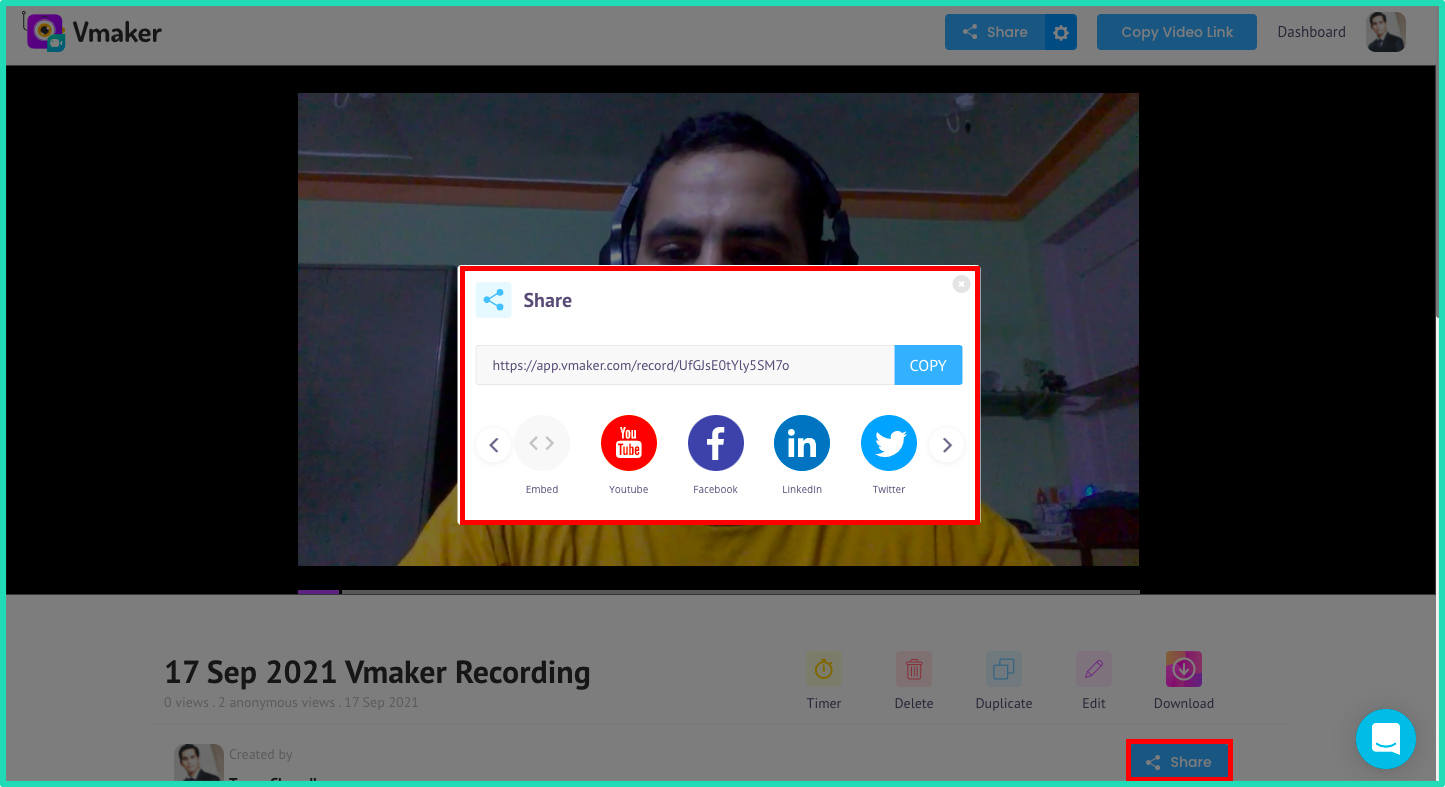
Upload to Facebook, LinkedIn, or YouTube right from the dashboard. No extra tool, no extra step.
Wrapping it up
Training videos make learning easier and more engaging. Pick the right format for your topic, write a clean script, set up your background, and run a couple of test takes. Once those four pieces line up, hit record.
If you want to start an online training course, Vmaker is a solid free starting point. The features match what a trainer needs out of the box.
One last thing: no tool replaces practice. Keep making videos. Each one will be better than the last.
Liked this guide? Here are a few more reads:
How to Make Engaging and Effective Training Videos
The Ultimate Tutorial Videos Guide with Tips and Free Template
The Ultimate How-to Video Guide with Examples, Tips, and Ideas