Contents
What Actually Makes a Good AI Video Editing Workflow in 2026?
What Editing Felt Like in Descript
Where Descript's Workflow Started Slowing Down
Now, What Editing Felt Like in CapCut?
Where CapCut's Workflow Started Breaking
The Real Workflow Difference Between Descript and CapCut
Which Tool Reduced More Editing Fatigue?
Which Tool Actually Performed Better for Which Category?
Final Verdict After Editing the Same Video on Both Platforms
Descript vs CapCut for AI Video Editing: A Hands-On Workflow Comparison
I thought editing the same video in Descript and CapCut would mostly come down to comparing AI features.
Instead, it exposed two completely different ways modern creators edit content.
One platform tried to reduce editing by understanding the conversation itself. The other focused on speeding up visual execution, packaging, and publishing.
To test the difference properly, I edited the same long-form podcast conversation of Colin & Samir with Jordan Matter, on Why the Biggest YouTube Family Just Went to Netflix, on both the AI video editing platforms. Briefly, it was a discussion around Netflix signing YouTube creators, creator-led entertainment, audience loyalty, and the future of content platforms.
Full podcast video used for testing:
What I Wanted to Test
- Easy short-form clip creation: How quickly each platform could turn long-form content into publish-ready short clips.
- Filler word removal: Whether AI cleanup actually felt natural during playback instead of looking aggressively cut.
- Caption generation: Caption accuracy, styling flexibility, and how quickly captions could be packaged visually.
- Pacing improvements: How well the platforms improved conversational pacing without making edits feel robotic.
- Export workflow: Export speed, publishing integrations, aspect ratio controls, and export flexibility.
- Shorts / Reels / TikTok readiness: How optimized the workflow feels for vertical content publishing overall.
What Actually Makes a Good AI Video Editing Workflow in 2026?
AI video editing workflows are no longer judged only by features. What matters more is how naturally the platform handles real creator workflows from editing to repurposing to publishing without slowing the process down.
- Editing speed: How quickly raw footage can move into a publish-ready video without unnecessary editing friction.
- Removing editing fatigue: Whether repetitive work like cleanup, captions, trimming, and pacing adjustments feel automated instead of mentally exhausting.
- Export reliability: How stable the exporting experience feels during actual projects, especially while handling longer edits and multiple revisions.
- Content repurposing efficiency: How effectively the platform converts long-form videos into reusable short content without rebuilding edits manually.
- Scalability for consistent publishing: Whether the workflow still feels manageable when creators need to publish content consistently instead of editing occasionally.
What Editing Felt Like in Descript
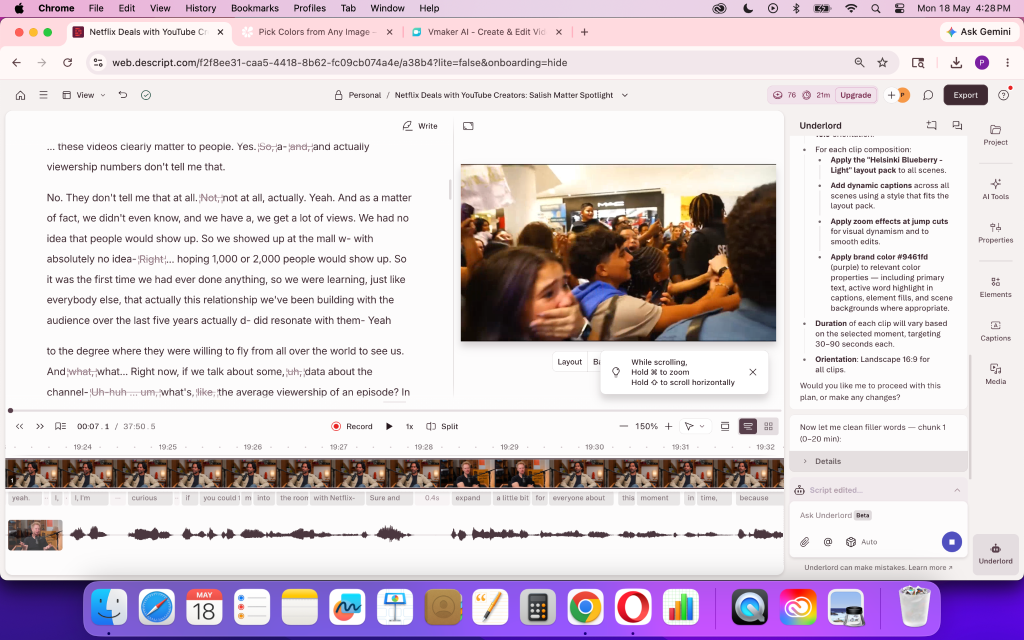
Descript is a completely prompt-based AI video editing platform that helps creators by letting them type out prompts and make edits instantly.
You essentially guide the AI on what you want, and it makes the edit.
I tested Descript by editing the same long-form podcast-style video from scratch to understand how its AI editing workflow actually performs during real editing, and its AI capabilities in repurposing, captioning, and Shorts creation instead of just testing isolated features.
Edited video of the podcast:
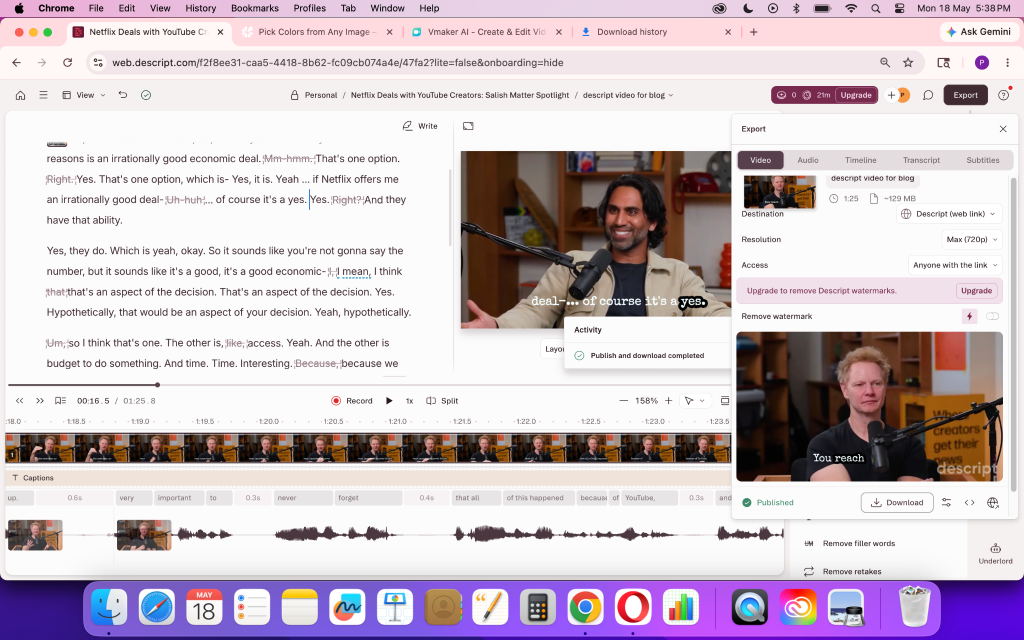
Transcript editing changed how video editing felt
The biggest difference in Descript was its transcript-based editing system.
Instead of cutting clips manually on the timeline, editing happened directly through the transcript by deleting a word from the transcript and automatically removing that exact section from both the audio and video while trying to realign the surrounding speech naturally.
For podcasts, interviews, and spoken-word content, this made rough cuts much faster than traditional editing workflows.
Long-form repurposing felt faster and less exhausting
Descript clearly understands dialogue-heavy workflows.
Finding moments through the transcript felt much easier compared to manually editing in timelines. For podcasts, webinars, and educational content, the workflow reduced editing fatigue significantly.
The AI also automatically generated:
- Vertical Shorts
- Layouts
- Clip formatting
- Pacing adjustments
This made long-form repurposing feel structured instead of chaotic.
Eye contact feature made the reading part easier
One feature that genuinely stood out was Eye Contact correction. Even while reading from a script or looking slightly away from the camera, Descript adjusted the eye positioning to make it appear more natural and viewer-focused.
Suitable for:
- Talking-head videos
- Webinars
- Educational content
- Creator videos
This reduced the need for multiple retakes and felt more practical than gimmicky.
Where Descript's Workflow Started Slowing Down
Filler word removal was fast but not always natural
Descript automatically removed:
- "uh"
- "um"
- pauses
- repeated words
It pulled these out very quickly through its AI cleanup tools. But during playback, some cuts felt visually abrupt.
The AI occasionally removed natural conversational pauses too, which made certain sections feel slightly fragmented. In some places, transitions before and after cuts created visible jump effects that looked slightly distorted on screen.
The cleanup worked technically, but smoother pacing still required manual review.
The AI didn't pick strong hooks
While Descript generated Shorts automatically, the clip selection quality varied depending on context.
Some AI-selected clips were technically correct but lacked strong opening hooks for retention. I tried a few videos, and the AI picked question-based sections without including the stronger contextual setup before them.
The workflow accelerated repurposing, but hook selection still depended heavily on human judgment.
The timeline workflow felt unfamiliar initially
Even though the AI tools were powerful, the editing interface sometimes felt unfamiliar initially. With fast-paced Shorts generation, I felt the platform could make the whole process simpler.
At times, the workflow felt more prompt-assisted than manually controlled, which creates confusion while generating.
Now, What Editing Felt Like in CapCut?
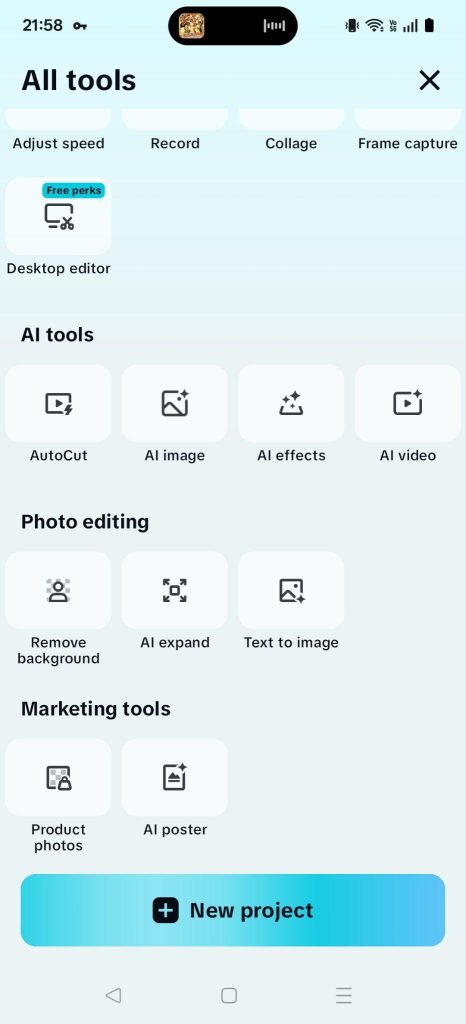
CapCut feels less like an AI-assisted editing workspace and more like a creator-first visual editing platform built for fast social media content production.
Unlike Descript's transcript-first workflow, CapCut focuses heavily on quick visual enhancements, effects, captions, transitions, templates, and quick publishing for short-form platforms.
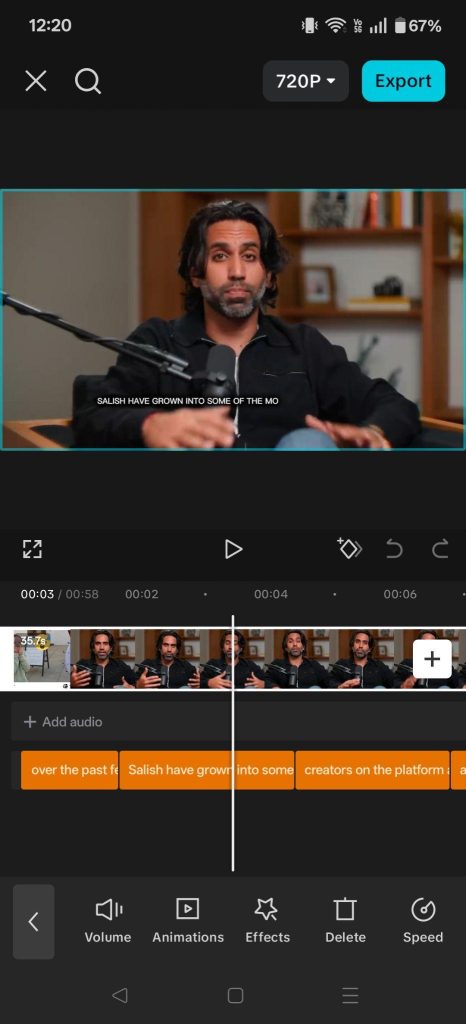
Since CapCut web accessibility has its limitations globally, I tested the workflow primarily through the CapCut mobile app while editing the same long-form podcast-style video to understand how practical the editing experience actually feels for creators.
Edited video of the podcast:
Timeline editing felt more natural for visual editing
The first thing noticeable in CapCut was how straightforward the timeline editing felt.
Unlike Descript's AI-assisted transcript workflow, CapCut relies almost entirely on manual editing with AI effects, animations, and transitions available in one click.
There is no native AI-powered short clip generation workflow that automatically identifies moments or restructures long-form videos into clips.
Everything happens directly on the timeline, be it:
- Cutting clips
- Trimming sections
- Adjusting pacing
- Adding overlays
- Transitions
- Effects
- Captions
- Visuals — felt immediate without depending on prompts or automation
Since the platform is designed heavily around mobile-first editing, the workflow feels optimized for fast visual editing and quick content packaging rather than AI-assisted repurposing.
Compared to transcript-based editing, navigating visuals and manually controlling edits felt much simpler and easier to manage here.
Captions, templates, and visual packaging felt faster
CapCut's biggest strength is visual packaging.
Adding captions, animations, subtitle styles, and overlays felt extremely intuitive through quick tap-based editing.
The platform includes a massive number of:
- Caption templates
- Subtitle animations
- Trending effects
- Social-style transitions
- Visual enhancement tools
The auto-captions were accurate, and styling captions for creator-style content took very little effort.
For short-form creators, this makes packaging content visually much faster compared to traditional editors.
Vertical editing felt built for social platforms
CapCut clearly prioritizes vertical content workflows.
Editing vertically for:
- TikTok
- Instagram Reels
- YouTube Shorts
felt native throughout the app.
Adding intro images, transitions, motion effects, overlays, and quick pacing adjustments was easy directly from the mobile timeline itself.
The workflow feels designed for creators who want to:
- Edit quickly
- Package visually
- and publish fast
Creator-style editing felt faster than expected
CapCut worked best during:
- Visual pacing adjustments
- Social packaging
- Transitions and effects
- Caption styling
- Mobile editing workflows
The platform also makes applying effects extremely fast. Most animations, transitions, and enhancements apply instantly with one click directly where the playhead is positioned.
For fast-moving creator workflows, this significantly reduces editing friction.
Where CapCut's Workflow Started Breaking
Shorts creation was still manual
One major limitation was AI repurposing.
Unlike Descript, CapCut did not automatically generate short clips from long-form videos during my workflow testing.
Creating Shorts still required manual selection, trimming, pacing, and editing.
For creators handling large podcast repurposing workflows regularly, this slows down scalability significantly.
Long-form editing started becoming difficult
CapCut felt optimized for short-form editing, not managing large long-form projects.
Editing long podcast footage while simultaneously trying to create publish-ready Shorts became difficult quickly.
Managing extended timelines on mobile felt limiting compared to structured desktop workflows.
Performance became unstable during longer sessions
The biggest issue during testing was app stability.
While editing longer footage continuously, the CapCut app occasionally:
- Slowed down
- Lagged
- Froze temporarily
- or exited unexpectedly during edits
For quick Shorts editing this may not matter heavily, but during longer creator workflows, interruptions became noticeable.
The Real Workflow Difference Between Descript and CapCut
After editing the same long-form video on both platforms, the biggest difference was not the AI features themselves — it was how each platform approaches the entire editing workflow.
Descript tries to reduce editing effort through AI-assisted transcript editing and repurposing.
CapCut focuses more on fast visual execution, creator-style packaging, and quick manual editing.
The workflow difference becomes obvious once real editing starts.
1. Transcript-based editing vs visual-first editing
| Descript | CapCut |
|---|---|
| Descript treats editing more like editing a document. You delete words from the transcript, and the platform automatically updates the audio and video around it. This makes spoken-word editing feel structured and efficient. | CapCut works in the completely opposite direction. The workflow is visual-first, where everything happens directly on the timeline through manual cuts, effects, overlays, transitions, captions, and motion edits. |
2. Structured editing vs fast publishing
| Descript | CapCut |
|---|---|
| Descript felt more structured during long-form editing. The workflow pushes creators toward transcript cleanup, repurposing, dialogue refinement, and content restructuring. | CapCut felt faster for immediate editing and publishing. Adding captions, animations, effects, transitions, overlays, and visual pacing adjustments required very little friction compared to Descript. |
3. Podcast repurposing vs creator packaging
| Descript | CapCut |
|---|---|
| Descript clearly performed better for repurposing long-form conversations into editable clips. The transcript workflow reduced the effort of searching through large timelines manually. | CapCut performed better during the visual packaging stage: captions, animations, subtitle styles, transitions, and creator-style enhancements. |
Which Tool Reduced More Editing Fatigue?
For dialogue-heavy content, Descript reduced editing fatigue more.
Removing filler words, shortening gaps, editing transcripts, and restructuring conversations required less repetitive effort compared to manual editing.
CapCut reduced friction differently.
Instead of reducing cleanup effort, it reduced visual editing effort through:
- One-click transitions
- Fast caption styling
- Visual presets
- Quick mobile editing actions
Both reduce effort, but in different parts of the workflow.
Which Tool Actually Performed Better for Which Category?
| Workflow need | Better tool | Why |
|---|---|---|
| Best for podcast and dialogue-heavy workflows | Descript | The transcript editing workflow reduced effort significantly during spoken-word editing and long-form repurposing. |
| Best for short-form visual publishing | CapCut | Visual packaging, captions, effects, transitions, and quick editing felt faster and more creator-focused. |
| Best for solo creators | Depends on the workflow | Descript works better for long-form content systems, while CapCut works better for fast visual publishing workflows. |
| Best for teams and collaborative editing | Descript | Transcript organization and desktop-based editing made collaborative workflows feel more structured. |
| Best for high-volume content repurposing | Descript | AI-assisted repurposing reduced repetitive editing effort during long-form content workflows. |
| Best for fast daily publishing | CapCut | The editing-to-publishing cycle felt much faster for quick content execution. |
Final Verdict After Editing the Same Video on Both Platforms
After editing the same long-form video on both platforms, the biggest realization was that AI video editing workflows now feel much more creator-oriented than traditional editing setups. Descript streamlined spoken-word editing and long-form repurposing workflows, while CapCut made visual editing, captions, effects, and publishing feel extremely fast and accessible.
Both platforms improved different parts of the creator workflow, and that's what made the comparison interesting. Instead of competing directly, Descript and CapCut feel optimized for different editing styles, publishing needs, and creator workflows depending on how content is produced consistently.
FAQs
What is the main difference between Descript and CapCut?
The biggest difference is the editing workflow itself. Descript uses transcript-based editing where creators edit video by editing text, making it more suitable for podcasts, interviews, and spoken-word content. CapCut is timeline-first and focuses more on visual editing, transitions, effects, captions, and fast social media publishing.
Which is better for podcast editing, Descript or CapCut?
Descript performed better for podcast editing during testing because the transcript workflow made it easier to remove filler words, restructure conversations, and repurpose long-form discussions into Shorts without manually searching timelines.
Which is better for TikTok and Reels, Descript or CapCut?
CapCut is better optimized for TikTok, Instagram Reels, and YouTube Shorts workflows. The platform focuses heavily on vertical editing, visual packaging, transitions, subtitle styling, effects, and fast mobile publishing.
Can CapCut turn long videos into Shorts automatically?
Not in the same way as Descript. During testing, CapCut still required manual clip selection, trimming, pacing adjustments, and editing. It offers AI-assisted tools, but automated long-to-short repurposing workflows were limited compared to Descript.
Does Descript work on mobile?
Descript primarily works as a desktop-based editing platform. While some mobile accessibility exists, the workflow is clearly optimized for desktop editing, especially for transcript management, collaboration, and long-form editing projects.
Which has better auto-captions, Descript or CapCut?
Both generated accurate captions, but CapCut felt faster and more flexible for caption styling, animations, and visual presentation. Descript focused more on transcript accuracy and editing utility rather than social-style caption packaging.
Which is better for filler word removal, Descript or CapCut?
Descript handled filler word removal more efficiently because the AI cleanup tools are deeply integrated into the transcript workflow. However, some cuts occasionally felt slightly abrupt and still required manual review for smoother pacing.
Is Descript or CapCut better for long-form video editing?
Descript handled long-form editing workflows better overall, especially for podcasts, webinars, interviews, and educational content. CapCut worked better for shorter creator-style edits but became more difficult to manage during extended long-form editing sessions.
What are the best alternatives to Descript and CapCut for AI video editing?
Some strong alternatives include:
- Vmaker AI for AI-powered long-to-short clip generation, subtitling, and dubbing in a single workflow.
- Opus Clip for automated Shorts creation.
- VEED for browser-based editing and captions.
- Riverside for podcast recording and repurposing.
- Adobe Premiere Pro with AI features for advanced editing workflows.
- Final Cut Pro for professional Mac-based editing.